Microsoft has traditionally sold operating systems for a hefty price…currently a full upgrade to Windows 8.1 costs around $100. This meant that most people don’t upgrade to the newest operating system until they buy a brand-new computer. But Microsoft seems to be trying to change that.
Microsoft last month announced the upcoming release of their newest operating system, Windows 10. (Yes, their previous OS was Windows 8. They skipped Windows 9 apparently.)
Along with announcing the new features of Windows 10, Microsoft also announced that Windows 10 will be a free upgrade for users of Windows 7 and Windows 8.1 within the first year after Windows 10 is released.
So if you’re using Windows 7, don’t fork over your money to pay for an upgrade to Windows 8.1. Wait a bit longer and get a free upgrade to the newest version — Windows 10.
Microsoft hasn’t officially announced a release date for Windows 10, but it’s rumored to be a summertime release in 2015, and that makes sense so they could have Windows 10 installed on new computers in time for back-to-school shopping.
So it seems the one-year window (see what I did there?) for getting your free upgrade won’t start for at least several months. This means if you buy a new PC before then, it will most likely have Windows 8 installed, but you’ll soon be able to upgrade to Windows 10 for free.
Also, if your computer is pre-Windows 7 (XP or Vista), you can feel free to buy a new Windows 7 or 8 computer and will soon be able to get the newer Windows 10 upgrade for free.
Windows 10 desktop and Start Menu (Photo courtesy of arstechnica.com and Andrew Cunningham)
Some of Windows 10’s new features will include automatically installed updates, a new web browser to replace Internet Explorer, and Cortana (Microsoft’s version of Siri). And the Start Menu seems to be returning to its more traditional form after being changed for Windows 8.
Got a topic you want me to blog about? A comment or suggestion? Let me know below!
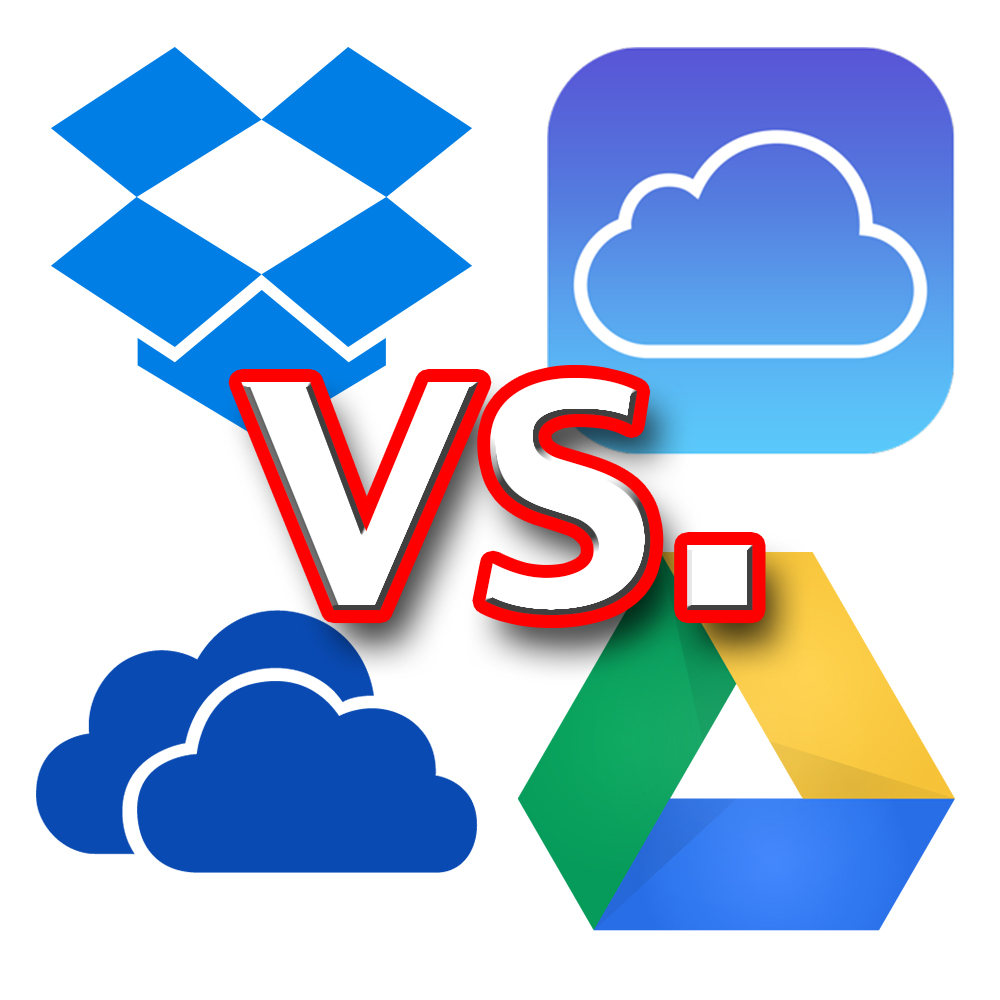
The logos of Dropbox, iCloud, Google Drive, and OneDrive (clockwise from top left)
There are lots of companies that offer cloud storage, and several of them are quite well known. This post is going to focus on the services that I (subjectively) view as the major players, and which service is best for you.
I feel certain that there is no one cloud storage service that is best for everyone. Instead, I think that each has certain advantages depending on how you use it and which devices you use.
As I mentioned last week, I actually do not pay for storage from any of the companies that I will describe below. I use the free storage amount from several different companies: Dropbox, Google Drive, and iCloud from Apple.
This isn’t a very practical long-term solution, because I’ve got many more files on my computer and other devices than can fit in the free storage allotments. And the more providers I sign up for, the harder it gets to keep track of what files I’ve stored on which service.
So I recommend using the free storage space each provider offers as more of a trial run. You get to see how the service works without plunking down your money first. Once you decide which one works best for you, then decide how much storage you need to pay for.
I’ve only recently begun to feel that paying for a cloud storage subscription might be worth the money for my family. By using those three services, I’ve started to get an idea of which one I’d prefer to pay for.
So without further ado, here’s a comparison of the four main cloud storage providers[1].
Dropbox
Dropbox is the platform that really first made cloud storage usable for the ordinary folks like us. It’s also unique on this list because the company was created around this cloud storage service; the others on the list are branches of much larger tech companies.
Pricing: 2GB free…1TB $10/month
Pros: Available on almost any device, simple pricing plan, very customizable
Cons: Smallest amount of free space, not automatically integrated with Google, Apple, or Microsoft
Best for: People who own a mixture of devices, such as an iPhone, Windows PC, and Kindle Fire.
Google Drive
Formerly known as Google Docs, Google Drive is available with any Google or Gmail account. Included with Android phones, whose software is made by Google.
Pricing: 15GB free…100GB $2/mo…1TB $10/mo (Free space is shared with Gmail and Google+ storage)
Pros: Most free storage, familiar design to users of Gmail’s website/apps
Cons: Stores and shares files, but not many other features
Best for: Android phone users or people who use Google products heavily
OneDrive (Microsoft)
Formerly SkyDrive, Microsoft has revamped their cloud storage service and OneDrive is a big part of their focus with the newer Windows operating systems.
Pricing: 15GB free…100GB $2/mo…200GB $4/mo
Pros: Works extremely well with Microsoft Office, generous free storage
Cons: File sharing not as simple as others
Best for: Microsoft Office users or those with newer Windows computers/tablets
iCloud Drive (Apple)
Formerly called just iCloud, Apple’s revamped storage service was updated this fall. iCloud Drive is notable for features tied in with Apple devices, such as backing up the entire device and locating the device if you lose it.
Pros: Coordinates data and settings between multiple Apple devices, new family sharing helpful for family accounts
Cons: Less free storage, no Android app
Best for: Those with multiple Apple devices
Conclusions
As you can see, pricing is very competitive between the providers. I expect storage allowances to continue to rise in the coming years, making it even more feasible to store almost everything on your computer in the cloud.
To me, the biggest difference among the services is the integration with other software/hardware made by the companies.
Dropbox only does cloud storage, and is a good option for those with a variety of device types. Outside of those rare cases, I think it’s at a disadvantage because it’s not tied in with one of the other major companies.
For those who use Google or Apple products heavily, I think Google Drive or iCloud Drive will work really well. I use Apple products heavily and love the features of iCloud, and I’m sure the same is true for Google/Android fans.
OneDrive (the only one of these I haven’t personally used) seems like a great fit for those who use Microsoft Office often, or have a newer Windows PC or tablet. If you use the newer versions of Windows or Microsoft Office, I’d recommend giving OneDrive a try. It’s not as well known, but I see it as a great option for many people.
——————–
Which of these do you use, and what’s been your experience? Do you have a favorite I haven’t mentioned? Join the conversation below! I’d love to hear from you.
1 – Amazon also has a cloud storage service. Although I haven’t included it in this comparison, if you use Amazon frequently or own their devices (such as Kindles), consider checking out what they offer here.
Just this week Apple released the latest version of their operating system for iPhones, iPads, and iPod Touches. It’s called iOS 8, and it’s a free upgrade for Apple users. Last year’s iOS 7 included visual changes to almost everything; it took a while to get used to. This year’s update looks very similar to iOS 7 and is more of a refinement, adding various features that most people will find useful.
If you’re an avid iPhone user, you’ve probably already upgraded. If you have an iDevice and aren’t sure if or how to upgrade to the newest operating system, I’ll help you out.
CAN you upgrade?
Apple’s official iOS 8 website says eligible devices are the following: iPhone 4S and later, iPad 2 and later, and iPod Touch 5th gen. and later. The biggest missing name from their last update is the iPhone 4, so if that’s your phone you won’t be able to get the newest update[1].
SHOULD you upgrade?
Every time Apple (or similar companies) update their operating systems, the new versions are typically designed to work best on the newest, most powerful hardware available (in this case, the newly announced iPhone 6). So this means that older phones, computers, etc. will run a little more slowly when upgraded to the latest system[2]. This is probably the main reason iPhone 4 and the original iPad aren’t included in this update.
If you have an iPhone 5, 5C, or 5S, any possible slowdown will be tiny, if not imperceptible. I’d say definitely upgrade. If you have the iPhone 5S, you’ll have the option to use the Touch ID fingerprint sensor to log in to all kinds of apps — one of my favorite new features.
Any of the iPads after iPad 2 (such as Air or Mini) should also handle the upgrade without a problem. Definitely upgrade. If your device is one of these, feel free to skip to the next section.
But the iPhone 4S and iPad 2 will run more slowly on iOS 8, and probably noticeably so. Ars Technica has written a couple of good articles detailing what to expect if you upgrade your iPhone 4S or iPad 2.
I happen to use both these devices. I’ve already upgraded my iPhone 4S, and I think I notice various animations being a bit slower (so I actually turned some of them off to help a bit). However, to me the additional features and functions that were added made the upgrade worth the (at times) slower operation.
Another consideration: this is the smallest screen size Apple still sells, and some new features mean you’ll see even less on the screen than before when the keyboard is up.
I’m doubtful I’ll upgrade our iPad 2 to iOS 8. We most often use it for reading books or checking email. I rarely use it for messaging or other uses where new features seem really promising. I’m happy with the way iOS7 works with the ways we use it, and it seems a safe bet that it will also be noticeably slower with iOS 8. Based the Ars Technica article I mentioned earlier, I don’t recommend iPad 2 owners upgrade.
HOW do you upgrade?
Chris Breen of MacWorld wrote a step-by-step guide I highly recommend. I’ll give you the summary version.
First, back up your device. You can either do it on your computer with iTunes or back up to iCloud through Wi-Fi. The iOS 8 install shouldn’t erase anything, but things go wrong now and then. It’s always a good idea to back up your data.
To download the update and install it, you have two options. Download it wirelessly via the Settings app on your device, or plug the device into your computer with the USB cable and upgrade in iTunes.
The simpler way is probably from the Settings app, but if you have limited space on your device, you’ll want to do the install via iTunes. The installation file that’s temporarily downloaded can be several gigabytes in size.
I recommend starting this before you go to bed, because the installation file can take a long time to download depending on your Internet speed. Once it’s downloaded, it may take up to another hour to actually complete the installation.
Once complete, you’ll have to go answer a couple setup questions. For reasons explained here, if you also use a Mac and store files in iCloud, I’d choose “Not Now” when you’re asked if you want to upgrade to iCloud Drive. Do that once the new Mac operating system comes out in a month or two.
And that’s it! If you’re upgrading to iOS 8, enjoy the new features. Again, you can learn more about what’s new here and here.
Have you updated to iOS 8? What do you like or dislike so far?
I’d love to hear from you! Leave me a question or comment about anything below.
1 – Frankly, iOS 8 would probably run so slowly on the iPhone 4 that you wouldn’t want to upgrade anyway.
2 – For the same reason, certain new features in any new operating system won’t work on older devices, even if they’re fast enough to run it without any problem.
Living dangerously can be exciting! That’s why some people love skydiving or rock-climbing. On the other hand, using Windows XP is dangerous, but not exciting. If you use a computer with Windows XP (or have a friend who does), this quick post is really important for you! (If you’re not sure, Microsoft’s amirunningxp.com website will tell you right away.)
Microsoft has ended support for Windows XP[1]. It’s a 12-year-old operating system, and this is a normal thing Microsoft does as it continues to introduce new versions of Windows. But it’s a big, big, BIG deal for people still using XP.
Operating system market share as of June 2014 (Photo courtesy of netmarketshare.com)
Why is this a big deal? First of all, check out the chart to the right. 1 out of 4 computers still runs Windows XP (the green wedge of the pie). That’s a lot of people affected by this end-of-support date! So if you’re still a Windows XP user, you’re not alone.
So what makes Windows XP dangerous? Well, Microsoft (and Apple) regularly offer free updates for their operating systems that users can download or install. These updates are primarily help protect your computer from newly-discovered hacks, viruses, and other bad stuff out there. Microsoft will no longer be providing these security updates for Windows XP!
In other words, Windows XP computers will become prime targets for hackers, because there are so many computers still running it and the hackers know Microsoft will no longer fix vulnerabilities that are found. Microsoft patched about 100 XP vulnerabilities last year alone[2]. This year they will patch ZERO (again, this isn’t a mistake by Microsoft; it’s normal procedure).
So what should you do? Well you have two options:
Option 1: Install Windows 8 on your current computer.I DON’T RECOMMEND THIS, mainly because if you have Windows XP, your computer likely doesn’t have the power to handle the new operating system well, if at all. (It will also cost $119 or $199, depending on the version.)
Option 2: Buy a new computer. Look, I hate telling you to go spend money. But Windows XP isn’t safe to use anymore! My recommendation is to buy a new computer with a newer operating system included. Feel free to check out this great laptop buying guide from Walt Mossberg or my post last week on Macs vs. PCs.
Bottom line: you’ve got to move on from Windows XP for security reasons, but a newer computer and software will serve you well.
If you want some danger in your life, I’d recommend skydiving or rock climbing instead of Windows XP.
What topics do you want to hear about? Submit your question or comment below!
Aaaaaand in this corner… (Photo courtesy of apsotech.blogspot.com)
A reader writes in: “At my school, they promote Mac laptops over PC’s. What are the difference between Mac’s and PC’s? Is one better than the other? Thanks!”
When I was looking at different options for universities, I noticed one of my top choices required journalism majors to have a Mac. I’d only used Windows PCs before[1]. So I started researching. I ended up going to a different school, but I did buy a Mac for college.
That computer lasted me 5 years, and when it died I bought another Mac. I know there are a lot of people who are fanatical about one system or the other. I have experience with both Macs and PCs, and I’ll give you as unbiased of info as I can.
First though, check out this Apple ad from 2006:
I think it’s a good laugh (apologies to any of you who have recounted your vacations with a pie chart). In reality though, Macs and PCs are much more similar than this ad implies (and PCs do a lot more than spreadsheets!) There are differences, however, and here are the main ones I see between the two:
Advantages of Macs:
-Apple makes both the hardware and software for Macs. In contrast, Microsoft makes the the software (Windows) for PCs, while other companies make the hardware (Acer, Dell, HP, etc.)[2]. If you buy an HP laptop, it will often have some HP software installed on it, plus trial versions of software like anti-virus. By contrast, all software that comes with a Mac is made by Apple, so no extra, hidden software eating up your computer’s performance.
-Likewise, Macs do come with apps like iPhoto and iMovie, which can be very helpful for organizing your photos and creating home movies.
–The vast majority of viruses and malware are created to target Windows computers[3]. These problems are so rare on Macs that many people say Mac owners don’t even need antivirus software. (Of course, you should always use good judgment when clicking on websites and downloading files, regardless of your operating system.)
–The parental controls options and backup software included on Macs are much easier to access and use than on PCs (although Windows 8 has made backup simpler).
–Apple has better support, both online and in-person at their Apple Stores. In addition, when Apple updates their operating system, Mac users get to download it for free. On the PC side, you still have to pay to upgrade to new Windows versions (unless you buy a new PC).
Advantages of PCs:
–PCs have many more options available. In addition to many different hardware manufacturers to choose among, each of those manufacturers often offer more choices than Apple does with it’s PCs. The choices include color, design, size, and many internal choices, too.
–PCs are much more upgradeable (is that a word?). Macs are becoming less able to be upgraded without taking them in to an Apple store. By contrast, a PC user could replace almost any internal hardware from home.
-Here is the most obvious difference to most people: PCs are almost always less expensive. The cheapest Mac laptop currently costs about $900 regularly, while comparable PCs run about $700. And there are options among PCs even cheaper than that.
Conclusions:
-If your work or school requires a certain operating system, don’t look to me for help!
-If you want specific customization options or want to build a computer for a specific purpose (like computer games), definitely go with a Windows PC.
-If you are interested in trying things like editing photos or videos, or recording music, look for a Mac, which has great apps for those things built-in.
-For the average person, I believe a Mac will give you the best overall experience, due to its simplicity, dependability, and support after the purchase. It’s also similar enough to a PC that switching is not usually a difficult process.
-For a person who expects to only write emails and documents, check social media, etc., a PC is a fine choice. The price difference between a low-end PC and a low-end Mac is big, and both will handle those basic tasks just fine.
Neither option is right or wrong…just a better option for your particular situation. I hope I’ve made things clearer for you. Let me know if you have any questions about this.
Plus, fill out the form below and your question could be the topic next week! I’d love to hear from you.
1 – PC stands for “Personal Computer.” Technically, a Mac is a personal computer, but PC has come to refer only to computers running the Windows operating system. So that’s how I’ll use PC in this blog post.
2 – Laptops running a Google operating system (known as Chromebooks) have been on the market for a couple years. Google’s OS is specifically designed to be connected to the Internet almost all the time.
3 – This is due to a combination of the more secure way Macs’ operating system is designed and the fact that 90% of computer users use Windows.

 Microsoft last month announced the upcoming release of their newest operating system, Windows 10. (Yes, their previous OS was Windows 8. They skipped Windows 9 apparently.)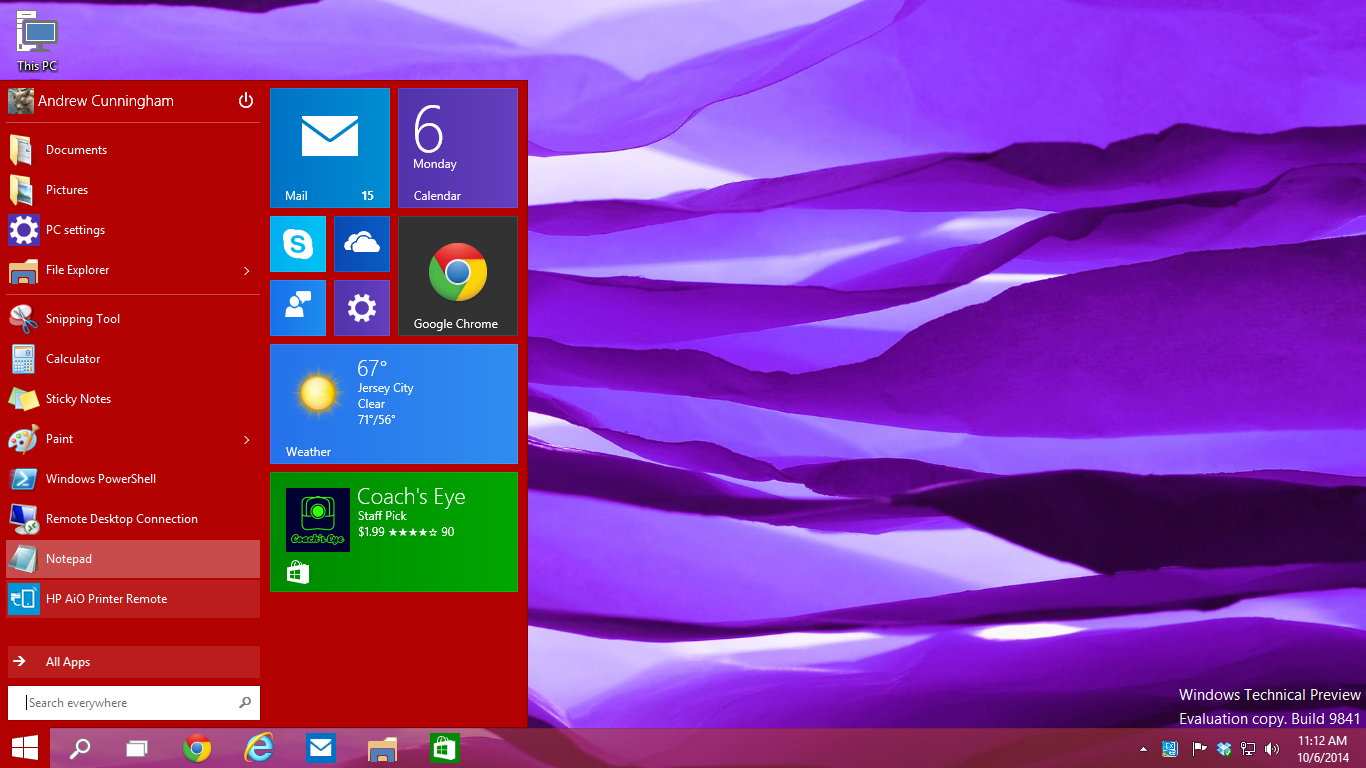





 Paul B. Brown | Video Producer