How to back up your computer (Just get started!)

Note: This is the second half of a two-part introduction to backing up your computer. Last week’s post explained why this is so important and what you should look for in buying a backup hard drive.

Socrates bust
Socrates would’ve been wise enough to back up his computer (Photo courtesy of wikipedia.com)

As Socrates once said, getting started is the hardest part of a big project. Well, maybe that was my dad who said that when I procrastinated on the gigantic research paper in 12th grade English.

Well the same thing is true in computer backups! And it’s actually a lot better than a gigantic research paper: once you set up your backups, all you have to do is plug in your hard drive every so often. Everything else is automatic! How easy is that?

You need an external hard drive (we covered that last week). You need backup software (it came with your computer, ready to go!) And you need to know how to set it up the first time (we’ll cover that here).

We’re going to start with Windows 8 computers. If you have Windows 7, click here to skip ahead to that section. If you’re on a Mac, click here. (If your computer has Windows XP, you’ve got bigger problems, but you can click here to read about XP’s backup software.)

Windows 8

Windows 8 calls its backup software File History, and it’s the best backup software yet for Windows. Here’s how to use it:

File History setup
File History page in Windows 8 (Photo courtesy of howtogeek.com)

Click “Control Panel” on the start screen, then scroll to the bottom of the list and select “More settings.” In the Control Panel window that appears, click “System and Security,” then look for “File History” at the bottom of the list. (Come on Microsoft, this is harder to find than it should be!)

Now you’re in File History, and you’re almost done. Once you plug in your external hard drive, you’ll see a button labeled “Turn on.” Click it, and you’ve set up your backups!
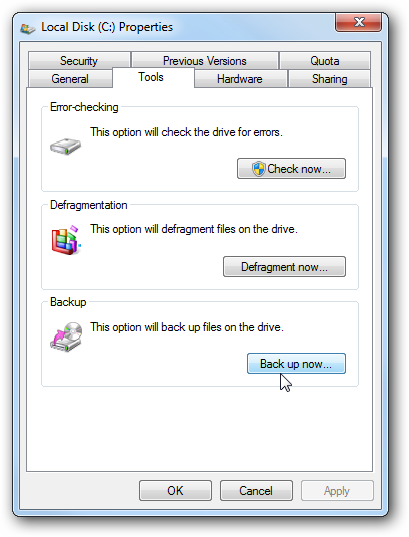
Windows 7 Tools tab
The Tools tab in Windows 7 (Photo courtesy of howtogeek.com)

Windows 7

Windows 7 uses a program called Backup and Restore. It’s a big improvement over what came with previous versions of Windows. Here’s how to get started:

Open “Computer” from the Start menu, right-click on your Local Disk, and select “Properties.” Click the “Tools” tab, and then the “Back up now…” button. Click “Set up backup.”

You’ll see your external drive in the list, and it should be labelled Recommended. Select it and click Next. In the next window, have Windows choose what to back up (again, it’s the Recommended setting.)
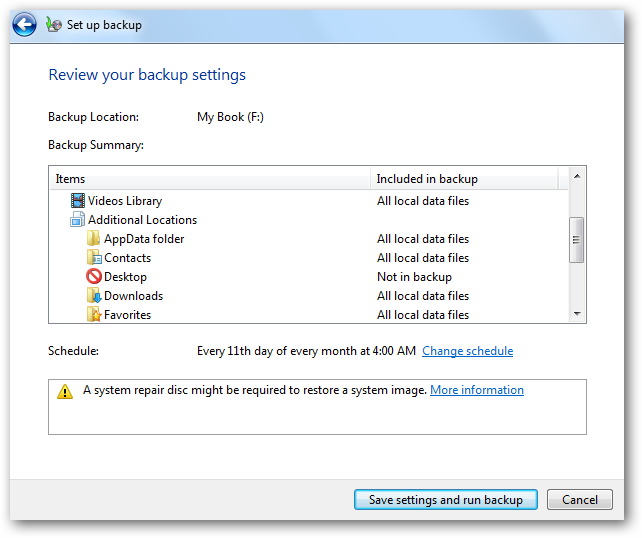
Windows 7 review page
Review your backup settings in Windows 7 (Photo courtesy of howtogeek.com)

You’ll notice in the next window that Windows has set a schedule for when to back up your hard drive. Change it if you want (I’d change it to at least once a week), then click “Save settings and run backup.” Ta-da! You’ve started your first backup. Congratulations!

Mac

Macs use Time Machine. Very easy to set up, and makes it almost fun to go recover an accidentally deleted file. Here’s how to set up Time Machine:

Time Machine Preferences
Time Machine Preferences page (Photo courtesy of support.apple.com)

Click the Time Machine icon in the top menu bar (looks like an analog clock face), and click “Open Time Machine Preferences…)

First, hit the big switch on the left side of the window to turn Time Machine from OFF to ON. Once you plug in your external drive, you’ll click “Select Disk.” You’ll see a drop-down menu of available disks. Choose yours, click “Use disk,” and Time Machine will run your first backup in a couple minutes!

Wrapping up:

One important thing to keep in mind after you finish setting things up: Windows 8 and Mac computers will run a backup every hour when the external drive is plugged in. Windows 7 runs a backup once a month by default, and if you don’t have your drive plugged in, then you miss that month’s backup.

The easiest thing to do is just leave the hard drive plugged into your computer all the time. That’s better than having no backup! But keep in mind what I said last week about the importance of offsite backups.

I promise getting started is the hardest part! Hopefully these steps will make that process easier for you. If you felt this was helpful to you, please pass it along to someone else who might need help!

As always, if you have any questions or a topic you want help with, send it to me with the form below. I can’t wait to hear from you!

Go back

Your message has been sent

Warning
Warning
Warning
Warning

Warning.

Making Technology Simpler

Marty McFly hoverboard
Great Scott! This scene was set in 2015!

In the 1940s, we saw Dick Tracy’s wrist-radio and thought of how much easier life would be if we could call people without finding a pay phone.

In the ’60s, we saw Rosie, the Jetsons’ robot maid, and dreamed of how much more enjoyable life would be if robots could clean our houses.

In the ’80s, we saw Marty McFly riding that hoverboard and dreamed of…well, being able to skate across water?

Personal technology[1] has always seemed to promise an easier and more enjoyable life. But if you walk into an electronics store today, you can buy a wristwatch that allows you to make phone calls or a robotic vacuum cleaner. (I’m still searching for the hoverboard aisle.) Why then aren’t we all wearing smartwatches and having our floors vacuumed by Roombas? I say there are two main reasons: price and complexity.

From lightbulbs to phones, each innovation in personal technology has been introduced to the public at a price that you or I can’t afford to pay. But as time marches on, these innovative products are improved upon, and previous models become more and more affordable.

For example, in 1984 the Motorola DynaTac 8000 was the very first cell phone sold. It cost $4000 and weighed almost 2 pounds. As the price dropped and cell phones continued to improve, more people began to use them. Now almost half the people on the planet use a cell phone. New innovations and just-released products aren’t bought by many people…not yet, at least.

These new inventions and innovations might give us a glimpse into what personal technology will look like years down the road, but I will rarely talk about them in this blog. On the other hand, many of the personal technology products available to us today have reached a price point where their benefits in our daily lives might very well outweigh their cost.

This brings me to the second thing that keeps us from adopting new technology into our daily lives: complexity. Often, new devices just add more headache to our lives than benefits. In some cases, I’d say the answer is to stick with what you’re used to.

But many times these new technologies only feel overwhelming until you understand them better, and then you begin to realize their benefits in your day-to-day life. Maybe you’ve heard someone say you need to back up your computer, but you have no idea how. Do you even need a smartphone? What about lightbulbs: incandescent, fluorescent, LED, halogen? DVD or Blu-Ray?

That’s where I hope this blog will help you out. My goal is to help you make sense of the options out there in personal technology, and in language that’s understandable. What options are there, and what’s best for you? Will it actually make your day-to-day life easier and more enjoyable? Maybe you already have a certain product, but you’re trying to figure out how to use it more effectively.

I won’t be able to troubleshoot specific problems, but other people probably have those same questions you do. I’d love to help you understand what you’re using more clearly and make technology simpler for you.

Welcome to the first post on my new blog! If you feel this blog might be helpful for you, please come back. I plan to post on a new topic weekly, and I’d love to talk about what matters to you. If you want to get my posts sent to you by email, just click the “Follow” button on the right side of this page.

Maybe you feel pretty tech-savvy, but you know someone who could use some help in this area. Pass this on to them!

Fill out the form below to send me a question, and I’ll do my best to answer it. See you next week, and in the mean time, let me know what you want to talk about!

Go back

Your message has been sent

Warning
Warning
Warning
Warning

Warning.

1 – When I say “personal technology” I’m referring to technology people use on a regular basis. So this includes things you might carry with you (like phone or laptop) but also things you would use in your home (TV, air conditioner, Wi-fi router, Xbox, etc.)