Taking care of your batteries

Pop quiz: do you own a lithium-ion battery?

battery charging

Answer: YES! In fact, you are probably reading this blog post on a smartphone, tablet, or laptop (all of which contain these batteries).

By nature, all lithium-ion batteries have a limited lifespan – typically 2-4 years. But the actual lifespan depends a lot on how the battery is used.

So that’s what we’re going to look at today: how can you use your batteries so they last as long as possible before needing to be replaced?

Almost all portable gadgets are powered with lithium-ion batteries. Basically, if it doesn’t run on AA, AAA, or the like, it runs on a lithium-ion battery: cameras, cordless drills, electric cars, etc.

The batteries used by most people most of the time are the ones in cell phones, tablets, and laptops. But the following tips apply to all lithium-ion batteries[1].

DON’T use the battery all the way to 0% regularly. 

It’s best to recharge the battery before the device turns itself off. For example, use your computer to write some emails, then plug it back in to charge.

DO fully discharge the device about once a month.

This helps the device give you an accurate estimate of how much longer it will run before needing to be recharged. Every now and then just run the device on battery power until it gives you a low battery warning and powers down.

DON’T use it plugged in while the device is fully charged. 

I’m looking at you, person-who-owns-a-laptop-but-uses-it-like-a-desktop! Your laptop has a battery for a reason; if you use it you’ll help it last longer.

DO store the device long-term at around 50% charged.

If you plan to store the battery unused for months at a time (think power tools put away for the winter), don’t store them fully charged or fully depleted. Aim for about half-charged, more or less.

DON’T store the device in extreme temperatures.

Extreme temperatures are a very bad thing for lithium-ion batteries, particularly heat. So hot cars and attics are not good places for batteries or devices with batteries. Also, if you have your phone in a case and notice it getting it warm/hot while charging, removing it from the case to charge will help keep it healthy.

DO charge it fully before using it for the first time.

When you buy a new device with a lithium-ion battery, start by completely charging the device before you turn it on for the first time.

In short, if your gadget has a battery, use it. Try to keep it around room temperature when possible.

Fill out the form below to give me an idea or ask a question. Thanks!

Go back

Your message has been sent

Warning
Warning
Warning
Warning

Warning.

1 – Sources: Ars Technica, Apple, and Battery University

GoPro cameras

GoPro in use
GoPro in use (Photo courtesy of gopro.com)

When my dad was a kid, my grandfather took lots of home videos. They’re great family memories, and I recently converted them to digital files and DVDs. One problem: out of the hours of footage, my grandfather is in only a couple quick scenes…because he was BEHIND the camera almost all the time!

This has been an issue with home videos since video cameras started to become common in households. Enter Nick Woodman. He was a surfer who wanted video of himself surfing. So he created GoPro cameras (for more, check out this amazing 60 Minutes story.

GoPros are pocket-size cameras with a huge variety of attachments that allow them to be put in all kinds of places: bicycle handlebars, hats, surfboards, cars, etc. (See the little camera in the photo at the top? Click the picture for a larger image.) Plus they come with in a plastic case that makes them waterproof and pretty much indestructible.

That combination allows them to be used to capture moments that would otherwise be nearly impossible to record. For example:

And here’s something I want to record with my dog if/when I get a GoPro:

GoPros are now the best-selling camera, and they have become relatively affordable (starting around $200).

Now I know a lot of you readers don’t foresee yourself surfing in the near future. I’m with you. But there are lots of other situations when it might be great to capture yourself doing something: playing softball, throwing a surprise party, sharing Thanksgiving dinner with the family, hanging next to your bird feeder, seeing what your dog/cat does while you’re away from home. The possibilities seem endless.

What should we discuss next? Fill out the form below to give me an idea or ask a question. Thanks!

Go back

Your message has been sent

Warning
Warning
Warning
Warning

Warning.

Mac vs. PC – longevity

Apple's MacBook Air
Apple’s MacBook Air (Photo courtesy of apple.com)

After reading my earlier post about the differences between PCs and Macs, a reader wrote in with a follow-up question: “I’ve heard the life expectancy is longer for a Mac, is this true?”

That seems to be a fairly common assumption, especially among Mac owners (who probably paid more for their computer than their PC-toting friends).

My personal experience seems to agree with that premise, but I’m one of those Mac owners who paid more for my laptop than the average person.

So I want to see some hard evidence before I call it fact. And I haven’t found any. Every source I’ve found seems to be more personal anecdotes.

I think most people would agree that Macs are built of more durable materials than all but a few PCs (aluminum vs. plastic, etc.)

However, that brings me to one of my biggest frustrations about Macs (and Apple hardware in general): Macs are not user-upgradeable.

Once upon a time, if your Mac was starting to run slowly, you could buy more memory and install it yourself. If your battery no longer held much juice, you could buy a new one and swap it out. That kept the computer functional for at least a couple more years.

Not anymore. Now, the outside of the computer is shut with special screws and most parts inside are glued or soldered in place. This is a trend that Apple began several years ago and doesn’t show any signs of slowing down.

This may make for a more durable computer (especially in a laptop), but it also means you need to pay close attention to the memory, hard drive, etc. when you’re purchasing the computer because you won’t be able to upgrade them later.[1]

In conclusion: while I do think Macs offer the best user experience for most people, I don’t think they necessarily have a longer life expectancy than PCs.


Fill out the form below with a question or comment. I’d love to hear from you!

Go back

Your message has been sent

Warning
Warning
Warning
Warning

Warning.

1 – I think the RAM (aka memory, or how well the computer can multitask) is a much higher priority for upgrading at purchase, because you can always plug in an external hard drive or thumb drive to add additional storage to the computer down the road. No such options exist for RAM.

Extended Warranties: to Buy or Not to Buy

Extended Warranty seal
Are extended warranties worth buying? (Photo courtesy of skydenelectronics.com)

A reader from Peoria, IL asks, “What is the rule of thumb for when to buy a warranty for your electronics purchase?”

That’s a great question. I have some personal experience in this area, because I worked in sales for a large electronics retail store not too long ago. Extended warranties were one of the things we offered customers (and were told to offer to every customer making a major-ish purchase).[1]

Electronics retailers make a very high profit margin on extended warranties, which is part of the reason many people with whom I talked were very skeptical of extended warranties.

I personally don’t think you should avoid extended warranties just because retailers make a profit on them. After all, it’s a very similar business model to the one insurance companies use.

However, I do think you should avoid extended warranties, and here’s why:[2]

Why NOT buy an extended warranty?

Overlap in coverage: The extended warranty starts day one, not after the manufacturer’s warranty expires. If the manufacturer’s warranty lasts one year and you buy a three-year extended warranty, you are actually getting two extra years of coverage, not three. Similarly, if you buy a plan that covers accidental damage, it will also cover product defects, which were already covered by the manufacturer. Why pay for coverage you already have?

Products don’t usually break during the extended warranty window: Consumer Reports’ research indicates that products are most likely to break either during the manufacturer’s warranty or long after the extended warranty has expired. (Not the day after the warranty expires, as some believe.) So IF the product has problems before the end of its expected lifespan, it will most likely be during the first year.

Your credit card might cover you: Some credit cards will extend the manufacturer’s warranty past it’s original expiration. American Express is best known for this, but other cards may have similar benefits. Check the fine print on yours.

Here’s what you should do instead:

Find out how much the extended warranty would cost you, and put that amount of money aside into a dedicated electronics repair fund. After doing this for a few purchases, you’ll probably already have enough saved to cover an unexpected repair or replacement out-of-pocket – and without purchasing an extended warranty. In other words, you are your own insurance plan.

This plan of action may not be easy to implement and keep up, but it’ll allow you to sleep easier at night without spending money on an unnecessary insurance plan.

Leave a question or comment below! Thanks!

Go back

Your message has been sent

Warning
Warning
Warning
Warning

Warning.

1 – Every product comes with a manufacturer’s warranty, generally anywhere from 90 days to 2 years. On major items such as TVs, computers, PlayStations, or cameras, the most common manufacturer’s warranty lasts 1 year. Manufacturer’s warranties essentially cover problems that are the manufacturer’s fault: manufacturing issues, defective parts, etc. Extended warranties are offered by a third party (examples include Best Buy’s Geek Squad Protection, and SquareTrade, which sells their extended warranties online). These typically cover the same things as the manufacturer’s warranty, but may cover other things such as accidental damage. The main distinction is that they last longer, up to 5 years (depending on the product covered).
2 – I based some of my ideas on two different resources: Consumer Reports and U.S. News and World Report

What’s wrong with Windows XP?

Living dangerously can be exciting! That’s why some people love skydiving or rock-climbing. On the other hand, using Windows XP is dangerous, but not exciting. If you use a computer with Windows XP (or have a friend who does), this quick post is really important for you! (If you’re not sure, Microsoft’s amirunningxp.com website will tell you right away.)

Microsoft has ended support for Windows XP[1]. It’s a 12-year-old operating system, and this is a normal thing Microsoft does as it continues to introduce new versions of Windows. But it’s a big, big, BIG deal for people still using XP.

OS market share
Operating system market share as of June 2014 (Photo courtesy of netmarketshare.com)

Why is this a big deal? First of all, check out the chart to the right. 1 out of 4 computers still runs Windows XP (the green wedge of the pie). That’s a lot of people affected by this end-of-support date! So if you’re still a Windows XP user, you’re not alone.

So what makes Windows XP dangerous? Well, Microsoft (and Apple) regularly offer free updates for their operating systems that users can download or install. These updates are primarily help protect your computer from newly-discovered hacks, viruses, and other bad stuff out there. Microsoft will no longer be providing these security updates for Windows XP!

In other words, Windows XP computers will become prime targets for hackers, because there are so many computers still running it and the hackers know Microsoft will no longer fix vulnerabilities that are found. Microsoft patched about 100 XP vulnerabilities last year alone[2]. This year they will patch ZERO (again, this isn’t a mistake by Microsoft; it’s normal procedure).

So what should you do? Well you have two options:

Option 1: Install Windows 8 on your current computer. I DON’T RECOMMEND THIS, mainly because if you have Windows XP, your computer likely doesn’t have the power to handle the new operating system well, if at all. (It will also cost $119 or $199, depending on the version.)

Option 2: Buy a new computer. Look, I hate telling you to go spend money. But Windows XP isn’t safe to use anymore! My recommendation is to buy a new computer with a newer operating system included. Feel free to check out this great laptop buying guide from Walt Mossberg or my post last week on Macs vs. PCs.

Bottom line: you’ve got to move on from Windows XP for security reasons, but a newer computer and software will serve you well. 

If you want some danger in your life, I’d recommend skydiving or rock climbing instead of Windows XP.


What topics do you want to hear about? Submit your question or comment below!

Go back

Your message has been sent

Warning
Warning
Warning
Warning

Warning.

1 – Windows XP support ended April 8, 2014.
2 – According to http://www.sfgate.com/technology/article/Microsoft-to-end-Windows-XP-support-April-8-5298608.php.

Mac vs. PC

Apple and Microsoft logos
Aaaaaand in this corner… (Photo courtesy of apsotech.blogspot.com)

A reader writes in: “At my school, they promote Mac laptops over PC’s. What are the difference between Mac’s and PC’s? Is one better than the other? Thanks!”

When I was looking at different options for universities, I noticed one of my top choices required journalism majors to have a Mac. I’d only used Windows PCs before[1]. So I started researching. I ended up going to a different school, but I did buy a Mac for college.

That computer lasted me 5 years, and when it died I bought another Mac. I know there are a lot of people who are fanatical about one system or the other. I have experience with both Macs and PCs, and I’ll give you as unbiased of info as I can.

First though, check out this Apple ad from 2006:

http://www.youtube.com/watch?v=4nMvca9JaUo

I think it’s a good laugh (apologies to any of you who have recounted your vacations with a pie chart). In reality though, Macs and PCs are much more similar than this ad implies (and PCs do a lot more than spreadsheets!) There are differences, however, and here are the main ones I see between the two:

Advantages of Macs:

-Apple makes both the hardware and software for Macs. In contrast, Microsoft makes the the software (Windows) for PCs, while other companies make the hardware (Acer, Dell, HP, etc.)[2]. If you buy an HP laptop, it will often have some HP software installed on it, plus trial versions of software like anti-virus. By contrast, all software that comes with a Mac is made by Apple, so no extra, hidden software eating up your computer’s performance.

-Likewise, Macs do come with apps like iPhoto and iMovie, which can be very helpful for organizing your photos and creating home movies.

The vast majority of viruses and malware are created to target Windows computers[3]. These problems are so rare on Macs that many people say Mac owners don’t even need antivirus software. (Of course, you should always use good judgment when clicking on websites and downloading files, regardless of your operating system.)

The parental controls options and backup software included on Macs are much easier to access and use than on PCs (although Windows 8 has made backup simpler).

Apple has better support, both online and in-person at their Apple Stores. In addition, when Apple updates their operating system, Mac users get to download it for free. On the PC side, you still have to pay to upgrade to new Windows versions (unless you buy a new PC).

Advantages of PCs:

PCs have many more options available. In addition to many different hardware manufacturers to choose among, each of those manufacturers often offer more choices than Apple does with it’s PCs. The choices include color, design, size, and many internal choices, too.

PCs are much more upgradeable (is that a word?). Macs are becoming less able to be upgraded without taking them in to an Apple store. By contrast, a PC user could replace almost any internal hardware from home.

-Here is the most obvious difference to most people: PCs are almost always less expensive. The cheapest Mac laptop currently costs about $900 regularly, while comparable PCs run about $700. And there are options among PCs even cheaper than that.

Conclusions:

-If your work or school requires a certain operating system, don’t look to me for help!

-If you want specific customization options or want to build a computer for a specific purpose (like computer games), definitely go with a Windows PC.

-If you are interested in trying things like editing photos or videos, or recording music, look for a Mac, which has great apps for those things built-in.

-For the average person, I believe a Mac will give you the best overall experience, due to its simplicity, dependability, and support after the purchase. It’s also similar enough to a PC that switching is not usually a difficult process.

-For a person who expects to only write emails and documents, check social media, etc., a PC is a fine choice. The price difference between a low-end PC and a low-end Mac is big, and both will handle those basic tasks just fine.

Neither option is right or wrong…just a better option for your particular situation. I hope I’ve made things clearer for you. Let me know if you have any questions about this.

Plus, fill out the form below and your question could be the topic next week! I’d love to hear from you.

Go back

Your message has been sent

Warning
Warning
Warning
Warning

Warning.

1 – PC stands for “Personal Computer.” Technically, a Mac is a personal computer, but PC has come to refer only to computers running the Windows operating system. So that’s how I’ll use PC in this blog post.
2 – Laptops running a Google operating system (known as Chromebooks) have been on the market for a couple years. Google’s OS is specifically designed to be connected to the Internet almost all the time.
3 – This is due to a combination of the more secure way Macs’ operating system is designed and the fact that 90% of computer users use Windows.

How to back up your computer (Just get started!)

Note: This is the second half of a two-part introduction to backing up your computer. Last week’s post explained why this is so important and what you should look for in buying a backup hard drive.

Socrates bust
Socrates would’ve been wise enough to back up his computer (Photo courtesy of wikipedia.com)

As Socrates once said, getting started is the hardest part of a big project. Well, maybe that was my dad who said that when I procrastinated on the gigantic research paper in 12th grade English.

Well the same thing is true in computer backups! And it’s actually a lot better than a gigantic research paper: once you set up your backups, all you have to do is plug in your hard drive every so often. Everything else is automatic! How easy is that?

You need an external hard drive (we covered that last week). You need backup software (it came with your computer, ready to go!) And you need to know how to set it up the first time (we’ll cover that here).

We’re going to start with Windows 8 computers. If you have Windows 7, click here to skip ahead to that section. If you’re on a Mac, click here. (If your computer has Windows XP, you’ve got bigger problems, but you can click here to read about XP’s backup software.)

Windows 8

Windows 8 calls its backup software File History, and it’s the best backup software yet for Windows. Here’s how to use it:

File History setup
File History page in Windows 8 (Photo courtesy of howtogeek.com)

Click “Control Panel” on the start screen, then scroll to the bottom of the list and select “More settings.” In the Control Panel window that appears, click “System and Security,” then look for “File History” at the bottom of the list. (Come on Microsoft, this is harder to find than it should be!)

Now you’re in File History, and you’re almost done. Once you plug in your external hard drive, you’ll see a button labeled “Turn on.” Click it, and you’ve set up your backups!

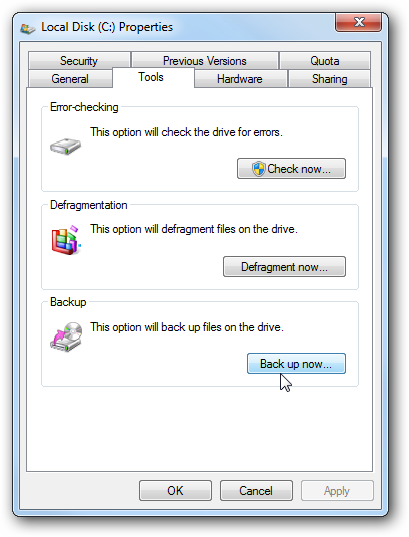
Windows 7 Tools tab
The Tools tab in Windows 7 (Photo courtesy of howtogeek.com)

Windows 7

Windows 7 uses a program called Backup and Restore. It’s a big improvement over what came with previous versions of Windows. Here’s how to get started:

Open “Computer” from the Start menu, right-click on your Local Disk, and select “Properties.” Click the “Tools” tab, and then the “Back up now…” button. Click “Set up backup.”

You’ll see your external drive in the list, and it should be labelled Recommended. Select it and click Next. In the next window, have Windows choose what to back up (again, it’s the Recommended setting.)

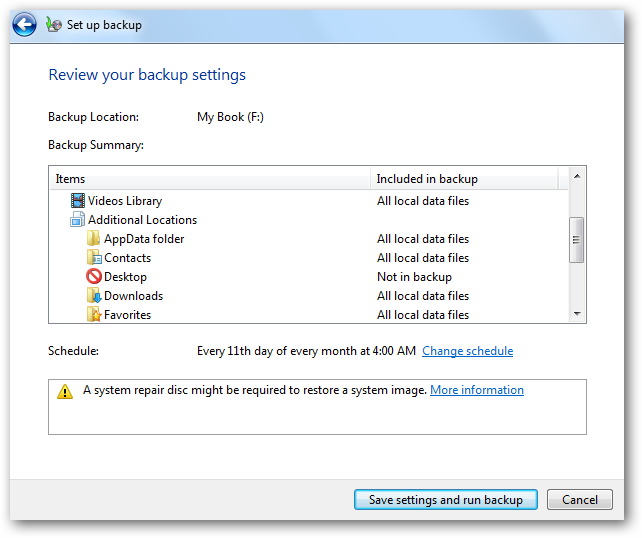
Windows 7 review page
Review your backup settings in Windows 7 (Photo courtesy of howtogeek.com)

You’ll notice in the next window that Windows has set a schedule for when to back up your hard drive. Change it if you want (I’d change it to at least once a week), then click “Save settings and run backup.” Ta-da! You’ve started your first backup. Congratulations!

Mac

Macs use Time Machine. Very easy to set up, and makes it almost fun to go recover an accidentally deleted file. Here’s how to set up Time Machine:

Time Machine Preferences
Time Machine Preferences page (Photo courtesy of support.apple.com)

Click the Time Machine icon in the top menu bar (looks like an analog clock face), and click “Open Time Machine Preferences…)

First, hit the big switch on the left side of the window to turn Time Machine from OFF to ON. Once you plug in your external drive, you’ll click “Select Disk.” You’ll see a drop-down menu of available disks. Choose yours, click “Use disk,” and Time Machine will run your first backup in a couple minutes!

Wrapping up:

One important thing to keep in mind after you finish setting things up: Windows 8 and Mac computers will run a backup every hour when the external drive is plugged in. Windows 7 runs a backup once a month by default, and if you don’t have your drive plugged in, then you miss that month’s backup.

The easiest thing to do is just leave the hard drive plugged into your computer all the time. That’s better than having no backup! But keep in mind what I said last week about the importance of offsite backups.

I promise getting started is the hardest part! Hopefully these steps will make that process easier for you. If you felt this was helpful to you, please pass it along to someone else who might need help!

As always, if you have any questions or a topic you want help with, send it to me with the form below. I can’t wait to hear from you!

Go back

Your message has been sent

Warning
Warning
Warning
Warning

Warning.

Backing up your computer

I’d known my computer longer than I’d known my wife. That MacBook and I had typed school papers and edited videos together. It stored everything from the invitation for my 14th birthday party to my wedding photos. And one day last July, it just wouldn’t turn on.

It turned out the issue was in either the power supply or the motherboard. Bad news because it meant we needed a new computer. Good news because the hard drive was unaffected. We were able to transfer everything on the hard drive to our new computer.

That’s when I realized first-hand the importance of backing up my computer. I hope you haven’t learned that lesson the hard way. If you haven’t, now’s the time.

According to one study, 1 in 20 hard drives fails within the first year-and-a-half of use. After three years, more than 1 in 10 have already failed.[1] What would you miss if you lost all the files on your computer? Don’t risk it!

computer on fire
If your computer is destroyed in a fire, you probably won’t be home. Offsite backups!

Offsite backups

Now that you know the importance of backing up your computer’s hard drive, here’s one more factor that’s extremely important: offsite backups. If your backups are stored on an external hard drive sitting on the same desk as your computer, it’s protecting you against hard drive failure. But if your computer is destroyed by something like a flood, fire, or tornado, that external hard drive is gone, too.

So always keep a copy of your backups in a separate location from your computer! In my case, I have one backup hard drive at home and one in my office. Every week or so I rotate them, so my offsite backup is never more than a week old. You may have another place that makes sense to store a copy (safe deposit box, relative’s house).

Today I’ll help you decide what type of backups work best for you and what hard drive and/or software you’ll need. Next week we’ll talk about how to actually put your backup plan into action!

Buying an external hard drive

The main way to backup your computer is to buy an external hard drive and plug it into your computer when you want to create a backup copy.[2] You have a copy of your files right there in your hands, but you have to remember to plug in the backup regularly and find an offsite location for it.

How much space do you need on your external hard drive? Short answer: at least as much space as your computer’s hard drive has, and preferably double it (more space never hurts).

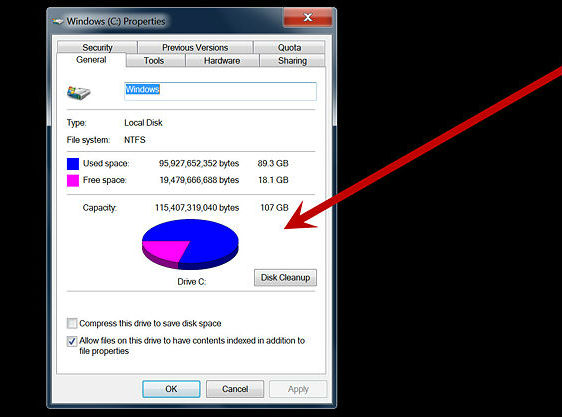
hard drive capacity in Windows
Hard drive capacity in Windows (Photo courtesy of wikiHow)

For Windows: To find your hard drive capacity in Windows 8, open File Explorer[3], right-click on “This PC” on the left side, and click “Properties.” In Windows 7, click the Start button on your desktop and click “Computer.” Right-click on “Local Disk” near the top, and click “Properties.” The Properties window will show your total capacity in gigabytes (GB), as well as how much is used.


Hard drive capacity on a Mac

On a Mac: click the Apple logo in the top-left corner of your screen, and click “About This Mac” in the drop-down menu. In the little window that pops up, click “More Info,” then click the “Storage” tab along the top of the window.

Where to buy

You can find an external hard drive at a local place like Best Buy or at an online store like Amazon. It will connect to your computer with an included USB cable. Again, you’re looking for at least double the capacity of your computer’s drive. Here’s a conversion you will probably need: 1 terabyte (TB) equals about 1,000 GB. A 1TB external drive is around $70 right now. WD, Seagate, or Toshiba are popular and comparable brands.[4]

I hope you’ve realized the importance of backing up all the valuable information you have stored on your computer. Come back next week as I show you how to actually set up your backup software (which is included with your computer). You’ll see that the backups are very easy to do once you’ve initially set up the software.

In the meantime: homework! Go get a hard drive so we can set it up next week.

As always, send me any questions you have or topics you’d like me to talk about. And click the buttons at the very bottom to share this post with someone who might need it. Thanks for reading! See you next week.

Go back

Your message has been sent

Warning
Warning
Warning
Warning

Warning.

1 – Full disclosure: Backblaze, the company that authored this study, offers cloud backup plans.
2 – Another option is “cloud” backups. Two of the more popular options in cloud backups are CrashPlan and Backblaze. This site has a more detailed explanation.
3 – Open File Explorer by swiping in from the right edge of the screen, tapping Search (or if you’re using a mouse, pointing to the upper-right corner of the screen, moving the mouse pointer down, and then clicking Search), entering File Explorer in the search box, and then tapping or clicking File Explorer.
4 – If you have a Mac, you don’t necessary need a drive labelled “For Mac.” They’re typically more expensive, but are ready for your computer out-of-the-box. A non-“For Mac” drive can be quickly formatted to work on a Mac, so decide whether you want pay a little more for a drive pre-formatted for your Mac.

Making Technology Simpler

Marty McFly hoverboard
Great Scott! This scene was set in 2015!

In the 1940s, we saw Dick Tracy’s wrist-radio and thought of how much easier life would be if we could call people without finding a pay phone.

In the ’60s, we saw Rosie, the Jetsons’ robot maid, and dreamed of how much more enjoyable life would be if robots could clean our houses.

In the ’80s, we saw Marty McFly riding that hoverboard and dreamed of…well, being able to skate across water?

Personal technology[1] has always seemed to promise an easier and more enjoyable life. But if you walk into an electronics store today, you can buy a wristwatch that allows you to make phone calls or a robotic vacuum cleaner. (I’m still searching for the hoverboard aisle.) Why then aren’t we all wearing smartwatches and having our floors vacuumed by Roombas? I say there are two main reasons: price and complexity.

From lightbulbs to phones, each innovation in personal technology has been introduced to the public at a price that you or I can’t afford to pay. But as time marches on, these innovative products are improved upon, and previous models become more and more affordable.

For example, in 1984 the Motorola DynaTac 8000 was the very first cell phone sold. It cost $4000 and weighed almost 2 pounds. As the price dropped and cell phones continued to improve, more people began to use them. Now almost half the people on the planet use a cell phone. New innovations and just-released products aren’t bought by many people…not yet, at least.

These new inventions and innovations might give us a glimpse into what personal technology will look like years down the road, but I will rarely talk about them in this blog. On the other hand, many of the personal technology products available to us today have reached a price point where their benefits in our daily lives might very well outweigh their cost.

This brings me to the second thing that keeps us from adopting new technology into our daily lives: complexity. Often, new devices just add more headache to our lives than benefits. In some cases, I’d say the answer is to stick with what you’re used to.

But many times these new technologies only feel overwhelming until you understand them better, and then you begin to realize their benefits in your day-to-day life. Maybe you’ve heard someone say you need to back up your computer, but you have no idea how. Do you even need a smartphone? What about lightbulbs: incandescent, fluorescent, LED, halogen? DVD or Blu-Ray?

That’s where I hope this blog will help you out. My goal is to help you make sense of the options out there in personal technology, and in language that’s understandable. What options are there, and what’s best for you? Will it actually make your day-to-day life easier and more enjoyable? Maybe you already have a certain product, but you’re trying to figure out how to use it more effectively.

I won’t be able to troubleshoot specific problems, but other people probably have those same questions you do. I’d love to help you understand what you’re using more clearly and make technology simpler for you.

Welcome to the first post on my new blog! If you feel this blog might be helpful for you, please come back. I plan to post on a new topic weekly, and I’d love to talk about what matters to you. If you want to get my posts sent to you by email, just click the “Follow” button on the right side of this page.

Maybe you feel pretty tech-savvy, but you know someone who could use some help in this area. Pass this on to them!

Fill out the form below to send me a question, and I’ll do my best to answer it. See you next week, and in the mean time, let me know what you want to talk about!

Go back

Your message has been sent

Warning
Warning
Warning
Warning

Warning.

1 – When I say “personal technology” I’m referring to technology people use on a regular basis. So this includes things you might carry with you (like phone or laptop) but also things you would use in your home (TV, air conditioner, Wi-fi router, Xbox, etc.)