
Note: this is the second part of my TV buying guide. The first post discussed TV resolutions and connections.
If you’ve been shopping for TVs lately, you’ve come across the term “smart TV.” So what’s a smart TV? It’s a TV that connects to the Internet and allows you to watch content from online: movies from Netflix, TV shows from Hulu, or (my guilty pleasure) YouTube compilations of cats falling clumsily.
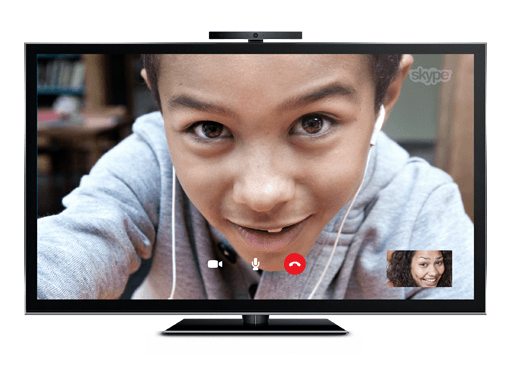
The fact that the TV is connected to the Internet also allows for more unusual uses, such as Skyping with an attached webcam or listening to music through your surround sound speakers with an online music service like Pandora.
These activities used to be relegated to your computer. Now you can enjoy them in your living room on the biggest screen in your house. It’s fantastic to have those abilities.
But I’m still not sure my next TV will be a smart TV. And here’s why.
A potential downside: longevity
Ever since televisions were invented, they served as passive screens simply displaying the video signal fed into them. The video signals came from devices such as antennas, then cable and satellite dishes, then VCRs and DVD players.
A smart TV is different; it’s essentially an all-in-one computer, like an iMac. There’s a small, streamlined computer housed behind the screen, connecting to the Internet and serving you content from various online sources. It works well, and frankly I’ve been pretty impressed by how it works on demo units I’ve seen in stores.
But how long will that computer, and the “smart TV” experience it provides, feel quick and modern?
My suspicion is that the TV’s computer “guts” will feel slow and the software will feel outdated long before the TV screen itself seems inadequate. (This is the same reason I’m skeptical of cars with a built-in screen and computer system.)
Now, it could be argued I’ve kept using my current TV longer than the average person…but I doubt it. I won’t embarrass my parents by publishing exactly how old their TVs are, but both are much older than their computer. I suspect the same is true for most people.
If you tend to get a new TV every few years, this may not be much of a problem for you. But for those of you who don’t, there are other options for accessing online content.
Another option: streaming boxes
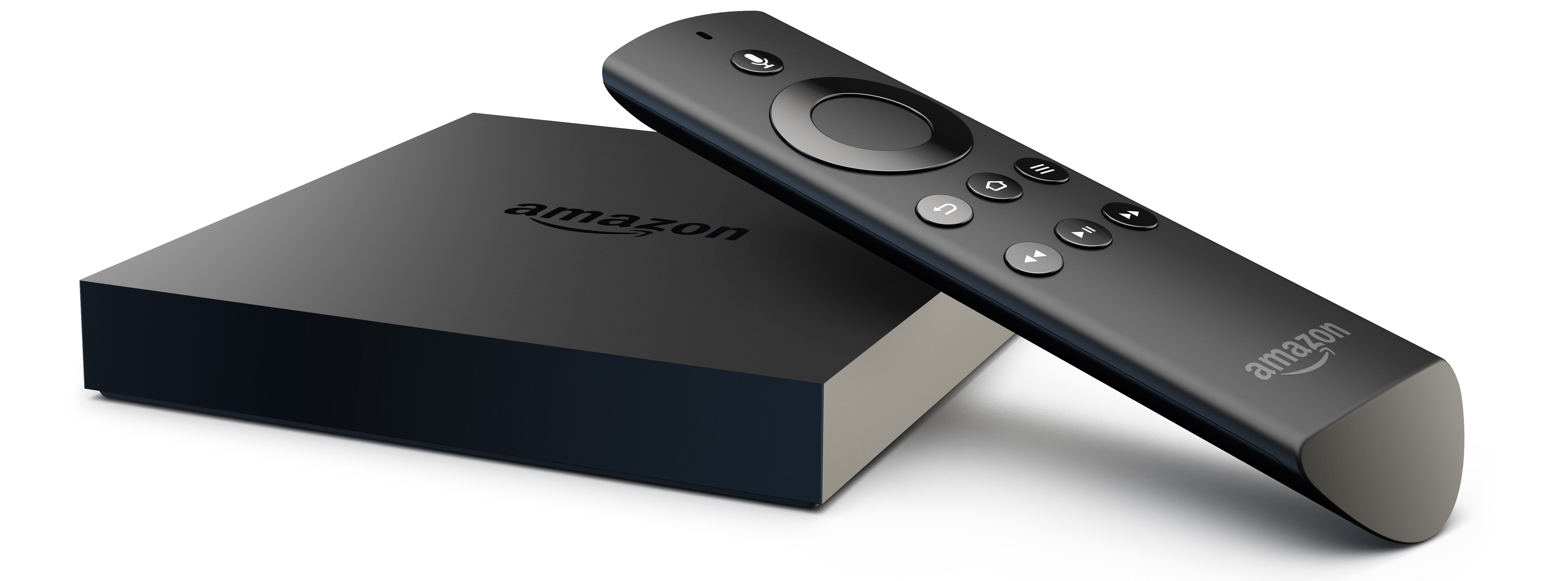
In fact, you may already own a device that can access online content. I’m thinking primarily of streaming boxes, such as a Roku, Apple TV, Fire TV, or Chromecast. Gaming consoles such as a Playstation or Xbox also have some streaming connectivity, and so do many Blu-ray players. And of course, your laptop might also able to connect to your TV when you want to watch something on it.
The benefit of a smart TV over these is simplicity (in theory). Instead of connecting another box and having another remote, it’s built into the TV itself. The ease of use may vary widely, depending on the TV manufacturer and the software it makes (more on that later). But in general, it means one less box to connect, one less cable to plug in, and one less remote to keep track of.
However, streaming media boxes such as a Roku or Apple TV cost $100 or less, and the Google Chromecast costs only about $35. I can live with having to replace one of those with the latest version every few years. I don’t see myself replacing my whole TV that often.
My worry is that when the computer components of your smart TV are out-of-date, you’ll be left with a screen that still works great. You’ll have three options: buy a new smart TV, use your smart TV with its slow or frustrating interface, or buy one of the aforementioned streaming boxes to do what your smart TV no longer can…which is exactly the thing you were avoiding by buying the smart TV in the first place.
That’s why I won’t be paying extra to get a smart TV. A dumb TV will still allow me to plug in my antenna, Blu-ray player (which streams Netflix, YouTube, etc.), and even my computer if I want.
If you don’t use or plan to use streaming video services, then a smart TV would probably be just adding an extra layer of complexity to your living room relaxation.
That being said, you rarely have the choice between a smart TV and a “dumb TV” these days. At the more expensive end of the TV market, almost every single TV is a smart TV. If you’re getting a TV above $1000, it will almost certainly be a smart TV, and even most TVs above $500 are smart TVs now.
Even if you don’t plan to use smart TV features, there’s a good chance you’ll end up with one, and you might be surprised how much you enjoy some of the features on it.
What to look for
So what separates one smart TV from another? The apps that are available and the televisions’ ease of use.

Almost every smart TV includes Netflix support, but if you want to use other streaming services or social media, make sure all those apps are either pre-installed or available through the manufacturer’s app store. If you want to use your new big screen for video calls, see if there’s an included camera or if you’ll need to connect a webcam on your own. Most smart TVs connect via Wi-Fi, but make sure yours does, because you probably won’t want to run an ethernet cable to it to provide Internet access.
The other big question: how easy-to-use are the smart services? A smart TV that’s frustrating to use defeats the whole purpose. If you stream content from multiple Internet services, see if the TV will show you results from all the services when you search for ‘Forrest Gump.’ Does the menu feel cluttered, or is it easy to find the app you’re wanting to use?
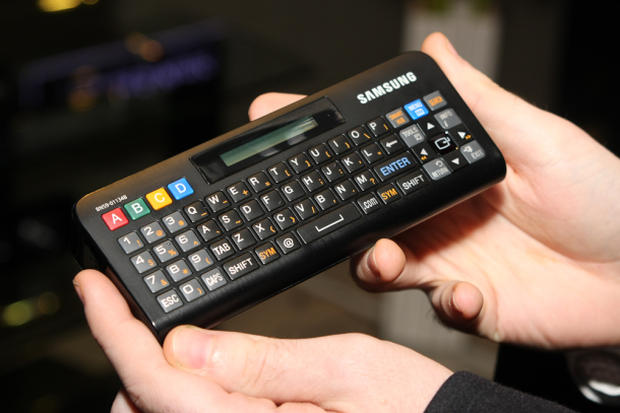
A key factor in ease-of-use is the remote. A full QWERTY keyboard on the remote will help you search much more quickly. Newer smart TVs come with remotes that let you move an on-screen pointer by aiming the remote at the screen (a la the Wii remote). Are there shortcut buttons on the remote for the streaming services you’ll use most often?
Conclusion

Differentiating between smart TVs is difficult to do unless you’re using them in person. If you’re looking at the latest and greatest sets, the manufacturers’ websites may give good demos of their smart TV features. For last year’s models or budget brands, you’ll probably need to try out the smart TV at a friend’s house or in a store.
Think of smart TVs as an all-in-one computer, one with an operating system you’ve never used before. You shouldn’t buy just based off the screen size and quality; you’ll want to see how it actually functions first.
In short, I don’t recommend you pay more for a smart TV, if a dumb TV model fits your budget and suits your needs. But if you do get a smart TV, make sure you’re getting one that’s easy to use and has the apps to meet your viewing habits. That will probably mean looking for a model from a top brand.
Speaking of brand names, next week’s post will cover which brands to look for, and how much brand name matters. Plus, what time of year is best to buy a TV, and more!
-Paul
Got an idea for a future blog topic? Send it to me below. Thanks!



 Paul B. Brown | Video Producer