Microsoft has traditionally sold operating systems for a hefty price…currently a full upgrade to Windows 8.1 costs around $100. This meant that most people don’t upgrade to the newest operating system until they buy a brand-new computer. But Microsoft seems to be trying to change that.
Microsoft last month announced the upcoming release of their newest operating system, Windows 10. (Yes, their previous OS was Windows 8. They skipped Windows 9 apparently.)
Along with announcing the new features of Windows 10, Microsoft also announced that Windows 10 will be a free upgrade for users of Windows 7 and Windows 8.1 within the first year after Windows 10 is released.
So if you’re using Windows 7, don’t fork over your money to pay for an upgrade to Windows 8.1. Wait a bit longer and get a free upgrade to the newest version — Windows 10.
Microsoft hasn’t officially announced a release date for Windows 10, but it’s rumored to be a summertime release in 2015, and that makes sense so they could have Windows 10 installed on new computers in time for back-to-school shopping.
So it seems the one-year window (see what I did there?) for getting your free upgrade won’t start for at least several months. This means if you buy a new PC before then, it will most likely have Windows 8 installed, but you’ll soon be able to upgrade to Windows 10 for free.
Also, if your computer is pre-Windows 7 (XP or Vista), you can feel free to buy a new Windows 7 or 8 computer and will soon be able to get the newer Windows 10 upgrade for free.
Windows 10 desktop and Start Menu (Photo courtesy of arstechnica.com and Andrew Cunningham)
Some of Windows 10’s new features will include automatically installed updates, a new web browser to replace Internet Explorer, and Cortana (Microsoft’s version of Siri). And the Start Menu seems to be returning to its more traditional form after being changed for Windows 8.
Got a topic you want me to blog about? A comment or suggestion? Let me know below!
Just this week Apple released the latest version of their operating system for iPhones, iPads, and iPod Touches. It’s called iOS 8, and it’s a free upgrade for Apple users. Last year’s iOS 7 included visual changes to almost everything; it took a while to get used to. This year’s update looks very similar to iOS 7 and is more of a refinement, adding various features that most people will find useful.
If you’re an avid iPhone user, you’ve probably already upgraded. If you have an iDevice and aren’t sure if or how to upgrade to the newest operating system, I’ll help you out.
CAN you upgrade?
Apple’s official iOS 8 website says eligible devices are the following: iPhone 4S and later, iPad 2 and later, and iPod Touch 5th gen. and later. The biggest missing name from their last update is the iPhone 4, so if that’s your phone you won’t be able to get the newest update[1].
SHOULD you upgrade?
Every time Apple (or similar companies) update their operating systems, the new versions are typically designed to work best on the newest, most powerful hardware available (in this case, the newly announced iPhone 6). So this means that older phones, computers, etc. will run a little more slowly when upgraded to the latest system[2]. This is probably the main reason iPhone 4 and the original iPad aren’t included in this update.
If you have an iPhone 5, 5C, or 5S, any possible slowdown will be tiny, if not imperceptible. I’d say definitely upgrade. If you have the iPhone 5S, you’ll have the option to use the Touch ID fingerprint sensor to log in to all kinds of apps — one of my favorite new features.
Any of the iPads after iPad 2 (such as Air or Mini) should also handle the upgrade without a problem. Definitely upgrade. If your device is one of these, feel free to skip to the next section.
But the iPhone 4S and iPad 2 will run more slowly on iOS 8, and probably noticeably so. Ars Technica has written a couple of good articles detailing what to expect if you upgrade your iPhone 4S or iPad 2.
I happen to use both these devices. I’ve already upgraded my iPhone 4S, and I think I notice various animations being a bit slower (so I actually turned some of them off to help a bit). However, to me the additional features and functions that were added made the upgrade worth the (at times) slower operation.
Another consideration: this is the smallest screen size Apple still sells, and some new features mean you’ll see even less on the screen than before when the keyboard is up.
I’m doubtful I’ll upgrade our iPad 2 to iOS 8. We most often use it for reading books or checking email. I rarely use it for messaging or other uses where new features seem really promising. I’m happy with the way iOS7 works with the ways we use it, and it seems a safe bet that it will also be noticeably slower with iOS 8. Based the Ars Technica article I mentioned earlier, I don’t recommend iPad 2 owners upgrade.
HOW do you upgrade?
Chris Breen of MacWorld wrote a step-by-step guide I highly recommend. I’ll give you the summary version.
First, back up your device. You can either do it on your computer with iTunes or back up to iCloud through Wi-Fi. The iOS 8 install shouldn’t erase anything, but things go wrong now and then. It’s always a good idea to back up your data.
To download the update and install it, you have two options. Download it wirelessly via the Settings app on your device, or plug the device into your computer with the USB cable and upgrade in iTunes.
The simpler way is probably from the Settings app, but if you have limited space on your device, you’ll want to do the install via iTunes. The installation file that’s temporarily downloaded can be several gigabytes in size.
I recommend starting this before you go to bed, because the installation file can take a long time to download depending on your Internet speed. Once it’s downloaded, it may take up to another hour to actually complete the installation.
Once complete, you’ll have to go answer a couple setup questions. For reasons explained here, if you also use a Mac and store files in iCloud, I’d choose “Not Now” when you’re asked if you want to upgrade to iCloud Drive. Do that once the new Mac operating system comes out in a month or two.
And that’s it! If you’re upgrading to iOS 8, enjoy the new features. Again, you can learn more about what’s new here and here.
Have you updated to iOS 8? What do you like or dislike so far?
I’d love to hear from you! Leave me a question or comment about anything below.
1 – Frankly, iOS 8 would probably run so slowly on the iPhone 4 that you wouldn’t want to upgrade anyway.
2 – For the same reason, certain new features in any new operating system won’t work on older devices, even if they’re fast enough to run it without any problem.
After reading my earlier post about the differences between PCs and Macs, a reader wrote in with a follow-up question: “I’ve heard the life expectancy is longer for a Mac, is this true?”
That seems to be a fairly common assumption, especially among Mac owners (who probably paid more for their computer than their PC-toting friends).
My personal experience seems to agree with that premise, but I’m one of those Mac owners who paid more for my laptop than the average person.
So I want to see some hard evidence before I call it fact. And I haven’t found any. Every source I’ve found seems to be more personal anecdotes.
I think most people would agree that Macs are built of more durable materials than all but a few PCs (aluminum vs. plastic, etc.)
However, that brings me to one of my biggest frustrations about Macs (and Apple hardware in general): Macs are not user-upgradeable.
Once upon a time, if your Mac was starting to run slowly, you could buy more memory and install it yourself. If your battery no longer held much juice, you could buy a new one and swap it out. That kept the computer functional for at least a couple more years.
Not anymore. Now, the outside of the computer is shut with special screws and most parts inside are glued or soldered in place. This is a trend that Apple began several years ago and doesn’t show any signs of slowing down.
This may make for a more durable computer (especially in a laptop), but it also means you need to pay close attention to the memory, hard drive, etc. when you’re purchasing the computer because you won’t be able to upgrade them later.[1]
In conclusion: while I do think Macs offer the best user experience for most people, I don’t think they necessarily have a longer life expectancy than PCs.
Fill out the form below with a question or comment. I’d love to hear from you!
1 – I think the RAM (aka memory, or how well the computer can multitask) is a much higher priority for upgrading at purchase, because you can always plug in an external hard drive or thumb drive to add additional storage to the computer down the road. No such options exist for RAM.

 Microsoft last month announced the upcoming release of their newest operating system, Windows 10. (Yes, their previous OS was Windows 8. They skipped Windows 9 apparently.)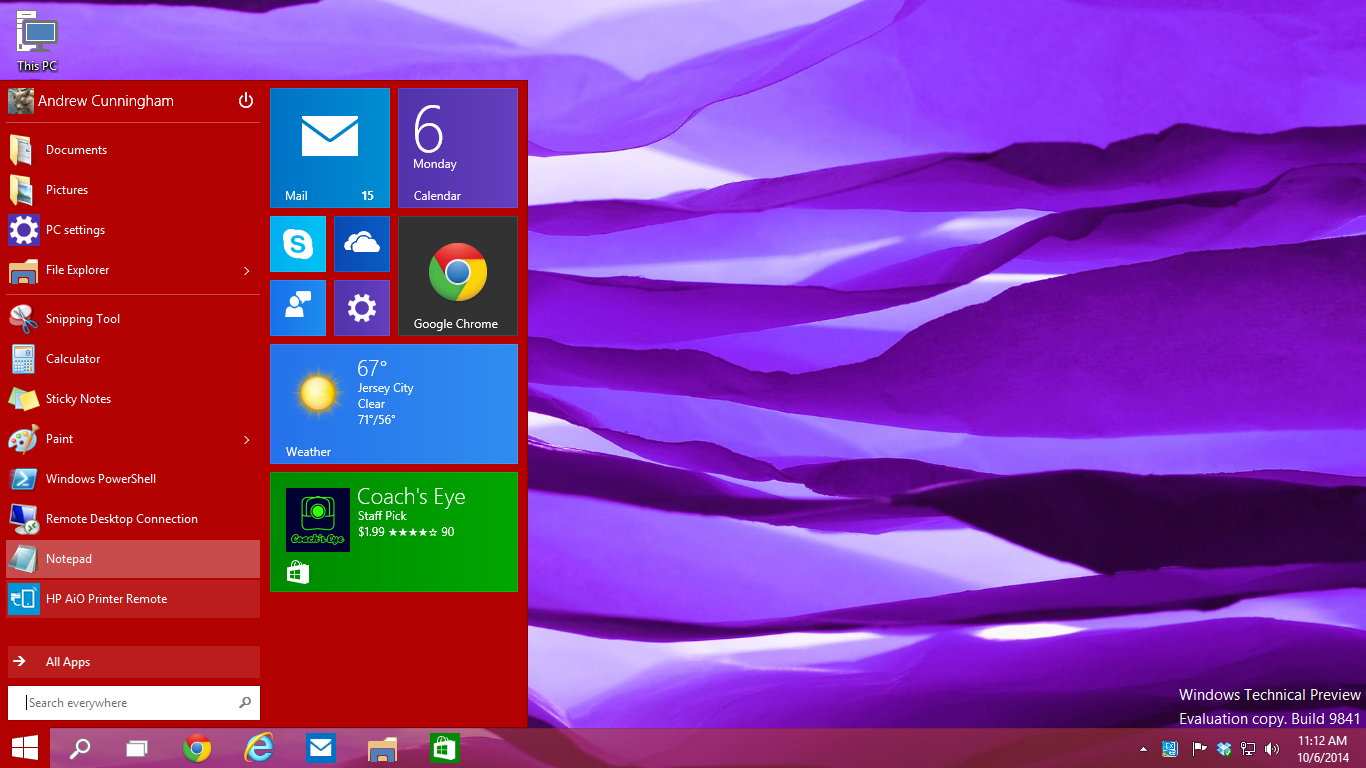


 Paul B. Brown | Video Producer