My Life Without Cable

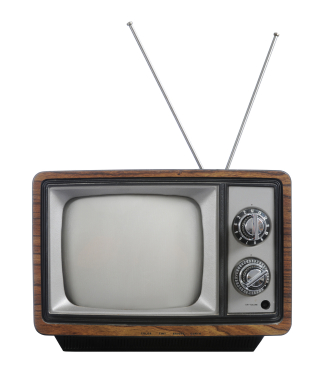
Old TV with rabbit ears
Remember when you WERE the remote control?

The first time I ever had cable TV was my freshman year of college. When I was growing up, our TV came through the finicky rabbit-ears on top of the TV. I’d watch shows on PBS and during the summer the FOX MLB Game of the Week (when I got my chores done in time). My TV experience changed dramatically in my freshman dorm room: SportsCenter in the morning, Tom and Jerry during my lunch break, and frequent Seinfeld reruns in the evening.

It’s easy to become accustomed to having such a variety of content available to watch at any time. Then I moved out on my own after college and, wow! I was hit by sticker shock when I saw how much even basic cable would cost me. I went to RadioShack (now out of business) and got my own rabbit-ears for my Indianapolis apartment.

My setup has changed since then. I’m not advocating going without a TV, although I admire that if you’re able. I’m talking about finding alternatives to cable. Most of them aren’t free. But I’m not burdened by a pricy monthly cable bill, and you don’t have to be either. Here’s how.

Over-the-air TV channels

When you think of a TV antenna, do you think of rabbit-ears sitting on top of the TV or a gigantic rooftop antenna that looks like it communicates with UFOs? Modern antennas are often much less unsightly than these. And if you live in or near a city, you can get some TV channels free…and in high definition if you have an HDTV.

Mohu Sky 60 antenna
The Sky 60: certainly not invisible, but I think it looks a lot better than rooftop antennas of yesteryear.

I live about 50 miles from most of the transmitters in Indianapolis, so I’ve installed Mohu’s Sky 60 antenna. It’s designed to be outdoors or in an attic, but it’s far from an eyesore (in my opinion). It’s only about 3 feet high and maybe 1.5 feet wide. Since I’m near the edge of this antenna’s range, a few of the channels don’t come in cleanly, and this is made worse when storms move through the area. But we usually get FOX, CBS, ABC, and PBS in high definition, plus some secondary channels like 24/7 radar or oldies TV shows.
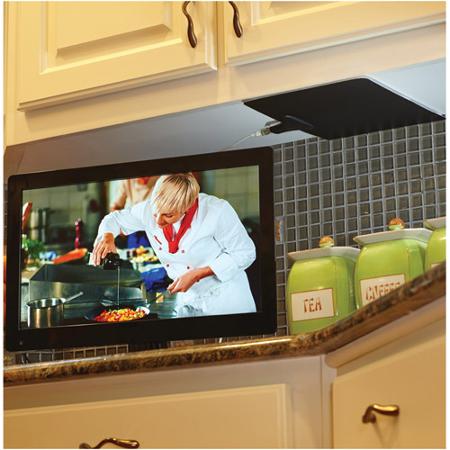
Mohu Leaf 30 antenna
The Leaf 30: very inconspicuous. Not sure why they didn’t install it with the white side facing out though!

For those of you who live closer to a city than we do, there are cheaper and less conspicuous options available. For example, Mohu’s Leaf 30 indoor antenna is about the size of a sheet of paper, only 1/16th in. thick, and can be painted to match its location. Its 30-mile range should be plenty for folks living in a city or suburbs.

I’ve had mixed results with reception at the edge of my antenna’s advertised range, but I’ve been impressed with Mohu’s customer support. There are certainly other options available for HD antennas as well.

Streaming options

If you’re a cable user, you probably have favorite shows on cable channels like History or ESPN. Well, you won’t be able to get those with your antenna. But there are ways to see many of those shows after they’ve aired.

The most common of these are streaming services Netflix and Hulu Plus. Both are monthly subscriptions, and they include episodes of current TV shows, shows that aren’t currently airing, and lots of movies. (We had Netflix for a while, but after some months decided we didn’t watch enough to justify our subscription.)

Other streaming services are also available, such as Amazon Instant Video (free to Amazon Prime members).

Roku 3
Roku 3 streaming media player

Streaming services are available directly through smart TVs or through streaming boxes like a Roku or Amazon Fire TV, which plug into your TV through an HDMI cable. Netflix and Hulu Plus are available through almost every smart TV or streaming box, but often you’ll find “channels” specific to a cable network, such as Fox News Channel. Some of these channels will require you to sign in with a cable provider, but others will let you watch recent episodes or clips for free.

Often you can also watch the most recent episodes of cable shows in full online after they’ve aired. You’ll have to keep up with them, because they usually only keep the few most recent episodes available.

Sling TV from Dish will stream certain cable channels for a monthly rate.
Sling TV from Dish

If you’re willing to pay more, there are more options coming in the months ahead for “cord-cutters.” HBO, a “premium” cable channel, recently announced it will soon allow people without cable to pay for access to its shows. In addition, Dish TV announced a new standalone service offering live streaming of cable channels such as ESPN, CNN, and Food Network for $20 per month.

Don’t forget discs

Remember when Netflix sent DVDs by mail? Well, they still do! You can sign up for a Netflix DVD or Blu-ray plan separately from a Netflix streaming subscription or along with one.

My wife and I rarely watch more than a few movies per month. For us, Redbox is also a nice option for one-night DVD rental. Redbox.com allows us to find a location nearby that has the movie we want in stock.

Free options

If going without cable is starting to sound almost as expensive as cable, don’t forget about great free options! Your local library should have plenty of choices of DVD and Blu-ray movies and TV shows available.

And of course there’s a good chance if you don’t own a movie, you might have a friend who does. We’ve often borrowed movies and TV shows from our friends, and vice versa.

Have you quit cable? What’s your setup like? Let me know below!

-Paul

Go back

Your message has been sent

Warning
Warning
Warning
Warning

Warning.

Amazon Prime: Is It For Me?

“10 to 14 days?!? I don’t have 10 to 14 days!!!”

Yes, it’s that time of year again, when an item you buy online with free shipping probably won’t get delivered before Christmas. So do you pay extra for the expedited shipping, or do you hope Uncle Larry is okay with getting his Indianapolis Colts Santa light-up hat a few days after Christmas?

If you do any of your shopping on Amazon (and who doesn’t?), you’ve surely seen the option in the checkout window for “FREE Two-Day Shipping with Amazon Prime.” As you finish your Christmas shopping, it looks very tempting. (And you can actually try it free for 30 days, which might help you get those last gifts delivered on time.)

But Amazon Prime is actually a lot more than just free two-day shipping. What does it include? And most importantly, is it for you?

Pros

Amazon Prime logo
Amazon Prime checkmark logo (Image courtesy of amazon.com)

The first and most well-known benefit to Amazon Prime is free two-day shipping on countless items on the Amazon website. Not every item is eligible, but most are, and they’re clearly indicated with the Prime checkmark icon you can see here. If you’re used to waiting over a week to get a package, you’ll be amazed how quickly your packages from Amazon arrive (and frankly two-day shipping across the country is a logistical marvel).

If you own a Kindle, you’ll also have access to borrow from Amazon’s collection of over 500,000 Kindle ebooks.[1] You can borrow a book per month, with no due date. Once you return it, you can check out another next month. (There are ways to borrow Kindle books and other ebooks through your local library, as well.)

Amazon Prime also gets you access to stream unlimited movies and TV shows through Prime Instant Video. This is similar to Netflix, so there are some well-known titles and plenty of titles you’ve never heard of. Also, there’s some content overlap with Netflix, so be aware of that if you subscribe to Netflix.

In addition to on-demand video, a Prime subscription also gets you access to Prime Music, a service that gives you access to unlimited music without ads. This is very similar to Spotify, although with a much smaller selection of music (for now) and you do get the ability to download music for offline listening.

Need more? How about unlimited cloud storage for all your photos? Prime Photos is yet another service Amazon includes for all Prime members. It allows you to upload unlimited photos to an Amazon cloud storage account. Photos add up to a lot of storage space, especially if you take them with a smartphone. Storing them in the cloud allows you to access them from anywhere you have Internet access.

Cons

These many perks aren’t exactly free: Amazon Prime costs $99 per year (a recent price increase from $79). So as you consider the many benefits mentioned above, weigh them against the up-front cost to decide if Prime is worth purchasing for your family. This works out to $8.25 per month. In comparison, a standard subscription to Netflix costs $8.99 a month.

If you’re a student, you can get some of the great benefits of Amazon Prime free for six months, namely the free two-day shipping and unlimited photo storage. After that (or instead), you can get all the benefits of Amazon Prime for half-price ($49).

Ease of use

Amazon shipping boxes
Amazon shipping boxes (Photo courtesy of amazon.com)

Free two-day shipping is easy to take advantage of with Amazon Prime. Once you’ve signed up for Amazon Prime, just buy stuff like normal and choose free two-day shipping at checkout.

Kindle books, video, music, and photo storage will depend on your familiarity with similar services. Amazon has a very helpful support section of their website, and this can ease your transition as you learn the ropes of downloading ebooks, watching movies, etc.

Is it for me?

Amazon Prime might be great for you, if:

  • You frequently purchase from amazon.com
  • You would often watch movies or TV shows or listen to music through Amazon’s streaming services
  • You take lots of photos, and often run out of storage space
  • You own a Kindle

You should probably stay away from Amazon Prime, if: 

  • You rarely use amazon.com
  • When you shop online, you are fine with free shipping that takes longer than a week
  • You have little interest in Amazon Prime’s non-shipping perks

If you have Amazon Prime, what’s been your experience?

Do you have a topic you’d like to know more about? Let me know below. Thanks!

-Paul

Go back

Your message has been sent

Warning
Warning
Warning
Warning

Warning.

1 – Kindle ebook borrowing only applies if you have a Kindle device. It won’t work with the Kindle app on an iOS or Android device.

Smart TVs – Television buying guide part 2

Note: this is the second part of my TV buying guide. The first post discussed TV resolutions and connections.

If you’ve been shopping for TVs lately, you’ve come across the term “smart TV.” So what’s a smart TV? It’s a TV that connects to the Internet and allows you to watch content from online: movies from Netflix, TV shows from Hulu, or (my guilty pleasure) YouTube compilations of cats falling clumsily.

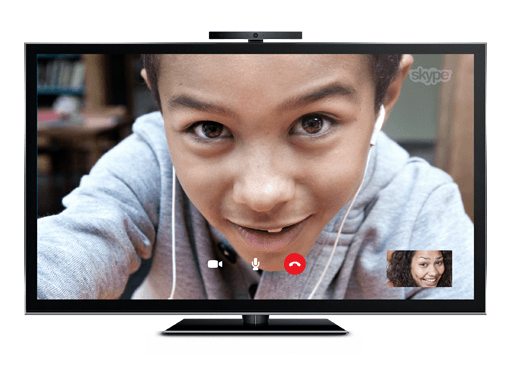
Skype on a smart TV
Your family can literally be larger than life with video calls on a smart TV

The fact that the TV is connected to the Internet also allows for more unusual uses, such as Skyping with an attached webcam or listening to music through your surround sound speakers with an online music service like Pandora.

These activities used to be relegated to your computer. Now you can enjoy them in your living room on the biggest screen in your house. It’s fantastic to have those abilities.

But I’m still not sure my next TV will be a smart TV. And here’s why.

A potential downside: longevity

Ever since televisions were invented, they served as passive screens simply displaying the video signal fed into them. The video signals came from devices such as antennas, then cable and satellite dishes, then VCRs and DVD players.

A smart TV is different; it’s essentially an all-in-one computer, like an iMac. There’s a small, streamlined computer housed behind the screen, connecting to the Internet and serving you content from various online sources. It works well, and frankly I’ve been pretty impressed by how it works on demo units I’ve seen in stores.

But how long will that computer, and the “smart TV” experience it provides, feel quick and modern?

My suspicion is that the TV’s computer “guts” will feel slow and the software will feel outdated long before the TV screen itself seems inadequate. (This is the same reason I’m skeptical of cars with a built-in screen and computer system.)

Now, it could be argued I’ve kept using my current TV longer than the average person…but I doubt it. I won’t embarrass my parents by publishing exactly how old their TVs are, but both are much older than their computer. I suspect the same is true for most people.

If you tend to get a new TV every few years, this may not be much of a problem for you. But for those of you who don’t, there are other options for accessing online content.

Another option: streaming boxes

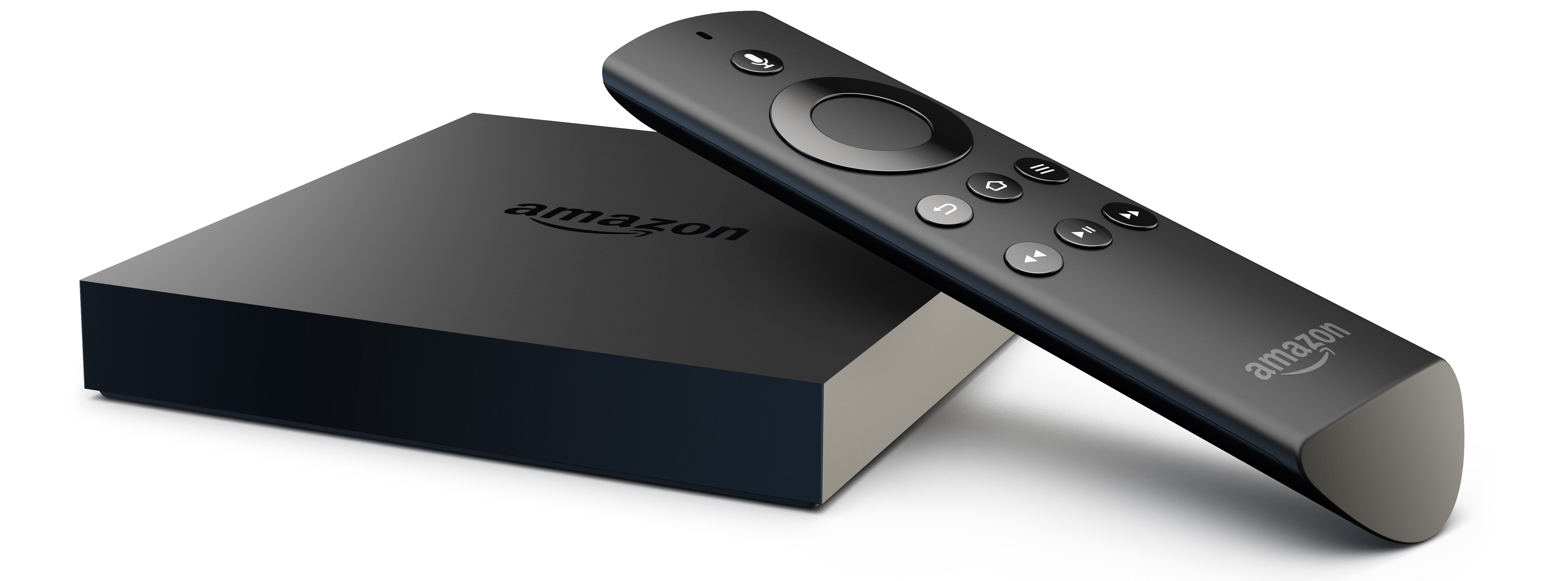
Amazon Fire TV
Amazon’s new Fire TV streaming box

In fact, you may already own a device that can access online content. I’m thinking primarily of streaming boxes, such as a Roku, Apple TV, Fire TV, or Chromecast. Gaming consoles such as a Playstation or Xbox also have some streaming connectivity, and so do many Blu-ray players. And of course, your laptop might also able to connect to your TV when you want to watch something on it.

The benefit of a smart TV over these is simplicity (in theory). Instead of connecting another box and having another remote, it’s built into the TV itself. The ease of use may vary widely, depending on the TV manufacturer and the software it makes (more on that later). But in general, it means one less box to connect, one less cable to plug in, and one less remote to keep track of.

However, streaming media boxes such as a Roku or Apple TV cost $100 or less, and the Google Chromecast costs only about $35. I can live with having to replace one of those with the latest version every few years. I don’t see myself replacing my whole TV that often.

My worry is that when the computer components of your smart TV are out-of-date, you’ll be left with a screen that still works great. You’ll have three options: buy a new smart TV, use your smart TV with its slow or frustrating interface, or buy one of the aforementioned streaming boxes to do what your smart TV no longer can…which is exactly the thing you were avoiding by buying the smart TV in the first place.

That’s why I won’t be paying extra to get a smart TV. A dumb TV will still allow me to plug in my antenna, Blu-ray player (which streams Netflix, YouTube, etc.), and even my computer if I want.

If you don’t use or plan to use streaming video services, then a smart TV would probably be just adding an extra layer of complexity to your living room relaxation.

That being said, you rarely have the choice between a smart TV and a “dumb TV” these days. At the more expensive end of the TV market, almost every single TV is a smart TV. If you’re getting a TV above $1000, it will almost certainly be a smart TV, and even most TVs above $500 are smart TVs now.

Even if you don’t plan to use smart TV features, there’s a good chance you’ll end up with one, and you might be surprised how much you enjoy some of the features on it.

What to look for

So what separates one smart TV from another? The apps that are available and the televisions’ ease of use.

Samsung app store
Samsung’s smart TV app store

Almost every smart TV includes Netflix support, but if you want to use other streaming services or social media, make sure all those apps are either pre-installed or available through the manufacturer’s app store. If you want to use your new big screen for video calls, see if there’s an included camera or if you’ll need to connect a webcam on your own. Most smart TVs connect via Wi-Fi, but make sure yours does, because you probably won’t want to run an ethernet cable to it to provide Internet access.

The other big question: how easy-to-use are the smart services? A smart TV that’s frustrating to use defeats the whole purpose. If you stream content from multiple Internet services, see if the TV will show you results from all the services when you search for ‘Forrest Gump.’ Does the menu feel cluttered, or is it easy to find the app you’re wanting to use?

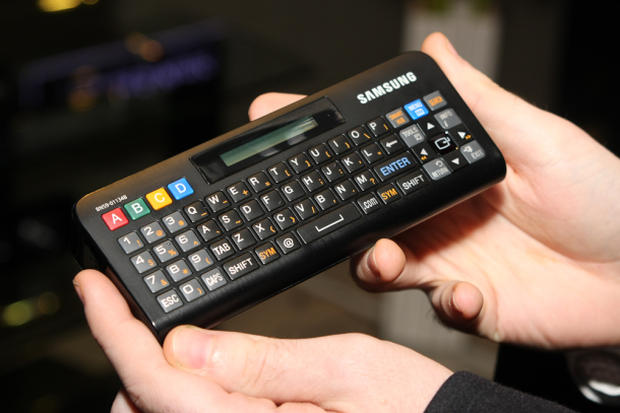
Samsung QWERTY remote
An example of a QWERTY remote

A key factor in ease-of-use is the remote. A full QWERTY keyboard on the remote will help you search much more quickly. Newer smart TVs come with remotes that let you move an on-screen pointer by aiming the remote at the screen (a la the Wii remote). Are there shortcut buttons on the remote for the streaming services you’ll use most often?

Conclusion

LG smart TV interface

Differentiating between smart TVs is difficult to do unless you’re using them in person. If you’re looking at the latest and greatest sets, the manufacturers’ websites may give good demos of their smart TV features. For last year’s models or budget brands, you’ll probably need to try out the smart TV at a friend’s house or in a store.

Think of smart TVs as an all-in-one computer, one with an operating system you’ve never used before. You shouldn’t buy just based off the screen size and quality; you’ll want to see how it actually functions first.

In short, I don’t recommend you pay more for a smart TV, if a dumb TV model fits your budget and suits your needs. But if you do get a smart TV, make sure you’re getting one that’s easy to use and has the apps to meet your viewing habits. That will probably mean looking for a model from a top brand.

Speaking of brand names, next week’s post will cover which brands to look for, and how much brand name matters. Plus, what time of year is best to buy a TV, and more!

-Paul

Got an idea for a future blog topic? Send it to me below. Thanks!

Go back

Your message has been sent

Warning
Warning
Warning
Warning

Warning.

Do you need that much smartphone data?

Smartphone in use
How much data does your smartphone actually need?

If you have a smartphone, you probably know that your data plan is a big chunk of your monthly bill. But when was the last time you checked how much data you actually use? Are you paying for more data than you need?

What is data usage?

Data usage on a mobile device (most often a smartphone or tablet) is simply all information that is sent from or received by the device. (The exception is phone calls and text messages, which are counted separately from data.)

This includes text (emails, websites, etc.), audio (downloading songs, listening to online radio stations, etc.), video (watching Netflix, downloading a movie, etc.), and other uses (such as GPS navigation or downloading and using certain apps).

Here’s a good way to check what activities use data: put your phone in airplane mode. That way it can’t access any data at all. Certain functions will still work, like viewing photos you’ve taken on your phone. If a certain app or activity won’t work on airplane mode, then it needs access to data to work.

How much data do I use?

Now that you have an idea of what activities use data on your phone, you’ll want to find out how much data you’ve actually used in the past. Your monthly bill may show that, or you may have to log in to your phone carrier’s website.

Remember that many phone plans these days have begun counting shared data among all the devices on the plan. So if you have family members with smartphones, their data will also be counted toward the monthly limit.[1]

If you’re wanting to instead get an idea of what your data plan could be, or you want to know what activities use more data, check out one of these data calculators from the four major carriers. Pay attention to whether you are inputting monthly or daily usage for each site.

NOTE: data usage is the same regardless of which carrier you use,[2] so you don’t have to just use the calculator from your carrier. Feel free to try multiple ones; one might be more helpful than the others.

How can I limit my data usage?

If you’re interested in using less mobile data, I’ve got a couple of tips for you.

Remember that different activities use very different amounts of data (as shown by the data calculators above). Downloading mainly text, such as emails, uses a tiny amount of data. You could check email all day long and not come close to your limit.

Sending/receiving photos (such as uploading a photo to Facebook or sending as an attachment) uses more data. Streaming[3] audio uses still more, and streaming video uses the most data of all. This doesn’t mean you can’t enjoy those activities, but it helps to know the next tip.

Use Wi-Fi when possible. Data that your phone uses when connected to a Wi-Fi network (such as in your home) does NOT count against your data limit. So if you’re at home and your phone is connected to your home Wi-Fi network, stream all the music you want and download app updates at the same time; none of it will count against your total.

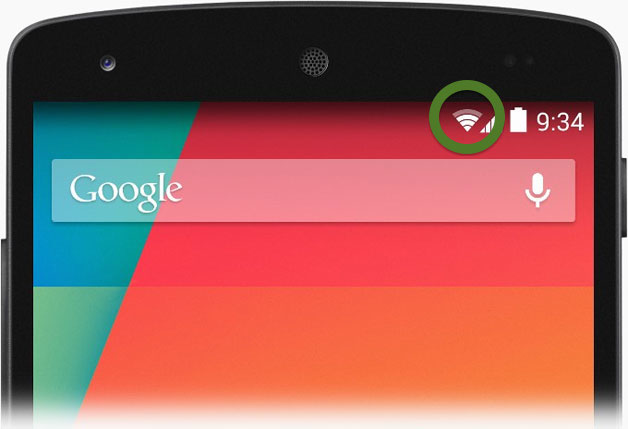
You will want to go into your phone’s settings and make sure that your phone is set to automatically connect to Wi-Fi networks it has previously used.[4] Also, check the status bar at the top of the screen to make sure that you see the Wi-Fi symbol before you start data-heavy activities. Below you can see it on Android and iPhone, marked with a green circle.

Android Wi-Fi symbol
Android phone with Wi-Fi connected (Photo courtesy of androidiani.com)
iPhone Wi-Fi symbols
iOS 6 (left) and iOS 7 (right) with Wi-Fi connected (Photo courtesy of extreme tech.com)

Restrict apps’ access to cellular data. When you’re not connected to a Wi-Fi network, your data usage is considered cellular data, and counts toward your limit. You can restrict your phone from using certain cellular data.

Apple has made this very easy starting with iOS 7. You can tell your iPhone or just particular apps to only use data when connected to Wi-Fi. Apple has a customer support page explaining this.

As far as I’m aware, Android only allows you to limit data used in the background (explained here). This prevents an app to use mobile data unless you actually open it. The newest Android version also has nice visual charts of data usage.

Taking action

Now that you know data isn’t counted against you when you’re connected to Wi-Fi, are there changes you would make when filling out the data calculators above? If you save your data-intensive activities for when you’re connected to Wi-Fi, you may be able to use far less cellular data than you first thought. Maybe you can even downgrade to a less expensive data plan!

————————————-

Do you enjoy reading this blog? If so, I’d love to hear from you! (If you’ve read this far but don’t enjoy it, I’d be glad to hear your thoughts, too.)

What topics do you want to learn about?

Go back

Your message has been sent

Warning
Warning
Warning
Warning

Warning.

1 – Your total may be counted in gigabytes (GB), and lowest data tier from most providers is about 1GB. If your total shows up in megabytes (MB), remember that 1,024 MB equals 1 GB.
2 – T-Mobile recently announced that their customers can stream music through certain apps without affecting their data usage. That’s the only situation I see where data usage would be counted differently among the carriers.
3 – Streaming means watching or listening to something in real time, such as music on Pandora or video on Netflix or YouTube. The opposite would be downloading the audio or video file to your device, and then watching it. Both options use data, but more and more often people are consuming music, movies, etc. on-the-go by streaming them rather than downloading them.
4 – Keep in mind that you shouldn’t do any sensitive activity (such as online banking or sending confidential information) unless you are on a Wi-Fi network with a secure log in and that you trust. Not McDonald’s free Wi-Fi!