Mac keyboard shortcuts

In last week’s post, I gave a list of keyboard shortcuts that are helpful for Windows users. Mac users: you may be in the minority, but I haven’t forgotten about you. Today I’ll share some of the most commonly used and most useful Mac keyboard shortcuts.
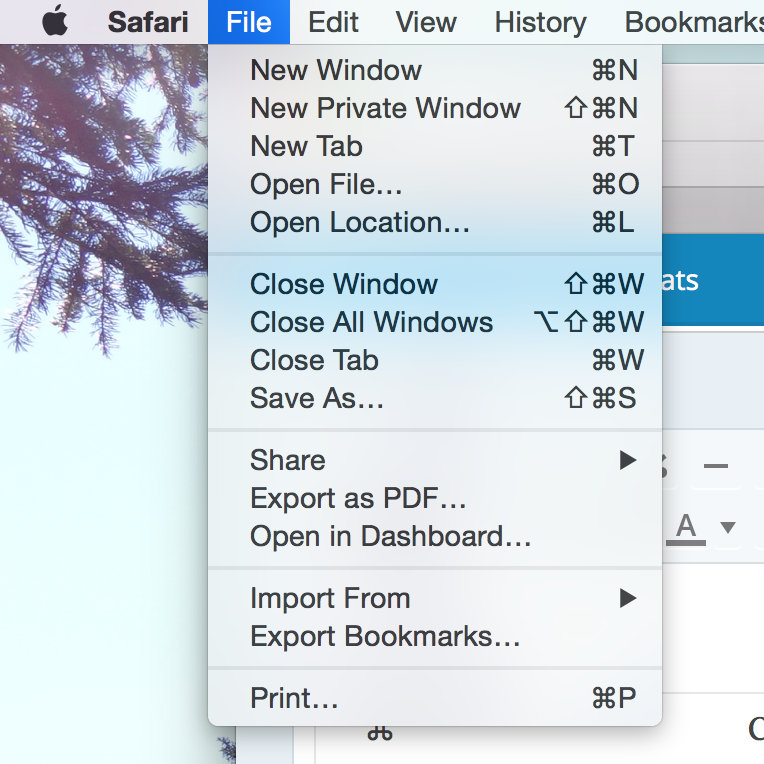
Mac shortcuts in the menu
Keyboard shortcuts are listed next to commands in Mac OS X.

One thing I find very helpful on the Mac operating system is that the menus at the top of the screen include keyboard shortcuts for many of the commands in the menu. For example, in the photo to the right, you can see that to open a new window in Safari I would press Command (⌘) and N. The Command key, incidentally, is labelled with its symbol on Mac keyboards, but none of the other modifier keys are labelled with the symbols used in the menu lists. So below I’ve included a list of the symbols used for the most common modifier keys. (In the shortcuts I list below, I’ll use the written names like you see on the keyboard, but if you’re learning shortcuts from the menus this list will help.)

Command key
Control key
Option key
Shift Key
Caps Lock
fn Function Key

Common commands

  • Control + mouse-click   —–>   Right-click
  • Command + X   —–>   Cut the selected item
  • Command + C   —–>   Copy the selected item
  • Command + V   —–>   Paste the selected item
  • Command + Z   —–>   Undo an action
  • Shift + Command + Z   —–>   Redo an action
  • Command + Tab   —–> Switch between open apps
  • Command + Q   —–>   Quit the current app
  • Command + W   —–>   Close the current window (without quitting the app)
  • Command + M   —–>   Minimize the current window
  • Command + N   —–>   Open a new window in the current app
  • Command + F3   —–> Show the desktop
  • fn + Delete   —–>   Delete text like the Windows Delete key (the Delete key on a Mac normally acts like the Backspace key in Windows)

Working with files

  • Command + spacebar   —–> Open Spotlight to search your computer
  • Command + A   —–>   Select all items (or all text if in a document)
  • Command + Delete   —–>   Send selected item(s) to the trash
  • Return (or Enter)   —–>   Rename selected item
  • Click an item, then hold shift and click another item   —–>   Select all items in between the two you clicked
  • Click an item, then hold command and click other items   —–>   Select all items clicked

For a more comprehensive listing, check out Apple’s list or this list compiled by Dan Rodney.

Got one I missed? Let me know below.

-Paul

Go back

Your message has been sent

Warning
Warning
Warning
Warning

Warning.

Windows keyboard shortcuts

Douglas Engelbart mouse inventor
Douglas Engelbart with his newly invented mouse in 1968. Check out how big it is! (Photo courtesy of The New York Times)

Using a computer would not be nearly as easy as it is today without Douglas Engelbert’s most famous invention: the mouse.

We take for granted today how much more intuitive computers are because of the mouse. It was a remarkable invention.

Nevertheless, for certain tasks it’s still quicker to just use a keyboard, thanks to keyboard shortcuts.

Below I’ve compiled a list of the most common and helpful keyboard shortcuts for Windows. Feel free to print out this list, or copy it to a document on your computer for easy access. Once you start using the shortcuts more often, you’ll begin to memorize them, and that’s when you’ll really start to be able to work more quickly.

Windows logo key
The Windows logo key is circled in red.

By the way, “Windows logo key” refers to the key pictured to the right. Unless otherwise noted, press all keys in the combination at the same time.

Note: This list applies to Windows 8. Most of the shortcuts apply to previous versions as well, but if you use Windows 7 you may appreciate this list specifically for your version.

Common commands

  • F1   —–>   Show Help menu
  • Ctrl + X   —–>   Cut the selected item
  • Ctrl + C   —–>   Copy the selected item
  • Ctrl + V   —–>   Paste the selected item
  • Ctrl + Z   —–>   Undo an action
  • Ctrl + Y   —–>   Redo an action
  • Alt + Tab   —–> Switch between open apps
  • Alt + F4   —–>   Close the current item or page
  • Windows logo key + D   —–> Show the desktop
  • Windows logo key   —–>   Show/hide the start screen

Working with files

  • Windows logo key, then start typing   —–> search your computer
  • F3   —–>   Search for a file or folder
  • Ctrl + A   —–> Select all items (or all text if in a document)
  • F2   —–>   Rename selected item
  • Click an item, then hold Shift and click another item   —–>   Select all items in between the two you clicked
  • Click an item, then hold Ctrl and click other items   —–>   Select all items clicked

Give some of these a try, and I bet you’ll find you can save some time on the computer. If this list whets your appetite for keyboard shortcuts, check out Microsoft’s full list. Mac users: don’t fret; your list is coming next week.

UPDATE: A reader let me know that F11 will take an Internet browser fullscreen without having to find the little “Maximize” button in the corner. Handy!

Do you have any favorite shortcuts I’ve missed? Let me know below.

-Paul

Go back

Your message has been sent

Warning
Warning
Warning
Warning

Warning.