Google Chromebook: Is It For Me?

Welcome to the first of a recurring series here on my Making Technology Simpler blog: “Is It For Me?” I’ll explain a product or technology, then help you figure out if it meets your needs. This week’s subject is the Google Chromebook.
Chromebook laptops
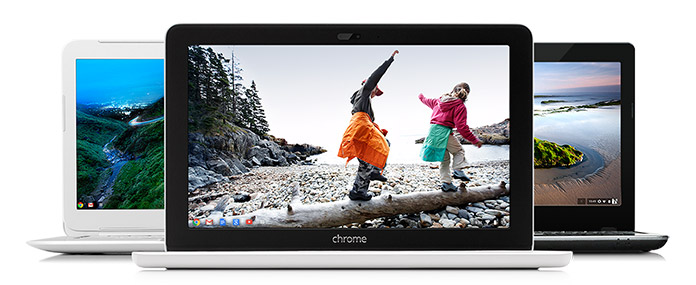
Google Chromebooks (Photo courtesy of google.com)

Google Chromebooks are a series of inexpensive laptops with great battery life, strong integration with Google, and little maintenance needed.

Chromebooks use an operating system created by Google called Chrome OS…the whole operating system is basically the Chrome Internet browser that many people use on Windows and Mac computers. The computer hardware is made by companies like Acer and HP.

Pros

Here’s another thing that makes Chromebooks unique among laptops: the whole operating system is designed to be used with Internet access, and the hard drive in the computer is tiny.

Google intended for these computers to be used in conjunction with Google’s cloud storage, so photos will need to be stored in Google+ and documents stored in Google Drive. (I wrote about cloud storage here.) With everything stored in the cloud, there’s no need for a big hard drive. The benefit of this is the computer will boot up very quickly.

This reliance on cloud storage has a couple other ramifications. On the positive side, no data backups are needed, since almost everything is in Google’s cloud. And once the computer needs to be replaced, you can sign into your next Chromebook with your Google account, and all your emails, documents, etc. will be available immediately. No file transferring necessary.

Cons

On the flip side, you will be limited in what your Chromebook can do without Internet access. You can do some document creation, for example, and the document will save to Google Drive when you connect to the Internet again. Internet access is becoming more widespread, however, and some Chromebooks will allow you to also connect to a 4G network through a carrier like T-Mobile.

Because almost everything you do on a Chromebook involves Internet access, the speed of the computer itself will be heavily influenced by the speed of your Internet connection. If you regularly use a slow connection, be prepared to pay for faster speeds to really enjoy a speedy Chromebook experience.

The other main limitation of Chromebooks is that you can’t install PC or Mac programs on it. So if you really need the full version of Microsoft Office or some specialized accounting program for your work, a Chromebook isn’t for you (unless it’s as a secondary computer). You’re limited to using Google’s apps and others available through the Chrome web store.

Ease of use

Chromebooks are low maintenance devices, partly because they update automatically and Google says they’re very secure and have no need for antivirus software.

Setup is also easy, to the degree that you’re already part of Google’s services. If you already use Google for email, documents, photos, and music, your new Chromebook will be ready to go as soon as you open it and sign in with your Google account.

If you use iTunes for your music and store documents or photos on your current computer, you’ll want to transfer all of it to Google’s appropriate online service before you make the switch to a Chromebook. (And if you have an iPhone, iPad, or iPod, know that they won’t sync with music on your Chromebook.)

Remember, third-party apps like iTunes or Microsoft Office can’t be installed on a Chromebook. So you’ll need to use a Google service or a third-party service that can be accessed online (such as Pandora for music streaming or the online version of Microsoft Office).

Is it for me?

A Chromebook might be great for you, if:

  • You use Google for all of your email, documents, photos, media, and calendar (or are willing to move all those things to Google)
  • You have Internet access almost all the time
  • You need a very portable computer with a battery that lasts all day
  • A low up-front cost is important to you

You should probably stay away from a Chromebook, if:

  • You need an application that only runs on a PC or Mac, like Adobe Creative Cloud, Microsoft Office, or iTunes
  • You prefer to store your documents, photos, or media locally (i.e. on your computer’s hard drive)
  • Your computer needs to handle intense tasks, like games or video editing

Have you seen or heard about another device or technology that’s made you ask, “Is it for me?” Let me know below, and I’ll write about it soon.

-Paul

Go back

Your message has been sent

Warning
Warning
Warning
Warning

Warning.


Which cloud storage service is best for you?

Note: this is a follow-up to last week’s explanation of cloud storage.

Cloud storage comparison
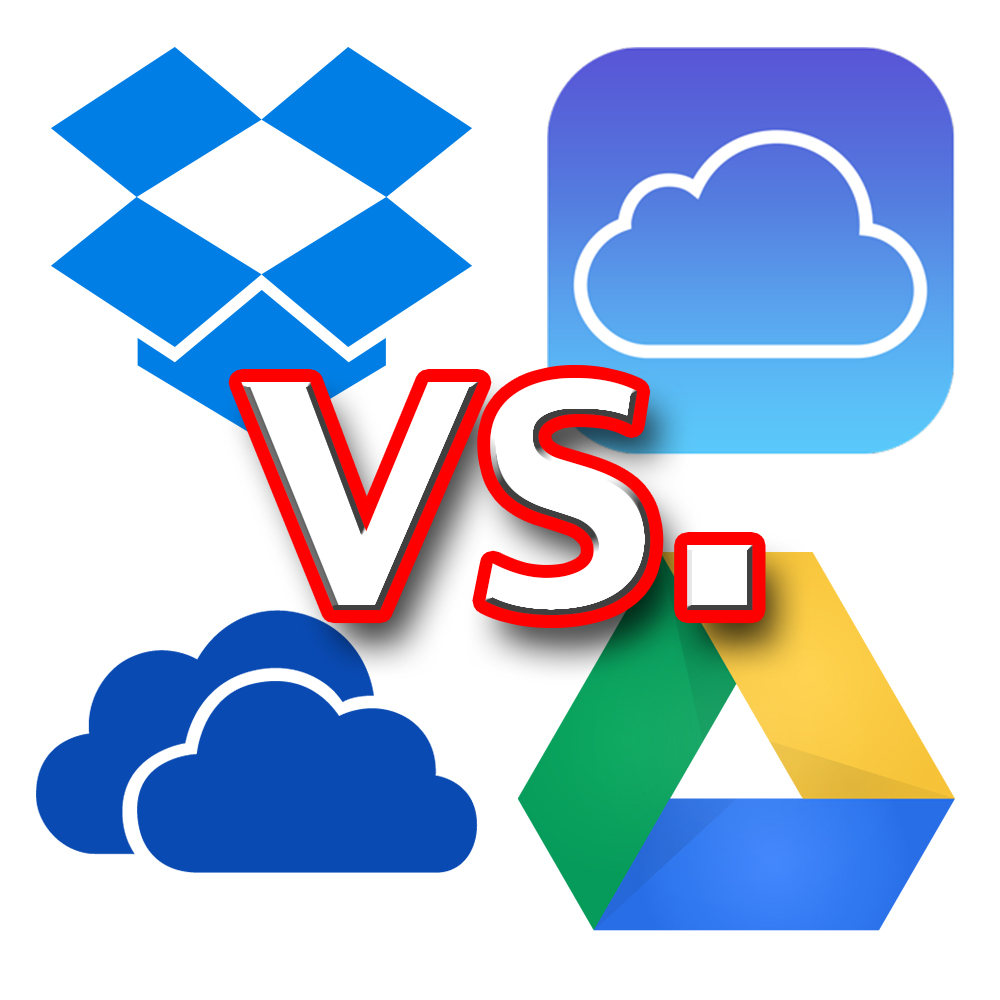
The logos of Dropbox, iCloud, Google Drive, and OneDrive (clockwise from top left)

There are lots of companies that offer cloud storage, and several of them are quite well known. This post is going to focus on the services that I (subjectively) view as the major players, and which service is best for you.

I feel certain that there is no one cloud storage service that is best for everyone. Instead, I think that each has certain advantages depending on how you use it and which devices you use.

As I mentioned last week, I actually do not pay for storage from any of the companies that I will describe below. I use the free storage amount from several different companies: Dropbox, Google Drive, and iCloud from Apple.

This isn’t a very practical long-term solution, because I’ve got many more files on my computer and other devices than can fit in the free storage allotments. And the more providers I sign up for, the harder it gets to keep track of what files I’ve stored on which service.

So I recommend using the free storage space each provider offers as more of a trial run. You get to see how the service works without plunking down your money first. Once you decide which one works best for you, then decide how much storage you need to pay for.

I’ve only recently begun to feel that paying for a cloud storage subscription might be worth the money for my family. By using those three services, I’ve started to get an idea of which one I’d prefer to pay for.

So without further ado, here’s a comparison of the four main cloud storage providers[1].

Dropbox

Dropbox logoDropbox is the platform that really first made cloud storage usable for the ordinary folks like us. It’s also unique on this list because the company was created around this cloud storage service; the others on the list are branches of much larger tech companies.

Pricing: 2GB free…1TB $10/month

Pros: Available on almost any device, simple pricing plan, very customizable

Cons: Smallest amount of free space, not automatically integrated with Google, Apple, or Microsoft

Best for: People who own a mixture of devices, such as an iPhone, Windows PC, and Kindle Fire.

Google Drive

Google DriveFormerly known as Google Docs, Google Drive is available with any Google or Gmail account. Included with Android phones, whose software is made by Google.

Pricing: 15GB free…100GB $2/mo…1TB $10/mo (Free space is shared with Gmail and Google+ storage)

Pros: Most free storage, familiar design to users of Gmail’s website/apps

Cons: Stores and shares files, but not many other features

Best for: Android phone users or people who use Google products heavily

OneDrive (Microsoft)

OneDriveFormerly SkyDrive, Microsoft has revamped their cloud storage service and OneDrive is a big part of their focus with the newer Windows operating systems.

Pricing: 15GB free…100GB $2/mo…200GB $4/mo

Pros: Works extremely well with Microsoft Office, generous free storage

Cons: File sharing not as simple as others

Best for: Microsoft Office users or those with newer Windows computers/tablets

iCloud Drive (Apple)

iCloud DriveFormerly called just iCloud, Apple’s revamped storage service was updated this fall. iCloud Drive is notable for features tied in with Apple devices, such as backing up the entire device and locating the device if you lose it.

Pricing: 5GB free…20GB $1/mo…200GB $4/mo…500GB $10/mo…1TB $20/mo

Pros: Coordinates data and settings between multiple Apple devices, new family sharing helpful for family accounts

Cons: Less free storage, no Android app

Best for: Those with multiple Apple devices

Conclusions

As you can see, pricing is very competitive between the providers. I expect storage allowances to continue to rise in the coming years, making it even more feasible to store almost everything on your computer in the cloud.

To me, the biggest difference among the services is the integration with other software/hardware made by the companies.

Dropbox only does cloud storage, and is a good option for those with a variety of device types. Outside of those rare cases, I think it’s at a disadvantage because it’s not tied in with one of the other major companies.

For those who use Google or Apple products heavily, I think Google Drive or iCloud Drive will work really well. I use Apple products heavily and love the features of iCloud, and I’m sure the same is true for Google/Android fans.

OneDrive (the only one of these I haven’t personally used) seems like a great fit for those who use Microsoft Office often, or have a newer Windows PC or tablet. If you use the newer versions of Windows or Microsoft Office, I’d recommend giving OneDrive a try. It’s not as well known, but I see it as a great option for many people.

——————–

Which of these do you use, and what’s been your experience? Do you have a favorite I haven’t mentioned? Join the conversation below! I’d love to hear from you. 

–Paul

Go back

Your message has been sent

Warning
Warning
Warning
Warning

Warning.

1 – Amazon also has a cloud storage service. Although I haven’t included it in this comparison, if you use Amazon frequently or own their devices (such as Kindles), consider checking out what they offer here.

Should you update your iPhone to iOS 8?

iOS 8
iPhones running iOS 8

Just this week Apple released the latest version of their operating system for iPhones, iPads, and iPod Touches. It’s called iOS 8, and it’s a free upgrade for Apple users. Last year’s iOS 7 included visual changes to almost everything; it took a while to get used to. This year’s update looks very similar to iOS 7 and is more of a refinement, adding various features that most people will find useful.

If you’re an avid iPhone user, you’ve probably already upgraded. If you have an iDevice and aren’t sure if or how to upgrade to the newest operating system, I’ll help you out.

CAN you upgrade?

Apple’s official iOS 8 website says eligible devices are the following: iPhone 4S and later, iPad 2 and later, and iPod Touch 5th gen. and later. The biggest missing name from their last update is the iPhone 4, so if that’s your phone you won’t be able to get the newest update[1].

SHOULD you upgrade?

Every time Apple (or similar companies) update their operating systems, the new versions are typically designed to work best on the newest, most powerful hardware available (in this case, the newly announced iPhone 6). So this means that older phones, computers, etc. will run a little more slowly when upgraded to the latest system[2]. This is probably the main reason iPhone 4 and the original iPad aren’t included in this update.

If you have an iPhone 5, 5C, or 5S, any possible slowdown will be tiny, if not imperceptible. I’d say definitely upgrade. If you have the iPhone 5S, you’ll have the option to use the Touch ID fingerprint sensor to log in to all kinds of apps — one of my favorite new features.

Any of the iPads after iPad 2 (such as Air or Mini) should also handle the upgrade without a problem. Definitely upgrade. If your device is one of these, feel free to skip to the next section.

But the iPhone 4S and iPad 2 will run more slowly on iOS 8, and probably noticeably so. Ars Technica has written a couple of good articles detailing what to expect if you upgrade your iPhone 4S or iPad 2.

I happen to use both these devices. I’ve already upgraded my iPhone 4S, and I think I notice various animations being a bit slower (so I actually turned some of them off to help a bit). However, to me the additional features and functions that were added made the upgrade worth the (at times) slower operation.

Another consideration: this is the smallest screen size Apple still sells, and some new features mean you’ll see even less on the screen than before when the keyboard is up.

I’m doubtful I’ll upgrade our iPad 2 to iOS 8. We most often use it for reading books or checking email. I rarely use it for messaging or other uses where new features seem really promising. I’m happy with the way iOS7 works with the ways we use it, and it seems a safe bet that it will also be noticeably slower with iOS 8. Based the Ars Technica article I mentioned earlier, I don’t recommend iPad 2 owners upgrade.

HOW do you upgrade?

Chris Breen of MacWorld wrote a step-by-step guide I highly recommend. I’ll give you the summary version.

First, back up your device. You can either do it on your computer with iTunes or back up to iCloud through Wi-Fi. The iOS 8 install shouldn’t erase anything, but things go wrong now and then. It’s always a good idea to back up your data.

To download the update and install it, you have two options. Download it wirelessly via the Settings app on your device, or plug the device into your computer with the USB cable and upgrade in iTunes.

The simpler way is probably from the Settings app, but if you have limited space on your device, you’ll want to do the install via iTunes. The installation file that’s temporarily downloaded can be several gigabytes in size.

I recommend starting this before you go to bed, because the installation file can take a long time to download depending on your Internet speed. Once it’s downloaded, it may take up to another hour to actually complete the installation.

Once complete, you’ll have to go answer a couple setup questions. For reasons explained here, if you also use a Mac and store files in iCloud, I’d choose “Not Now” when you’re asked if you want to upgrade to iCloud Drive. Do that once the new Mac operating system comes out in a month or two.

And that’s it! If you’re upgrading to iOS 8, enjoy the new features. Again, you can learn more about what’s new here and here.

Have you updated to iOS 8? What do you like or dislike so far?

I’d love to hear from you! Leave me a question or comment about anything below.

Go back

Your message has been sent

Warning
Warning
Warning
Warning

Warning.

1 – Frankly, iOS 8 would probably run so slowly on the iPhone 4 that you wouldn’t want to upgrade anyway.

2 – For the same reason, certain new features in any new operating system won’t work on older devices, even if they’re fast enough to run it without any problem.

Self-driving cars and why we shouldn’t be afraid of technology

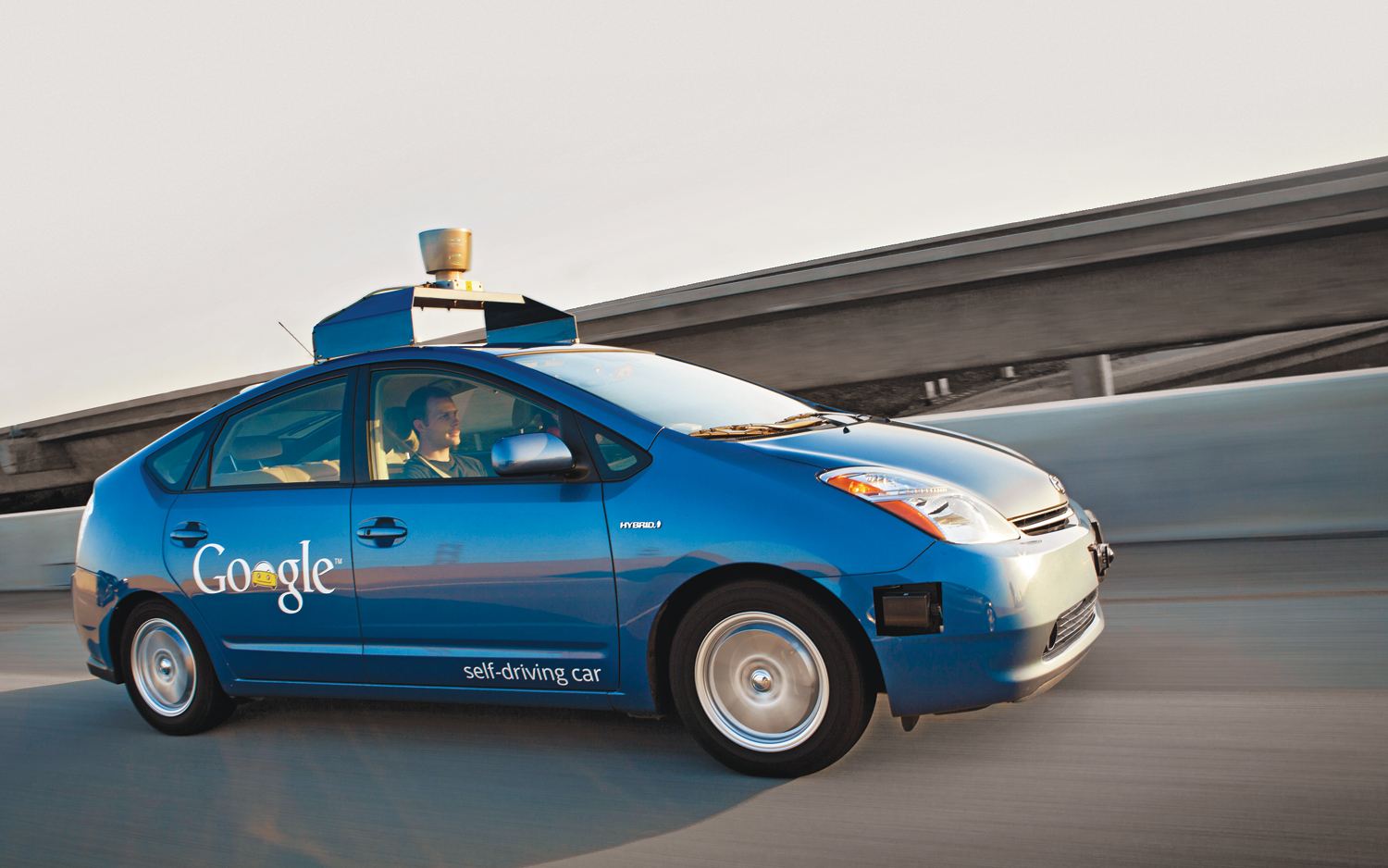
Google self-driving car
One of Google’s self-driving cars in action (Photo courtesy of motortrend.com)

Google is working on creating self-driving cars. They’ve already been testing these cars on roads in California. Think about that for a moment.

I think it’s a safe bet that within 10 years (probably less) we will start seeing self-driving cars on the road. You’ll look over at the car next to you, and the person in the “driver’s seat” will be fast asleep. How does that make you feel?

If it makes you nervous, you’re not alone. I’m no historian, but I think back to the books I read in high school English classes and I can remember several that painted worlds where technology had led to a terrible future (1984, Fahrenheit 451, and Brave New World come to mind). This fear of technology isn’t new.

Every technology can be abused, but each can be helpful in certain ways as well. I don’t think that should scare us. After all, isn’t that true of everything in this world around us, technology-related or not?

On an individual level, the reasons we fear technology are many. I’ve tried to boil this down to several primary reasons, but I’m sure there are more I haven’t thought of. I’ll try to unpack each of them, and then tell you why we needn’t fear technology for that reason.

Technology changes too quickly! 

For some people, this is an annoyance[1], but for others it’s really scary because we feel out of control. If I buy this, will it be out of date in two years? Why do I even need this thing? What are my kids doing on their phones these days?

It can be tough to keep up with the crazy pace of changing technology. The good news: most of the time we don’t have to. Do I really need a new TV with a bunch of features, or will a simpler one do the job? Do I need to upgrade at all? And if I buy a well-made gadget and take care of it well, then I probably won’t need to replace it as often as the advertisements tell me I should.

I don’t know how to use new technology! 

We’re all gifted in different areas, and for many people learning new technology is not where they’re gifted. Troubleshooting the gadgets you do own can also be really intimidating.

When it’s time to venture into unknown territory with some technology you’ve never used before, get someone to help you understand it. Look for a product that’s simple and durable. Sometimes that’s the newest model, but often it’s not. And don’t be afraid to ask for help when you’re learning how to use it. We’ve all run into problems we don’t know how to fix, so there’s no shame in asking for help.

I don’t want to become dependent on technology! 

Technology promises to make life easier, but what if it works too well? If Google went down, how would we learn anything? If my computer crashed, would I lose all the photos I’ve ever taken? 

The reality is we depend on technology every day. Refrigerator, car, medicine…they make our lives easier and we so often take that for granted. We place a lot of trust in things we have no control over every day, whether we realize it or not. I think we can choose to enjoy and be thankful for these blessings and still be mindful of the fact that we may not always have them.

Technology is make me (or my kids) dumber! 

Harry S Truman
The Google search took 0.25 seconds (Photo courtesy of whitehouse.gov)

Technology makes some things so much easier than they used to be. Parents often hand their young children their iPhone as a pacifier. Kids don’t memorize all the presidents, because they can just go to Google and see that the 33rd president was Harry S. Truman. (His middle name was actually the letter “S” by the way.) Children don’t even learn cursive in school anymore!

Things are certainly very different for this generation than previous ones. But hasn’t that always been the case? At some point in time, kids no longer had to go chop firewood because the family home was heated with oil. Did that make that generation lazier than their parents’ generation, who chopped wood as kids? No, and in fact it probably gave the children a bit more time to study or go to baseball practice or whatever else they were involved in.

I freely admit that many kids miss out on life experiences because they spend so much time staring at a screen. But that’s not the fault of technology; allowing that is a choice their parents make. I sometimes fall into the same problem those kids do. But it’s not my phone’s fault; it’s mine, because I choose how I interact with the technology around me.

Technology in the hands of the government/terrorists/hackers/corporations/public/robots will destroy society and the world as we know it! 

This is the fear in our hearts that is touched by so many dystopian novels, most recently and notably The Hunger Games. We fear that those with power will abuse technology for their own purposes. The fear is even greater when it’s a technology we’ve heard of but don’t understand.

To a certain degree this has been happening for centuries and I’d argue even millennia, whether the technology be related to farming, communications, weapons, or computing. And I have no doubt it will continue to happen; we can expect no less from imperfect, fallen people. But we need not fear it!

In Matthew chapter 6, Jesus says “Therefore I tell you, do not worry about your life, what you will eat or drink; or about your body, what you will wear. Is not life more than food, and the body more than clothes? Look at the birds of the air; they do not sow or reap or store away in barns, and yet your heavenly Father feeds them. Are you not much more valuable than they? Can any one of you by worrying add a single hour to your life?”

Worrying won’t help us.

In day-to-day life, let’s focus on using technology in ways that makes our lives simpler and more enjoyable. To the degree we can, let’s look for ways technology helps instead of hurts, and make sure those in power don’t abuse it. But instead of worrying about what we can’t control, let’s trust the One who does control everything and has promised to make all things new.

A vision of busy streets full of cars driven by computers can be scary. I can immediately think of many problems that might arise. But with human drivers, car crashes are already one the leading causes of death in the United States. Maybe self-driving cars will get us around more safely. And I also think of people who can’t physically drive a car (elderly, disabled, etc.) who would be able to maintain more independence with a car that can take them to the grocery store and back.

Like every technology, self-driving cars will be used in bad ways by some, but I’m equally sure they will also bring big and small benefits to many people. Let’s be thankful for the cars we have now, and if we ride in driverless cars one day, we can be thankful for that, too.

Did I miss anything? I’d love for you to be part of the conversation by commenting below and sending me a message.

Go back

Your message has been sent

Warning
Warning
Warning
Warning

Warning.

1 – For example, I owned every Star Wars movie on VHS…and then last one was released only on DVD. Annoying!

Do you need that much smartphone data?

Smartphone in use
How much data does your smartphone actually need?

If you have a smartphone, you probably know that your data plan is a big chunk of your monthly bill. But when was the last time you checked how much data you actually use? Are you paying for more data than you need?

What is data usage?

Data usage on a mobile device (most often a smartphone or tablet) is simply all information that is sent from or received by the device. (The exception is phone calls and text messages, which are counted separately from data.)

This includes text (emails, websites, etc.), audio (downloading songs, listening to online radio stations, etc.), video (watching Netflix, downloading a movie, etc.), and other uses (such as GPS navigation or downloading and using certain apps).

Here’s a good way to check what activities use data: put your phone in airplane mode. That way it can’t access any data at all. Certain functions will still work, like viewing photos you’ve taken on your phone. If a certain app or activity won’t work on airplane mode, then it needs access to data to work.

How much data do I use?

Now that you have an idea of what activities use data on your phone, you’ll want to find out how much data you’ve actually used in the past. Your monthly bill may show that, or you may have to log in to your phone carrier’s website.

Remember that many phone plans these days have begun counting shared data among all the devices on the plan. So if you have family members with smartphones, their data will also be counted toward the monthly limit.[1]

If you’re wanting to instead get an idea of what your data plan could be, or you want to know what activities use more data, check out one of these data calculators from the four major carriers. Pay attention to whether you are inputting monthly or daily usage for each site.

NOTE: data usage is the same regardless of which carrier you use,[2] so you don’t have to just use the calculator from your carrier. Feel free to try multiple ones; one might be more helpful than the others.

How can I limit my data usage?

If you’re interested in using less mobile data, I’ve got a couple of tips for you.

Remember that different activities use very different amounts of data (as shown by the data calculators above). Downloading mainly text, such as emails, uses a tiny amount of data. You could check email all day long and not come close to your limit.

Sending/receiving photos (such as uploading a photo to Facebook or sending as an attachment) uses more data. Streaming[3] audio uses still more, and streaming video uses the most data of all. This doesn’t mean you can’t enjoy those activities, but it helps to know the next tip.

Use Wi-Fi when possible. Data that your phone uses when connected to a Wi-Fi network (such as in your home) does NOT count against your data limit. So if you’re at home and your phone is connected to your home Wi-Fi network, stream all the music you want and download app updates at the same time; none of it will count against your total.

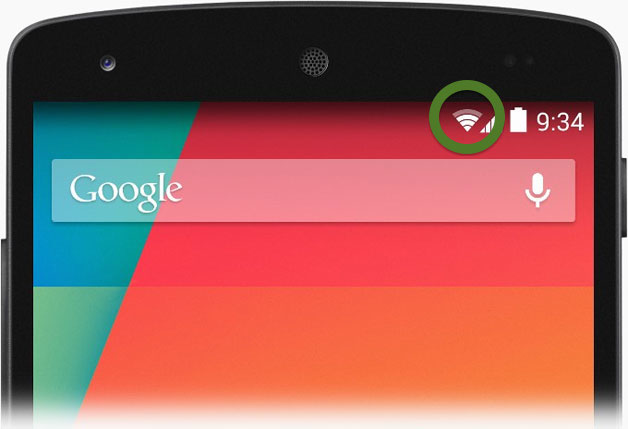
You will want to go into your phone’s settings and make sure that your phone is set to automatically connect to Wi-Fi networks it has previously used.[4] Also, check the status bar at the top of the screen to make sure that you see the Wi-Fi symbol before you start data-heavy activities. Below you can see it on Android and iPhone, marked with a green circle.

Android Wi-Fi symbol
Android phone with Wi-Fi connected (Photo courtesy of androidiani.com)
iPhone Wi-Fi symbols
iOS 6 (left) and iOS 7 (right) with Wi-Fi connected (Photo courtesy of extreme tech.com)

Restrict apps’ access to cellular data. When you’re not connected to a Wi-Fi network, your data usage is considered cellular data, and counts toward your limit. You can restrict your phone from using certain cellular data.

Apple has made this very easy starting with iOS 7. You can tell your iPhone or just particular apps to only use data when connected to Wi-Fi. Apple has a customer support page explaining this.

As far as I’m aware, Android only allows you to limit data used in the background (explained here). This prevents an app to use mobile data unless you actually open it. The newest Android version also has nice visual charts of data usage.

Taking action

Now that you know data isn’t counted against you when you’re connected to Wi-Fi, are there changes you would make when filling out the data calculators above? If you save your data-intensive activities for when you’re connected to Wi-Fi, you may be able to use far less cellular data than you first thought. Maybe you can even downgrade to a less expensive data plan!

————————————-

Do you enjoy reading this blog? If so, I’d love to hear from you! (If you’ve read this far but don’t enjoy it, I’d be glad to hear your thoughts, too.)

What topics do you want to learn about?

Go back

Your message has been sent

Warning
Warning
Warning
Warning

Warning.

1 – Your total may be counted in gigabytes (GB), and lowest data tier from most providers is about 1GB. If your total shows up in megabytes (MB), remember that 1,024 MB equals 1 GB.
2 – T-Mobile recently announced that their customers can stream music through certain apps without affecting their data usage. That’s the only situation I see where data usage would be counted differently among the carriers.
3 – Streaming means watching or listening to something in real time, such as music on Pandora or video on Netflix or YouTube. The opposite would be downloading the audio or video file to your device, and then watching it. Both options use data, but more and more often people are consuming music, movies, etc. on-the-go by streaming them rather than downloading them.
4 – Keep in mind that you shouldn’t do any sensitive activity (such as online banking or sending confidential information) unless you are on a Wi-Fi network with a secure log in and that you trust. Not McDonald’s free Wi-Fi!