Google Chromebook: Is It For Me?

Welcome to the first of a recurring series here on my Making Technology Simpler blog: “Is It For Me?” I’ll explain a product or technology, then help you figure out if it meets your needs. This week’s subject is the Google Chromebook.
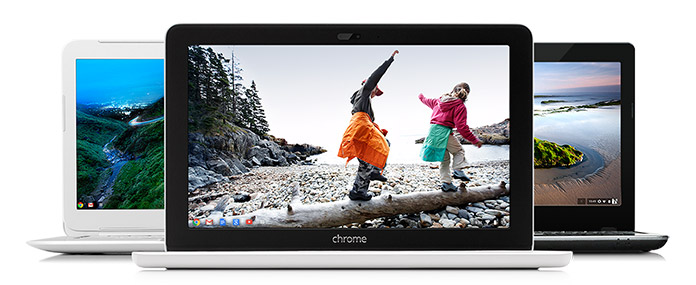
Chromebook laptops
Google Chromebooks (Photo courtesy of google.com)

Google Chromebooks are a series of inexpensive laptops with great battery life, strong integration with Google, and little maintenance needed.

Chromebooks use an operating system created by Google called Chrome OS…the whole operating system is basically the Chrome Internet browser that many people use on Windows and Mac computers. The computer hardware is made by companies like Acer and HP.

Pros

Here’s another thing that makes Chromebooks unique among laptops: the whole operating system is designed to be used with Internet access, and the hard drive in the computer is tiny.

Google intended for these computers to be used in conjunction with Google’s cloud storage, so photos will need to be stored in Google+ and documents stored in Google Drive. (I wrote about cloud storage here.) With everything stored in the cloud, there’s no need for a big hard drive. The benefit of this is the computer will boot up very quickly.

This reliance on cloud storage has a couple other ramifications. On the positive side, no data backups are needed, since almost everything is in Google’s cloud. And once the computer needs to be replaced, you can sign into your next Chromebook with your Google account, and all your emails, documents, etc. will be available immediately. No file transferring necessary.

Cons

On the flip side, you will be limited in what your Chromebook can do without Internet access. You can do some document creation, for example, and the document will save to Google Drive when you connect to the Internet again. Internet access is becoming more widespread, however, and some Chromebooks will allow you to also connect to a 4G network through a carrier like T-Mobile.

Because almost everything you do on a Chromebook involves Internet access, the speed of the computer itself will be heavily influenced by the speed of your Internet connection. If you regularly use a slow connection, be prepared to pay for faster speeds to really enjoy a speedy Chromebook experience.

The other main limitation of Chromebooks is that you can’t install PC or Mac programs on it. So if you really need the full version of Microsoft Office or some specialized accounting program for your work, a Chromebook isn’t for you (unless it’s as a secondary computer). You’re limited to using Google’s apps and others available through the Chrome web store.

Ease of use

Chromebooks are low maintenance devices, partly because they update automatically and Google says they’re very secure and have no need for antivirus software.

Setup is also easy, to the degree that you’re already part of Google’s services. If you already use Google for email, documents, photos, and music, your new Chromebook will be ready to go as soon as you open it and sign in with your Google account.

If you use iTunes for your music and store documents or photos on your current computer, you’ll want to transfer all of it to Google’s appropriate online service before you make the switch to a Chromebook. (And if you have an iPhone, iPad, or iPod, know that they won’t sync with music on your Chromebook.)

Remember, third-party apps like iTunes or Microsoft Office can’t be installed on a Chromebook. So you’ll need to use a Google service or a third-party service that can be accessed online (such as Pandora for music streaming or the online version of Microsoft Office).

Is it for me?

A Chromebook might be great for you, if:

  • You use Google for all of your email, documents, photos, media, and calendar (or are willing to move all those things to Google)
  • You have Internet access almost all the time
  • You need a very portable computer with a battery that lasts all day
  • A low up-front cost is important to you

You should probably stay away from a Chromebook, if:

  • You need an application that only runs on a PC or Mac, like Adobe Creative Cloud, Microsoft Office, or iTunes
  • You prefer to store your documents, photos, or media locally (i.e. on your computer’s hard drive)
  • Your computer needs to handle intense tasks, like games or video editing

Have you seen or heard about another device or technology that’s made you ask, “Is it for me?” Let me know below, and I’ll write about it soon.

-Paul

Go back

Your message has been sent

Warning
Warning
Warning
Warning

Warning.


Smart TVs – Television buying guide part 2

Note: this is the second part of my TV buying guide. The first post discussed TV resolutions and connections.

If you’ve been shopping for TVs lately, you’ve come across the term “smart TV.” So what’s a smart TV? It’s a TV that connects to the Internet and allows you to watch content from online: movies from Netflix, TV shows from Hulu, or (my guilty pleasure) YouTube compilations of cats falling clumsily.

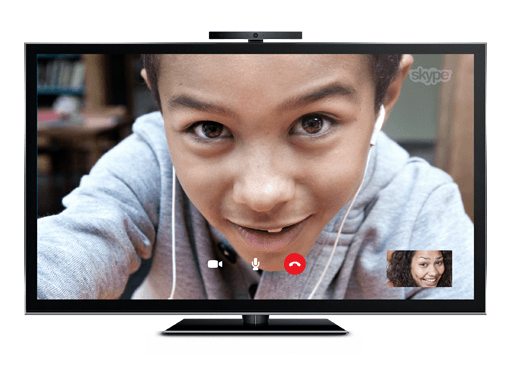
Skype on a smart TV
Your family can literally be larger than life with video calls on a smart TV

The fact that the TV is connected to the Internet also allows for more unusual uses, such as Skyping with an attached webcam or listening to music through your surround sound speakers with an online music service like Pandora.

These activities used to be relegated to your computer. Now you can enjoy them in your living room on the biggest screen in your house. It’s fantastic to have those abilities.

But I’m still not sure my next TV will be a smart TV. And here’s why.

A potential downside: longevity

Ever since televisions were invented, they served as passive screens simply displaying the video signal fed into them. The video signals came from devices such as antennas, then cable and satellite dishes, then VCRs and DVD players.

A smart TV is different; it’s essentially an all-in-one computer, like an iMac. There’s a small, streamlined computer housed behind the screen, connecting to the Internet and serving you content from various online sources. It works well, and frankly I’ve been pretty impressed by how it works on demo units I’ve seen in stores.

But how long will that computer, and the “smart TV” experience it provides, feel quick and modern?

My suspicion is that the TV’s computer “guts” will feel slow and the software will feel outdated long before the TV screen itself seems inadequate. (This is the same reason I’m skeptical of cars with a built-in screen and computer system.)

Now, it could be argued I’ve kept using my current TV longer than the average person…but I doubt it. I won’t embarrass my parents by publishing exactly how old their TVs are, but both are much older than their computer. I suspect the same is true for most people.

If you tend to get a new TV every few years, this may not be much of a problem for you. But for those of you who don’t, there are other options for accessing online content.

Another option: streaming boxes

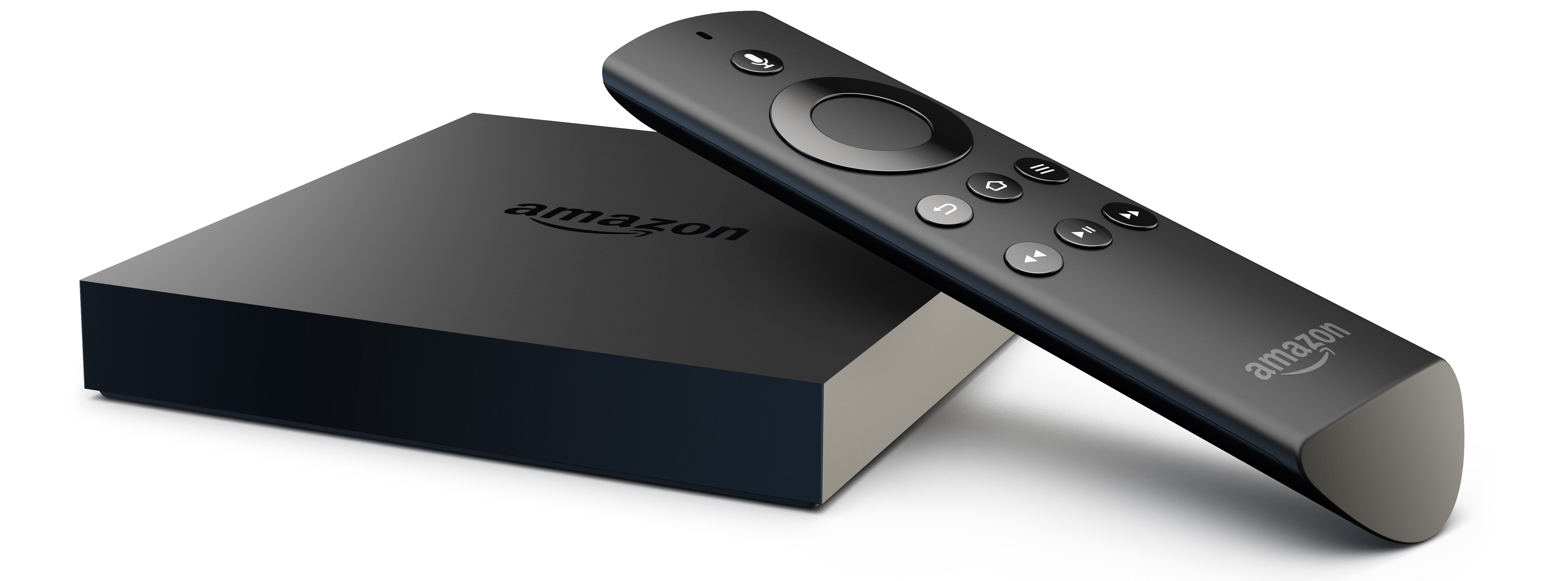
Amazon Fire TV
Amazon’s new Fire TV streaming box

In fact, you may already own a device that can access online content. I’m thinking primarily of streaming boxes, such as a Roku, Apple TV, Fire TV, or Chromecast. Gaming consoles such as a Playstation or Xbox also have some streaming connectivity, and so do many Blu-ray players. And of course, your laptop might also able to connect to your TV when you want to watch something on it.

The benefit of a smart TV over these is simplicity (in theory). Instead of connecting another box and having another remote, it’s built into the TV itself. The ease of use may vary widely, depending on the TV manufacturer and the software it makes (more on that later). But in general, it means one less box to connect, one less cable to plug in, and one less remote to keep track of.

However, streaming media boxes such as a Roku or Apple TV cost $100 or less, and the Google Chromecast costs only about $35. I can live with having to replace one of those with the latest version every few years. I don’t see myself replacing my whole TV that often.

My worry is that when the computer components of your smart TV are out-of-date, you’ll be left with a screen that still works great. You’ll have three options: buy a new smart TV, use your smart TV with its slow or frustrating interface, or buy one of the aforementioned streaming boxes to do what your smart TV no longer can…which is exactly the thing you were avoiding by buying the smart TV in the first place.

That’s why I won’t be paying extra to get a smart TV. A dumb TV will still allow me to plug in my antenna, Blu-ray player (which streams Netflix, YouTube, etc.), and even my computer if I want.

If you don’t use or plan to use streaming video services, then a smart TV would probably be just adding an extra layer of complexity to your living room relaxation.

That being said, you rarely have the choice between a smart TV and a “dumb TV” these days. At the more expensive end of the TV market, almost every single TV is a smart TV. If you’re getting a TV above $1000, it will almost certainly be a smart TV, and even most TVs above $500 are smart TVs now.

Even if you don’t plan to use smart TV features, there’s a good chance you’ll end up with one, and you might be surprised how much you enjoy some of the features on it.

What to look for

So what separates one smart TV from another? The apps that are available and the televisions’ ease of use.

Samsung app store
Samsung’s smart TV app store

Almost every smart TV includes Netflix support, but if you want to use other streaming services or social media, make sure all those apps are either pre-installed or available through the manufacturer’s app store. If you want to use your new big screen for video calls, see if there’s an included camera or if you’ll need to connect a webcam on your own. Most smart TVs connect via Wi-Fi, but make sure yours does, because you probably won’t want to run an ethernet cable to it to provide Internet access.

The other big question: how easy-to-use are the smart services? A smart TV that’s frustrating to use defeats the whole purpose. If you stream content from multiple Internet services, see if the TV will show you results from all the services when you search for ‘Forrest Gump.’ Does the menu feel cluttered, or is it easy to find the app you’re wanting to use?

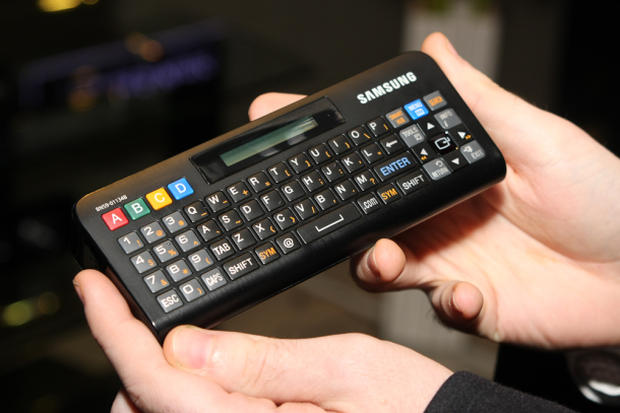
Samsung QWERTY remote
An example of a QWERTY remote

A key factor in ease-of-use is the remote. A full QWERTY keyboard on the remote will help you search much more quickly. Newer smart TVs come with remotes that let you move an on-screen pointer by aiming the remote at the screen (a la the Wii remote). Are there shortcut buttons on the remote for the streaming services you’ll use most often?

Conclusion

LG smart TV interface

Differentiating between smart TVs is difficult to do unless you’re using them in person. If you’re looking at the latest and greatest sets, the manufacturers’ websites may give good demos of their smart TV features. For last year’s models or budget brands, you’ll probably need to try out the smart TV at a friend’s house or in a store.

Think of smart TVs as an all-in-one computer, one with an operating system you’ve never used before. You shouldn’t buy just based off the screen size and quality; you’ll want to see how it actually functions first.

In short, I don’t recommend you pay more for a smart TV, if a dumb TV model fits your budget and suits your needs. But if you do get a smart TV, make sure you’re getting one that’s easy to use and has the apps to meet your viewing habits. That will probably mean looking for a model from a top brand.

Speaking of brand names, next week’s post will cover which brands to look for, and how much brand name matters. Plus, what time of year is best to buy a TV, and more!

-Paul

Got an idea for a future blog topic? Send it to me below. Thanks!

Go back

Your message has been sent

Warning
Warning
Warning
Warning

Warning.

Cloud storage explained

10 years ago, if you mentioned “the cloud” to me I would have looked up at the sky. If that’s your first reaction to the phrase, don’t worry! “The cloud” is one of the most-used and least-explained tech terms right now. Let’s put it in plain English.

What is cloud storage?

Since computers were invented, data has been stored on physical media (punch cards, floppy disks, thumb drives, etc.). When you want to transfer data from one computer to another, you physically carry your storage media from one computer to the other.

For example, I start writing a report on my work computer, save it to a thumb drive, and then plug the thumb drive into my computer at home to finish editing the report. That’s how most of us are used to doing things.

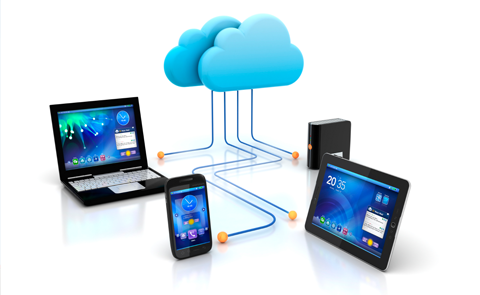
Cloud storage
This is what “the cloud” might look like — if it were an actual cloud. (But really, this is a pretty good illustration of how data is stored in a remote location and can be accessed by multiple devices.)

When people refer to “the cloud,” what they generally are talking about is data being stored in a server (i.e. a specialized computer) that’s connected to the Internet. This means any computer connected to the Internet can have access to that data, even at the same time.

So in practice, I would start my report at work, save it to the cloud, then log in and edit it from my home computer. When I’m finished, I can download a copy to store it on my computer if I want. Notice that in this situation I don’t have to physically carry anything home with me. The document is stored on a hard drive that’s connected to the Internet, and the hard drive is owned and maintained by the company providing the service (such as Dropbox).

Benefits of cloud storage

Cloud storage has been exploding in popularity. The services that are most well-known include Google Drive, Dropbox, Microsoft’s OneDrive, and Apple’s iCloud Drive. (I’ll compare these in detail next week to help you figure out which might work best for you.)

Google, in fact, makes a line of inexpensive computers (Chromebooks) with relatively tiny hard drives, specifically because they expect that users will store almost all their data on Google Drive.

As I mentioned, I can download or edit my document in the cloud from any computer with Internet access. I can give other people permission to access it, also from any computer with Internet access.

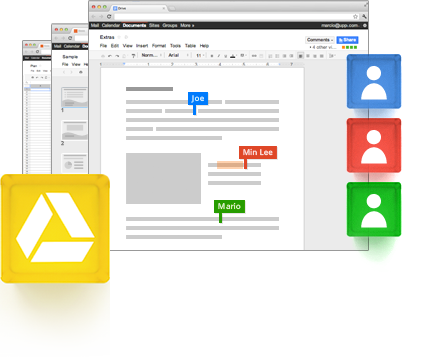
Google Drive collaboration
Joe, Min Lee, and Mario editing a document at the same time, from different locations (in Google Drive)

This allows for another major benefit of cloud storage: multiple people can edit a document at the same time, collaborating in real time and seeing each other’s changes as they happen.

Until now, I’ve been discussing cloud storage in relation to computers. Perhaps you’re thinking, Why shouldn’t I just use a thumb drive? Every computer has a USB port.

That’s true, but more and more people are creating and using data on devices like smartphones (taking photos, for example). Many of these portable devices don’t have USB ports, so cloud storage allows people to access and share data much more easily than they would otherwise.

For example, if I kept all my photos on my phone, it would quickly run out of storage space. But if I upload the photos to a cloud storage service, I can access all of them anytime my phone has Internet access. Plus, I can also view them from any other device I use.

Are you starting to see the benefits?

Disadvantages of cloud storage

Of course, there are downsides to cloud storage compared to saving your stuff on your hard drive. Let’s touch on the main ones.

First, and this is the one that keeps me from using cloud storage more, most companies that offer cloud storage charge a monthly or yearly subscription. The cost depends on how much storage space you choose. Typically a small amount of storage is free, such as 5GB on iCloud Drive. This is enough space for a lot of text documents. But if you add in music or photos, that space will be eaten up quickly. And then you’ll pay for the higher storage amounts. (Again, I’ll give more details next week.)

Thumb drives and external hard drives aren’t free either, and you’ll have to weigh the upfront cost of buying that type of storage compared to the subscription cost of cloud storage. I’ve become very used to having my files stored in a drive I physically own, and it’s hard to get used to the idea of paying regularly for the storage.

Second, data you store in the cloud is physically stored in some remote location, not on your desk. This means you’re trusting that your data will be available when you want and won’t just disappear. Also, it means that someone can potentially hack into your account and steal your files.

For the record, I bet every cloud storage company backs up their customers’ data better than you back up your own computer. As for hackers, it seems that hacking situations are caused more often by people using easy-to-guess passwords or reusing passwords from other accounts, than by companies using poor security on their end.

Either way, I wouldn’t  keep personal/confidential files in cloud storage, and I would make sure that my most important files are also stored on a hard drive I own.

Third, data stored in the cloud is only accessible to you when you have Internet access. Internet access is growing, and some devices like smartphones are connected even when you travel. But keep in mind that what you put in the cloud can only be accessed when your device is Internet-connected.

You should use cloud storage, but which provider?

I think cloud storage will continue to be used even more often in the future. It will be especially helpful for those who own multiple devices and want to share files between them.

I’ll help break down the differences between the major cloud storage providers in next week’s post, so stay tuned! Until then, I hope this overview helped you understand what exactly cloud storage is. If you have any questions about it, please ask them below. I’d love to hear from you!

Go back

Your message has been sent

Warning
Warning
Warning
Warning

Warning.

Should you update your iPhone to iOS 8?

iOS 8
iPhones running iOS 8

Just this week Apple released the latest version of their operating system for iPhones, iPads, and iPod Touches. It’s called iOS 8, and it’s a free upgrade for Apple users. Last year’s iOS 7 included visual changes to almost everything; it took a while to get used to. This year’s update looks very similar to iOS 7 and is more of a refinement, adding various features that most people will find useful.

If you’re an avid iPhone user, you’ve probably already upgraded. If you have an iDevice and aren’t sure if or how to upgrade to the newest operating system, I’ll help you out.

CAN you upgrade?

Apple’s official iOS 8 website says eligible devices are the following: iPhone 4S and later, iPad 2 and later, and iPod Touch 5th gen. and later. The biggest missing name from their last update is the iPhone 4, so if that’s your phone you won’t be able to get the newest update[1].

SHOULD you upgrade?

Every time Apple (or similar companies) update their operating systems, the new versions are typically designed to work best on the newest, most powerful hardware available (in this case, the newly announced iPhone 6). So this means that older phones, computers, etc. will run a little more slowly when upgraded to the latest system[2]. This is probably the main reason iPhone 4 and the original iPad aren’t included in this update.

If you have an iPhone 5, 5C, or 5S, any possible slowdown will be tiny, if not imperceptible. I’d say definitely upgrade. If you have the iPhone 5S, you’ll have the option to use the Touch ID fingerprint sensor to log in to all kinds of apps — one of my favorite new features.

Any of the iPads after iPad 2 (such as Air or Mini) should also handle the upgrade without a problem. Definitely upgrade. If your device is one of these, feel free to skip to the next section.

But the iPhone 4S and iPad 2 will run more slowly on iOS 8, and probably noticeably so. Ars Technica has written a couple of good articles detailing what to expect if you upgrade your iPhone 4S or iPad 2.

I happen to use both these devices. I’ve already upgraded my iPhone 4S, and I think I notice various animations being a bit slower (so I actually turned some of them off to help a bit). However, to me the additional features and functions that were added made the upgrade worth the (at times) slower operation.

Another consideration: this is the smallest screen size Apple still sells, and some new features mean you’ll see even less on the screen than before when the keyboard is up.

I’m doubtful I’ll upgrade our iPad 2 to iOS 8. We most often use it for reading books or checking email. I rarely use it for messaging or other uses where new features seem really promising. I’m happy with the way iOS7 works with the ways we use it, and it seems a safe bet that it will also be noticeably slower with iOS 8. Based the Ars Technica article I mentioned earlier, I don’t recommend iPad 2 owners upgrade.

HOW do you upgrade?

Chris Breen of MacWorld wrote a step-by-step guide I highly recommend. I’ll give you the summary version.

First, back up your device. You can either do it on your computer with iTunes or back up to iCloud through Wi-Fi. The iOS 8 install shouldn’t erase anything, but things go wrong now and then. It’s always a good idea to back up your data.

To download the update and install it, you have two options. Download it wirelessly via the Settings app on your device, or plug the device into your computer with the USB cable and upgrade in iTunes.

The simpler way is probably from the Settings app, but if you have limited space on your device, you’ll want to do the install via iTunes. The installation file that’s temporarily downloaded can be several gigabytes in size.

I recommend starting this before you go to bed, because the installation file can take a long time to download depending on your Internet speed. Once it’s downloaded, it may take up to another hour to actually complete the installation.

Once complete, you’ll have to go answer a couple setup questions. For reasons explained here, if you also use a Mac and store files in iCloud, I’d choose “Not Now” when you’re asked if you want to upgrade to iCloud Drive. Do that once the new Mac operating system comes out in a month or two.

And that’s it! If you’re upgrading to iOS 8, enjoy the new features. Again, you can learn more about what’s new here and here.

Have you updated to iOS 8? What do you like or dislike so far?

I’d love to hear from you! Leave me a question or comment about anything below.

Go back

Your message has been sent

Warning
Warning
Warning
Warning

Warning.

1 – Frankly, iOS 8 would probably run so slowly on the iPhone 4 that you wouldn’t want to upgrade anyway.

2 – For the same reason, certain new features in any new operating system won’t work on older devices, even if they’re fast enough to run it without any problem.