Do You Know What You’re Installing?

Ask Toolbar in action
The Ask Toolbar is highlighted in red here. Totally unnecessary to have in your browser.

Do you have little random popups in the bottom-right corner of your computer screen? Does your internet browser have a random homepage you didn’t pick, or a strange toolbar along the top that you never use (like the one highlighted in red on the right)? Has your desktop filled up with app icons that you don’t recognize?

If you answered yes to any of these questions, then you’ve been installing junk and malware without even knowing it. Read on for tips on how to be more careful as you install new applications.

Operating systems with app stores (Mac, iOS, Android, Chrome, etc.) theoretically check to make sure that every app in the app store gives you just what it advertises[1]. No junk bundled with the app, no malware, no viruses, no harmful things hiding where you can’t see.

Windows, in contrast, has no app store. So when you want to download Skype, for instance, you go online and find a place to download the Skype installer package. These installer packages are where malware and other junk lurk.

For more details, this week I’m pointing you to an article by the How-To Geek. The article explains how you can avoid installing junk programs on your PC.

Go slowly through the installation

First of all, downloads often have tricky options in their installation screens to try to get you to install stuff you weren’t wanting. 

An example from The How-To Geek: When you install Oracle’s Java software, you get asked to install the Ask Toolbar (not made by Oracle) in your browser. As far as I know, the Ask Toolbar isn’t going to harm your computer. But even if that’s true, “junk” is probably the most generous description I can give. It’s unnecessary and annoying, and it is another thing using your computer’s memory and processor.
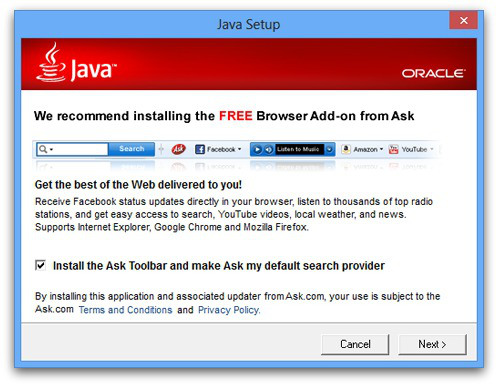
Ask Toolbar installer
Think twice before clicking Next. If you leave the box checked, you’re installing junk on your computer.

You should always have the option to decline bundled software like this while installing an app, but the install packages make it as tricky as possible. There’s often a tiny checkbox at the bottom of a screen (checked by default), or the software you’re installing says it “recommends” you install this additional program. Well of course they recommend it; they’re getting paid to recommend it! Always go slowly while installing new software; make sure you’re only agreeing to install the software you’re intending.

ArcadeGiant installer
This “Special Offer” page will install malware called ArcadeGiant unless you click Decline (the greyed out button you didn’t notice).

Or sometimes the installer will show you a screen about a “Special Offer” with a bunch of legalese and the option to “Accept” or “Decline.” If you’re in a hurry or just aren’t prepared for it, you may click “Accept.” After all, who has time to sort through all this legalese, right? Voila! You’ve just installed junk that’s either bad for your computer or just unnecessary. Don’t assume that every step is necessary for installing your desired software; some steps are only trying to get you to install junk.

Sometimes the checkbox to install junk software is right on the website where you download your legitimate software. Adobe’s Flash Player website, for example, includes the option to install an additional program you didn’t ask for. Always keep an eye out for these kinds of offers and decline them.

Fake download links

Head to The How-To Geek’s original article for details on another trap you should look out for: fake download links. There are often multiple links that say “Download” on the page where you download your program. One of them is the correct link, and the others are all advertisements taking you somewhere you don’t want to be.

The How-To Geek article tells you how to know which link is legit. Plus, it’ll get you started on cleaning out junk you may have previously installed.

Let me know below what topic you’d like me to hit next!

-Paul

Go back

Your message has been sent

Warning
Warning
Warning
Warning

Warning.

1 – This of course isn’t always the case. There are so many apps submitted for approval on app stores, there’s no way the folks checking them can thoroughly review every app. Still, it’s a lot better than the situation for Windows.

Do you need that much smartphone data?

Smartphone in use
How much data does your smartphone actually need?

If you have a smartphone, you probably know that your data plan is a big chunk of your monthly bill. But when was the last time you checked how much data you actually use? Are you paying for more data than you need?

What is data usage?

Data usage on a mobile device (most often a smartphone or tablet) is simply all information that is sent from or received by the device. (The exception is phone calls and text messages, which are counted separately from data.)

This includes text (emails, websites, etc.), audio (downloading songs, listening to online radio stations, etc.), video (watching Netflix, downloading a movie, etc.), and other uses (such as GPS navigation or downloading and using certain apps).

Here’s a good way to check what activities use data: put your phone in airplane mode. That way it can’t access any data at all. Certain functions will still work, like viewing photos you’ve taken on your phone. If a certain app or activity won’t work on airplane mode, then it needs access to data to work.

How much data do I use?

Now that you have an idea of what activities use data on your phone, you’ll want to find out how much data you’ve actually used in the past. Your monthly bill may show that, or you may have to log in to your phone carrier’s website.

Remember that many phone plans these days have begun counting shared data among all the devices on the plan. So if you have family members with smartphones, their data will also be counted toward the monthly limit.[1]

If you’re wanting to instead get an idea of what your data plan could be, or you want to know what activities use more data, check out one of these data calculators from the four major carriers. Pay attention to whether you are inputting monthly or daily usage for each site.

NOTE: data usage is the same regardless of which carrier you use,[2] so you don’t have to just use the calculator from your carrier. Feel free to try multiple ones; one might be more helpful than the others.

How can I limit my data usage?

If you’re interested in using less mobile data, I’ve got a couple of tips for you.

Remember that different activities use very different amounts of data (as shown by the data calculators above). Downloading mainly text, such as emails, uses a tiny amount of data. You could check email all day long and not come close to your limit.

Sending/receiving photos (such as uploading a photo to Facebook or sending as an attachment) uses more data. Streaming[3] audio uses still more, and streaming video uses the most data of all. This doesn’t mean you can’t enjoy those activities, but it helps to know the next tip.

Use Wi-Fi when possible. Data that your phone uses when connected to a Wi-Fi network (such as in your home) does NOT count against your data limit. So if you’re at home and your phone is connected to your home Wi-Fi network, stream all the music you want and download app updates at the same time; none of it will count against your total.

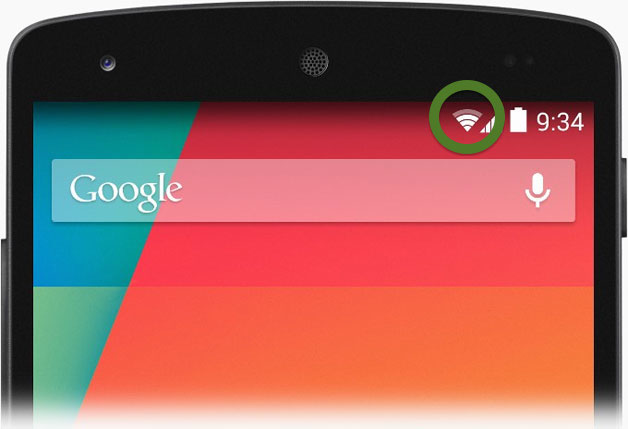
You will want to go into your phone’s settings and make sure that your phone is set to automatically connect to Wi-Fi networks it has previously used.[4] Also, check the status bar at the top of the screen to make sure that you see the Wi-Fi symbol before you start data-heavy activities. Below you can see it on Android and iPhone, marked with a green circle.

Android Wi-Fi symbol
Android phone with Wi-Fi connected (Photo courtesy of androidiani.com)
iPhone Wi-Fi symbols
iOS 6 (left) and iOS 7 (right) with Wi-Fi connected (Photo courtesy of extreme tech.com)

Restrict apps’ access to cellular data. When you’re not connected to a Wi-Fi network, your data usage is considered cellular data, and counts toward your limit. You can restrict your phone from using certain cellular data.

Apple has made this very easy starting with iOS 7. You can tell your iPhone or just particular apps to only use data when connected to Wi-Fi. Apple has a customer support page explaining this.

As far as I’m aware, Android only allows you to limit data used in the background (explained here). This prevents an app to use mobile data unless you actually open it. The newest Android version also has nice visual charts of data usage.

Taking action

Now that you know data isn’t counted against you when you’re connected to Wi-Fi, are there changes you would make when filling out the data calculators above? If you save your data-intensive activities for when you’re connected to Wi-Fi, you may be able to use far less cellular data than you first thought. Maybe you can even downgrade to a less expensive data plan!

————————————-

Do you enjoy reading this blog? If so, I’d love to hear from you! (If you’ve read this far but don’t enjoy it, I’d be glad to hear your thoughts, too.)

What topics do you want to learn about?

Go back

Your message has been sent

Warning
Warning
Warning
Warning

Warning.

1 – Your total may be counted in gigabytes (GB), and lowest data tier from most providers is about 1GB. If your total shows up in megabytes (MB), remember that 1,024 MB equals 1 GB.
2 – T-Mobile recently announced that their customers can stream music through certain apps without affecting their data usage. That’s the only situation I see where data usage would be counted differently among the carriers.
3 – Streaming means watching or listening to something in real time, such as music on Pandora or video on Netflix or YouTube. The opposite would be downloading the audio or video file to your device, and then watching it. Both options use data, but more and more often people are consuming music, movies, etc. on-the-go by streaming them rather than downloading them.
4 – Keep in mind that you shouldn’t do any sensitive activity (such as online banking or sending confidential information) unless you are on a Wi-Fi network with a secure log in and that you trust. Not McDonald’s free Wi-Fi!