Microsoft has traditionally sold operating systems for a hefty price…currently a full upgrade to Windows 8.1 costs around $100. This meant that most people don’t upgrade to the newest operating system until they buy a brand-new computer. But Microsoft seems to be trying to change that.
Microsoft last month announced the upcoming release of their newest operating system, Windows 10. (Yes, their previous OS was Windows 8. They skipped Windows 9 apparently.)
Along with announcing the new features of Windows 10, Microsoft also announced that Windows 10 will be a free upgrade for users of Windows 7 and Windows 8.1 within the first year after Windows 10 is released.
So if you’re using Windows 7, don’t fork over your money to pay for an upgrade to Windows 8.1. Wait a bit longer and get a free upgrade to the newest version — Windows 10.
Microsoft hasn’t officially announced a release date for Windows 10, but it’s rumored to be a summertime release in 2015, and that makes sense so they could have Windows 10 installed on new computers in time for back-to-school shopping.
So it seems the one-year window (see what I did there?) for getting your free upgrade won’t start for at least several months. This means if you buy a new PC before then, it will most likely have Windows 8 installed, but you’ll soon be able to upgrade to Windows 10 for free.
Also, if your computer is pre-Windows 7 (XP or Vista), you can feel free to buy a new Windows 7 or 8 computer and will soon be able to get the newer Windows 10 upgrade for free.
Windows 10 desktop and Start Menu (Photo courtesy of arstechnica.com and Andrew Cunningham)
Some of Windows 10’s new features will include automatically installed updates, a new web browser to replace Internet Explorer, and Cortana (Microsoft’s version of Siri). And the Start Menu seems to be returning to its more traditional form after being changed for Windows 8.
Got a topic you want me to blog about? A comment or suggestion? Let me know below!
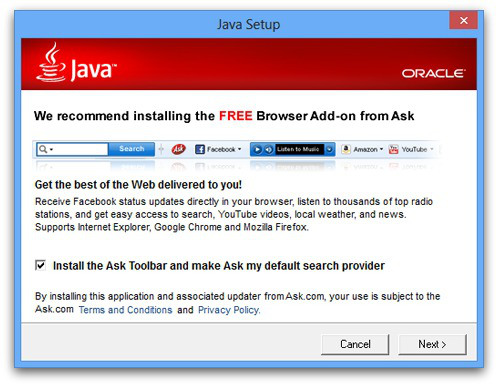
The Ask Toolbar is highlighted in red here. Totally unnecessary to have in your browser.
Do you have little random popups in the bottom-right corner of your computer screen? Does your internet browser have a random homepage you didn’t pick, or a strange toolbar along the top that you never use (like the one highlighted in red on the right)? Has your desktop filled up with app icons that you don’t recognize?
If you answered yes to any of these questions, then you’ve been installing junk and malware without even knowing it. Read on for tips on how to be more careful as you install new applications.
Operating systems with app stores (Mac, iOS, Android, Chrome, etc.) theoretically check to make sure that every app in the app store gives you just what it advertises[1]. No junk bundled with the app, no malware, no viruses, no harmful things hiding where you can’t see.
Windows, in contrast, has no app store. So when you want to download Skype, for instance, you go online and find a place to download the Skype installer package. These installer packages are where malware and other junk lurk.
For more details, this week I’m pointing you to an article by the How-To Geek. The article explains how you can avoid installing junk programs on your PC.
Go slowly through the installation
First of all, downloads often have tricky options in their installation screens to try to get you to install stuff you weren’t wanting.
An example from The How-To Geek: When you install Oracle’s Java software, you get asked to install the Ask Toolbar (not made by Oracle) in your browser. As far as I know, the Ask Toolbar isn’t going to harm your computer. But even if that’s true, “junk” is probably the most generous description I can give. It’s unnecessary and annoying, and it is another thing using your computer’s memory and processor.
Think twice before clicking Next. If you leave the box checked, you’re installing junk on your computer.
You should always have the option to decline bundled software like this while installing an app, but the install packages make it as tricky as possible. There’s often a tiny checkbox at the bottom of a screen (checked by default), or the software you’re installing says it “recommends” you install this additional program. Well of course they recommend it; they’re getting paid to recommend it! Always go slowly while installing new software; make sure you’re only agreeing to install the software you’re intending.
This “Special Offer” page will install malware called ArcadeGiant unless you click Decline (the greyed out button you didn’t notice).
Or sometimes the installer will show you a screen about a “Special Offer” with a bunch of legalese and the option to “Accept” or “Decline.” If you’re in a hurry or just aren’t prepared for it, you may click “Accept.” After all, who has time to sort through all this legalese, right? Voila! You’ve just installed junk that’s either bad for your computer or just unnecessary. Don’t assume that every step is necessary for installing your desired software; some steps are only trying to get you to install junk.
Sometimes the checkbox to install junk software is right on the website where you download your legitimate software. Adobe’s Flash Player website, for example, includes the option to install an additional program you didn’t ask for. Always keep an eye out for these kinds of offers and decline them.
Fake download links
Head to The How-To Geek’s original article for details on another trap you should look out for: fake download links. There are often multiple links that say “Download” on the page where you download your program. One of them is the correct link, and the others are all advertisements taking you somewhere you don’t want to be.
The How-To Geek article tells you how to know which link is legit. Plus, it’ll get you started on cleaning out junk you may have previously installed.
Let me know below what topic you’d like me to hit next!
1 – This of course isn’t always the case. There are so many apps submitted for approval on app stores, there’s no way the folks checking them can thoroughly review every app. Still, it’s a lot better than the situation for Windows.
Welcome to the first of a recurring series here on my Making Technology Simpler blog: “Is It For Me?” I’ll explain a product or technology, then help you figure out if it meets your needs. This week’s subject is the Google Chromebook.
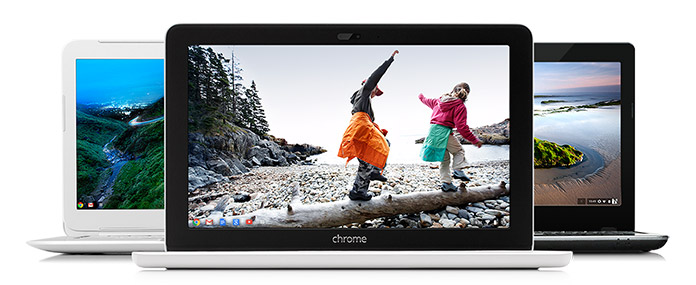
Google Chromebooks (Photo courtesy of google.com)
Google Chromebooks are a series of inexpensive laptops with great battery life, strong integration with Google, and little maintenance needed.
Chromebooks use an operating system created by Google called Chrome OS…the whole operating system is basically the Chrome Internet browser that many people use on Windows and Mac computers. The computer hardware is made by companies like Acer and HP.
Pros
Here’s another thing that makes Chromebooks unique among laptops: the whole operating system is designed to be used with Internet access, and the hard drive in the computer is tiny.
Google intended for these computers to be used in conjunction with Google’s cloud storage, so photos will need to be stored in Google+ and documents stored in Google Drive. (I wrote about cloud storage here.) With everything stored in the cloud, there’s no need for a big hard drive. The benefit of this is the computer will boot up very quickly.
This reliance on cloud storage has a couple other ramifications. On the positive side, no data backups are needed, since almost everything is in Google’s cloud. And once the computer needs to be replaced, you can sign into your next Chromebook with your Google account, and all your emails, documents, etc. will be available immediately. No file transferring necessary.
Cons
On the flip side, you will be limited in what your Chromebook can do without Internet access. You can do some document creation, for example, and the document will save to Google Drive when you connect to the Internet again. Internet access is becoming more widespread, however, and some Chromebooks will allow you to also connect to a 4G network through a carrier like T-Mobile.
Because almost everything you do on a Chromebook involves Internet access, the speed of the computer itself will be heavily influenced by the speed of your Internet connection. If you regularly use a slow connection, be prepared to pay for faster speeds to really enjoy a speedy Chromebook experience.
The other main limitation of Chromebooks is that you can’t install PC or Mac programs on it. So if you really need the full version of Microsoft Office or some specialized accounting program for your work, a Chromebook isn’t for you (unless it’s as a secondary computer). You’re limited to using Google’s apps and others available through the Chrome web store.
Ease of use
Chromebooks are low maintenance devices, partly because they update automatically and Google says they’re very secure and have no need for antivirus software.
Setup is also easy, to the degree that you’re already part of Google’s services. If you already use Google for email, documents, photos, and music, your new Chromebook will be ready to go as soon as you open it and sign in with your Google account.
If you use iTunes for your music and store documents or photos on your current computer, you’ll want to transfer all of it to Google’s appropriate online service before you make the switch to a Chromebook. (And if you have an iPhone, iPad, or iPod, know that they won’t sync with music on your Chromebook.)
Remember, third-party apps like iTunes or Microsoft Office can’t be installed on a Chromebook. So you’ll need to use a Google service or a third-party service that can be accessed online (such as Pandora for music streaming or the online version of Microsoft Office).
Is it for me?
A Chromebook might be great for you, if:
You use Google for all of your email, documents, photos, media, and calendar (or are willing to move all those things to Google)
You have Internet access almost all the time
You need a very portable computer with a battery that lasts all day
A low up-front cost is important to you
You should probably stay away from a Chromebook, if:
You need an application that only runs on a PC or Mac, like Adobe Creative Cloud, Microsoft Office, or iTunes
You prefer to store your documents, photos, or media locally (i.e. on your computer’s hard drive)
Your computer needs to handle intense tasks, like games or video editing
Have you seen or heard about another device or technology that’s made you ask, “Is it for me?” Let me know below, and I’ll write about it soon.
In last week’s post, I gave a list of keyboard shortcuts that are helpful for Windows users. Mac users: you may be in the minority, but I haven’t forgotten about you. Today I’ll share some of the most commonly used and most useful Mac keyboard shortcuts.
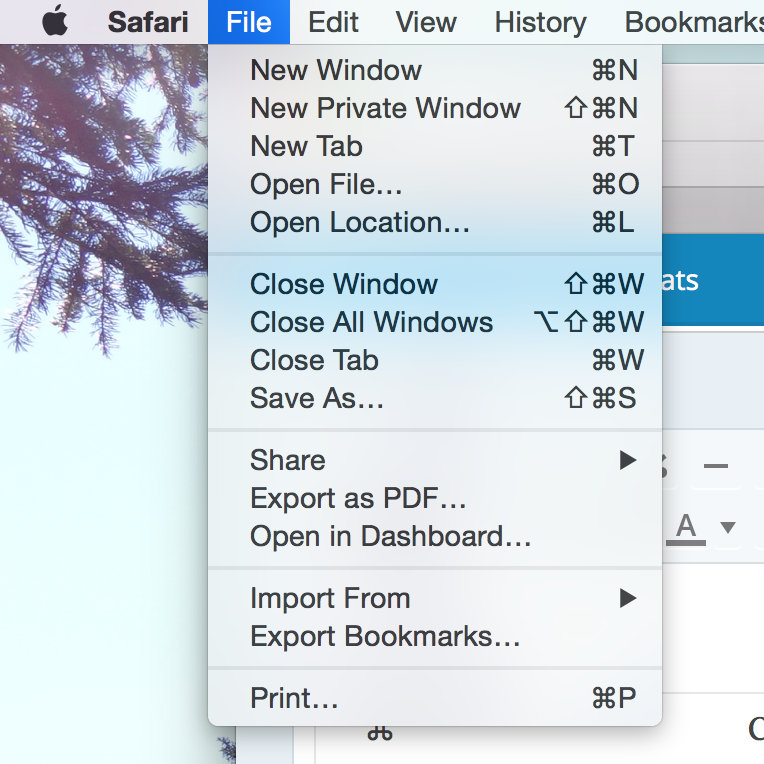
Keyboard shortcuts are listed next to commands in Mac OS X.
One thing I find very helpful on the Mac operating system is that the menus at the top of the screen include keyboard shortcuts for many of the commands in the menu. For example, in the photo to the right, you can see that to open a new window in Safari I would press Command (⌘) and N. The Command key, incidentally, is labelled with its symbol on Mac keyboards, but none of the other modifier keys are labelled with the symbols used in the menu lists. So below I’ve included a list of the symbols used for the most common modifier keys. (In the shortcuts I list below, I’ll use the written names like you see on the keyboard, but if you’re learning shortcuts from the menus this list will help.)
⌘
Command key
⌃
Control key
⌥
Option key
⇧
Shift Key
⇪
Caps Lock
fn
Function Key
Common commands
Control + mouse-click —–> Right-click
Command + X —–> Cut the selected item
Command + C —–> Copy the selected item
Command + V —–> Paste the selected item
Command + Z —–> Undo an action
Shift + Command + Z —–> Redo an action
Command + Tab —–> Switch between open apps
Command + Q —–> Quit the current app
Command + W —–> Close the current window (without quitting the app)
Command + M —–> Minimize the current window
Command + N —–> Open a new window in the current app
Command + F3 —–> Show the desktop
fn + Delete —–> Delete text like the Windows Delete key (the Delete key on a Mac normally acts like the Backspace key in Windows)
Working with files
Command + spacebar —–> Open Spotlight to search your computer
Command + A —–> Select all items (or all text if in a document)
Command + Delete —–> Send selected item(s) to the trash
Return (or Enter) —–> Rename selected item
Click an item, then hold shift and click another item —–> Select all items in between the two you clicked
Click an item, then hold command and click other items —–> Select all items clicked
For a more comprehensive listing, check out Apple’s list or this list compiled by Dan Rodney.
Douglas Engelbart with his newly invented mouse in 1968. Check out how big it is! (Photo courtesy of The New York Times)
Using a computer would not be nearly as easy as it is today without Douglas Engelbert’s most famous invention: the mouse.
We take for granted today how much more intuitive computers are because of the mouse. It was a remarkable invention.
Nevertheless, for certain tasks it’s still quicker to just use a keyboard, thanks to keyboard shortcuts.
Below I’ve compiled a list of the most common and helpful keyboard shortcuts for Windows. Feel free to print out this list, or copy it to a document on your computer for easy access. Once you start using the shortcuts more often, you’ll begin to memorize them, and that’s when you’ll really start to be able to work more quickly.
The Windows logo key is circled in red.
By the way, “Windows logo key” refers to the key pictured to the right. Unless otherwise noted, press all keys in the combination at the same time.
Note: This list applies to Windows 8. Most of the shortcuts apply to previous versions as well, but if you use Windows 7 you may appreciate this list specifically for your version.
Common commands
F1 —–> Show Help menu
Ctrl + X —–> Cut the selected item
Ctrl + C —–> Copy the selected item
Ctrl + V —–> Paste the selected item
Ctrl + Z —–> Undo an action
Ctrl + Y —–> Redo an action
Alt + Tab —–> Switch between open apps
Alt + F4 —–> Close the current item or page
Windows logo key + D —–> Show the desktop
Windows logo key —–> Show/hide the start screen
Working with files
Windows logo key, then start typing —–> search your computer
F3 —–> Search for a file or folder
Ctrl + A —–> Select all items (or all text if in a document)
F2 —–> Rename selected item
Click an item, then hold Shift and click another item —–> Select all items in between the two you clicked
Click an item, then hold Ctrl and click other items —–> Select all items clicked
Give some of these a try, and I bet you’ll find you can save some time on the computer. If this list whets your appetite for keyboard shortcuts, check out Microsoft’s full list. Mac users: don’t fret; your list is coming next week.
UPDATE: A reader let me know that F11 will take an Internet browser fullscreen without having to find the little “Maximize” button in the corner. Handy!
Do you have any favorite shortcuts I’ve missed? Let me know below.
The logos of Dropbox, iCloud, Google Drive, and OneDrive (clockwise from top left)
There are lots of companies that offer cloud storage, and several of them are quite well known. This post is going to focus on the services that I (subjectively) view as the major players, and which service is best for you.
I feel certain that there is no one cloud storage service that is best for everyone. Instead, I think that each has certain advantages depending on how you use it and which devices you use.
As I mentioned last week, I actually do not pay for storage from any of the companies that I will describe below. I use the free storage amount from several different companies: Dropbox, Google Drive, and iCloud from Apple.
This isn’t a very practical long-term solution, because I’ve got many more files on my computer and other devices than can fit in the free storage allotments. And the more providers I sign up for, the harder it gets to keep track of what files I’ve stored on which service.
So I recommend using the free storage space each provider offers as more of a trial run. You get to see how the service works without plunking down your money first. Once you decide which one works best for you, then decide how much storage you need to pay for.
I’ve only recently begun to feel that paying for a cloud storage subscription might be worth the money for my family. By using those three services, I’ve started to get an idea of which one I’d prefer to pay for.
So without further ado, here’s a comparison of the four main cloud storage providers[1].
Dropbox
Dropbox is the platform that really first made cloud storage usable for the ordinary folks like us. It’s also unique on this list because the company was created around this cloud storage service; the others on the list are branches of much larger tech companies.
Pricing: 2GB free…1TB $10/month
Pros: Available on almost any device, simple pricing plan, very customizable
Cons: Smallest amount of free space, not automatically integrated with Google, Apple, or Microsoft
Best for: People who own a mixture of devices, such as an iPhone, Windows PC, and Kindle Fire.
Google Drive
Formerly known as Google Docs, Google Drive is available with any Google or Gmail account. Included with Android phones, whose software is made by Google.
Pricing: 15GB free…100GB $2/mo…1TB $10/mo (Free space is shared with Gmail and Google+ storage)
Pros: Most free storage, familiar design to users of Gmail’s website/apps
Cons: Stores and shares files, but not many other features
Best for: Android phone users or people who use Google products heavily
OneDrive (Microsoft)
Formerly SkyDrive, Microsoft has revamped their cloud storage service and OneDrive is a big part of their focus with the newer Windows operating systems.
Pricing: 15GB free…100GB $2/mo…200GB $4/mo
Pros: Works extremely well with Microsoft Office, generous free storage
Cons: File sharing not as simple as others
Best for: Microsoft Office users or those with newer Windows computers/tablets
iCloud Drive (Apple)
Formerly called just iCloud, Apple’s revamped storage service was updated this fall. iCloud Drive is notable for features tied in with Apple devices, such as backing up the entire device and locating the device if you lose it.
Pros: Coordinates data and settings between multiple Apple devices, new family sharing helpful for family accounts
Cons: Less free storage, no Android app
Best for: Those with multiple Apple devices
Conclusions
As you can see, pricing is very competitive between the providers. I expect storage allowances to continue to rise in the coming years, making it even more feasible to store almost everything on your computer in the cloud.
To me, the biggest difference among the services is the integration with other software/hardware made by the companies.
Dropbox only does cloud storage, and is a good option for those with a variety of device types. Outside of those rare cases, I think it’s at a disadvantage because it’s not tied in with one of the other major companies.
For those who use Google or Apple products heavily, I think Google Drive or iCloud Drive will work really well. I use Apple products heavily and love the features of iCloud, and I’m sure the same is true for Google/Android fans.
OneDrive (the only one of these I haven’t personally used) seems like a great fit for those who use Microsoft Office often, or have a newer Windows PC or tablet. If you use the newer versions of Windows or Microsoft Office, I’d recommend giving OneDrive a try. It’s not as well known, but I see it as a great option for many people.
——————–
Which of these do you use, and what’s been your experience? Do you have a favorite I haven’t mentioned? Join the conversation below! I’d love to hear from you.
1 – Amazon also has a cloud storage service. Although I haven’t included it in this comparison, if you use Amazon frequently or own their devices (such as Kindles), consider checking out what they offer here.
10 years ago, if you mentioned “the cloud” to me I would have looked up at the sky. If that’s your first reaction to the phrase, don’t worry! “The cloud” is one of the most-used and least-explained tech terms right now. Let’s put it in plain English.
What is cloud storage?
Since computers were invented, data has been stored on physical media (punch cards, floppy disks, thumb drives, etc.). When you want to transfer data from one computer to another, you physically carry your storage media from one computer to the other.
For example, I start writing a report on my work computer, save it to a thumb drive, and then plug the thumb drive into my computer at home to finish editing the report. That’s how most of us are used to doing things.
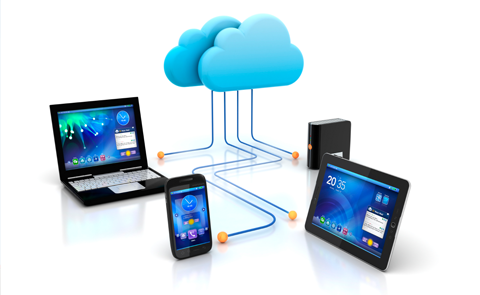
This is what “the cloud” might look like — if it were an actual cloud. (But really, this is a pretty good illustration of how data is stored in a remote location and can be accessed by multiple devices.)
When people refer to “the cloud,” what they generally are talking about is data being stored in a server (i.e. a specialized computer) that’s connected to the Internet. This means any computer connected to the Internet can have access to that data, even at the same time.
So in practice, I would start my report at work, save it to the cloud, then log in and edit it from my home computer. When I’m finished, I can download a copy to store it on my computer if I want. Notice that in this situation I don’t have to physically carry anything home with me. The document is stored on a hard drive that’s connected to the Internet, and the hard drive is owned and maintained by the company providing the service (such as Dropbox).
Benefits of cloud storage
Cloud storage has been exploding in popularity. The services that are most well-known include Google Drive, Dropbox, Microsoft’s OneDrive, and Apple’s iCloud Drive. (I’ll compare these in detail next week to help you figure out which might work best for you.)
Google, in fact, makes a line of inexpensive computers (Chromebooks) with relatively tiny hard drives, specifically because they expect that users will store almost all their data on Google Drive.
As I mentioned, I can download or edit my document in the cloud from any computer with Internet access. I can give other people permission to access it, also from any computer with Internet access.
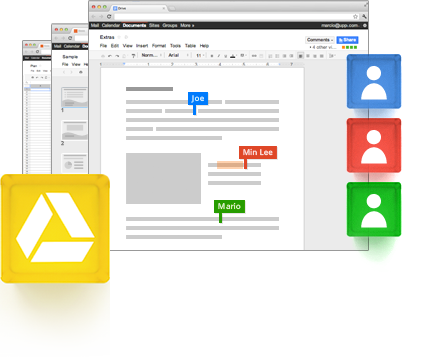
Joe, Min Lee, and Mario editing a document at the same time, from different locations (in Google Drive)
This allows for another major benefit of cloud storage: multiple people can edit a document at the same time, collaborating in real time and seeing each other’s changes as they happen.
Until now, I’ve been discussing cloud storage in relation to computers. Perhaps you’re thinking, Why shouldn’t I just use a thumb drive? Every computer has a USB port.
That’s true, but more and more people are creating and using data on devices like smartphones (taking photos, for example). Many of these portable devices don’t have USB ports, so cloud storage allows people to access and share data much more easily than they would otherwise.
For example, if I kept all my photos on my phone, it would quickly run out of storage space. But if I upload the photos to a cloud storage service, I can access all of them anytime my phone has Internet access. Plus, I can also view them from any other device I use.
Are you starting to see the benefits?
Disadvantages of cloud storage
Of course, there are downsides to cloud storage compared to saving your stuff on your hard drive. Let’s touch on the main ones.
First, and this is the one that keeps me from using cloud storage more, most companies that offer cloud storage charge a monthly or yearly subscription. The cost depends on how much storage space you choose. Typically a small amount of storage is free, such as 5GB on iCloud Drive. This is enough space for a lot of text documents. But if you add in music or photos, that space will be eaten up quickly. And then you’ll pay for the higher storage amounts. (Again, I’ll give more details next week.)
Thumb drives and external hard drives aren’t free either, and you’ll have to weigh the upfront cost of buying that type of storage compared to the subscription cost of cloud storage. I’ve become very used to having my files stored in a drive I physically own, and it’s hard to get used to the idea of paying regularly for the storage.
Second, data you store in the cloud is physically stored in some remote location, not on your desk. This means you’re trusting that your data will be available when you want and won’t just disappear. Also, it means that someone can potentially hack into your account and steal your files.
For the record, I bet every cloud storage company backs up their customers’ data better than you back up your own computer. As for hackers, it seems that hacking situations are caused more often by people using easy-to-guess passwords or reusing passwords from other accounts, than by companies using poor security on their end.
Either way, I wouldn’t keep personal/confidential files in cloud storage, and I would make sure that my most important files are also stored on a hard drive I own.
Third, data stored in the cloud is only accessible to you when you have Internet access. Internet access is growing, and some devices like smartphones are connected even when you travel. But keep in mind that what you put in the cloud can only be accessed when your device is Internet-connected.
You should use cloud storage, but which provider?
I think cloud storage will continue to be used even more often in the future. It will be especially helpful for those who own multiple devices and want to share files between them.
I’ll help break down the differences between the major cloud storage providers in next week’s post, so stay tuned! Until then, I hope this overview helped you understand what exactly cloud storage is. If you have any questions about it, please ask them below. I’d love to hear from you!
This blog’s been on hiatus for a few weeks. While I was away from the blog, my wife started another semester of grad school. I’d been getting used to using our computer while she was on break, but now she takes our laptop to campus with her every day.
That leaves me with our iPad as my primary “computer.” I feel very blessed to have a second option to use when our laptop isn’t available. I know many people don’t have access to one computer, much less two.
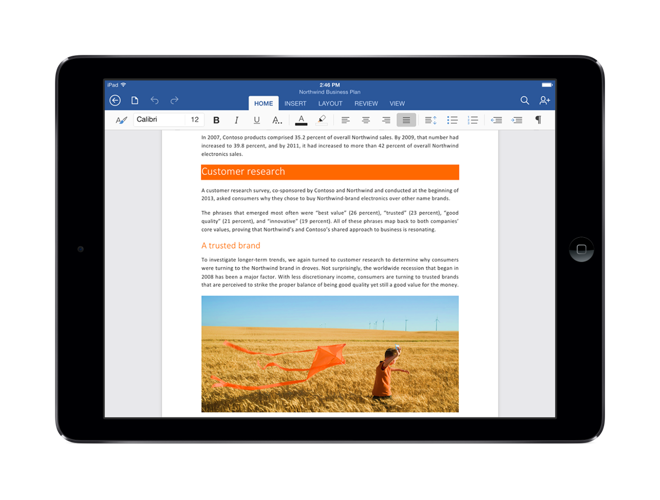
Microsoft Office on an iPad (Photo courtesy of appleinsider.com)
But it reminded me of a question that I’d been thinking about earlier this summer: could I use a tablet as my primary computer? I’ve grown up using computers, first Windows, then Mac, and only within the last couple years have I been using a touchscreen interface on a tablet or smartphone.
Tim Cook, the CEO of Apple, recently said he does 80% of his work on his iPad. A tablet is considerably cheaper than a laptop with similar power. But to have only an iPad in the house, no laptop, wouldn’t I need to be able to do 100% of my work on the iPad? 80% wouldn’t cut it.
Now, I’d be shocked if the CEO of Apple doesn’t own a laptop (along with every other device the company makes). But he hints at a trend that’s been happening for decades: computing devices have become more powerful while also becoming smaller.
Tasks that used to require a desktop computer can now be done on a tablet, such as writing a report or recording a song. But not every task is doable on a tablet, and some that are doable just aren’t as efficient.
For example, I’m a video editor by trade. While I can do a certain level of editing on my iPad through apps like iMovie, it’s still not comparable to editing on a full-fledged computer. The iPad doesn’t have the storage space for all the video files I use, and the touch interface makes precise edits more difficult than with a mouse.
That’s why, for me, a tablet won’t be able to replace my computer…not yet at least.
So what do you use your computer to do? Watching videos, reading books, writing papers, and sending emails are all tasks that can be done just as well on a tablet as on a computer.
If you use a computer and only do those types of activities, you probably could go with a tablet as your primary computer.
You may find that particular workflows that are familiar on a laptop are not possible or not as easy on a tablet. But I think tablets have caught up to computers on most basic tasks.
One last thought: if a tablet is going to be your primary computer, don’t make a hurried choice. Make sure you try different ones and find the right size, operating system, and power to meet your needs.
Do you use an iPad or another tablet? What activities do you find more comfortable on a tablet than a computer? What about vice versa? I’d love to hear from you below!
After reading my earlier post about the differences between PCs and Macs, a reader wrote in with a follow-up question: “I’ve heard the life expectancy is longer for a Mac, is this true?”
That seems to be a fairly common assumption, especially among Mac owners (who probably paid more for their computer than their PC-toting friends).
My personal experience seems to agree with that premise, but I’m one of those Mac owners who paid more for my laptop than the average person.
So I want to see some hard evidence before I call it fact. And I haven’t found any. Every source I’ve found seems to be more personal anecdotes.
I think most people would agree that Macs are built of more durable materials than all but a few PCs (aluminum vs. plastic, etc.)
However, that brings me to one of my biggest frustrations about Macs (and Apple hardware in general): Macs are not user-upgradeable.
Once upon a time, if your Mac was starting to run slowly, you could buy more memory and install it yourself. If your battery no longer held much juice, you could buy a new one and swap it out. That kept the computer functional for at least a couple more years.
Not anymore. Now, the outside of the computer is shut with special screws and most parts inside are glued or soldered in place. This is a trend that Apple began several years ago and doesn’t show any signs of slowing down.
This may make for a more durable computer (especially in a laptop), but it also means you need to pay close attention to the memory, hard drive, etc. when you’re purchasing the computer because you won’t be able to upgrade them later.[1]
In conclusion: while I do think Macs offer the best user experience for most people, I don’t think they necessarily have a longer life expectancy than PCs.
Fill out the form below with a question or comment. I’d love to hear from you!
1 – I think the RAM (aka memory, or how well the computer can multitask) is a much higher priority for upgrading at purchase, because you can always plug in an external hard drive or thumb drive to add additional storage to the computer down the road. No such options exist for RAM.
Living dangerously can be exciting! That’s why some people love skydiving or rock-climbing. On the other hand, using Windows XP is dangerous, but not exciting. If you use a computer with Windows XP (or have a friend who does), this quick post is really important for you! (If you’re not sure, Microsoft’s amirunningxp.com website will tell you right away.)
Microsoft has ended support for Windows XP[1]. It’s a 12-year-old operating system, and this is a normal thing Microsoft does as it continues to introduce new versions of Windows. But it’s a big, big, BIG deal for people still using XP.
Operating system market share as of June 2014 (Photo courtesy of netmarketshare.com)
Why is this a big deal? First of all, check out the chart to the right. 1 out of 4 computers still runs Windows XP (the green wedge of the pie). That’s a lot of people affected by this end-of-support date! So if you’re still a Windows XP user, you’re not alone.
So what makes Windows XP dangerous? Well, Microsoft (and Apple) regularly offer free updates for their operating systems that users can download or install. These updates are primarily help protect your computer from newly-discovered hacks, viruses, and other bad stuff out there. Microsoft will no longer be providing these security updates for Windows XP!
In other words, Windows XP computers will become prime targets for hackers, because there are so many computers still running it and the hackers know Microsoft will no longer fix vulnerabilities that are found. Microsoft patched about 100 XP vulnerabilities last year alone[2]. This year they will patch ZERO (again, this isn’t a mistake by Microsoft; it’s normal procedure).
So what should you do? Well you have two options:
Option 1: Install Windows 8 on your current computer.I DON’T RECOMMEND THIS, mainly because if you have Windows XP, your computer likely doesn’t have the power to handle the new operating system well, if at all. (It will also cost $119 or $199, depending on the version.)
Option 2: Buy a new computer. Look, I hate telling you to go spend money. But Windows XP isn’t safe to use anymore! My recommendation is to buy a new computer with a newer operating system included. Feel free to check out this great laptop buying guide from Walt Mossberg or my post last week on Macs vs. PCs.
Bottom line: you’ve got to move on from Windows XP for security reasons, but a newer computer and software will serve you well.
If you want some danger in your life, I’d recommend skydiving or rock climbing instead of Windows XP.
What topics do you want to hear about? Submit your question or comment below!

 Microsoft last month announced the upcoming release of their newest operating system, Windows 10. (Yes, their previous OS was Windows 8. They skipped Windows 9 apparently.)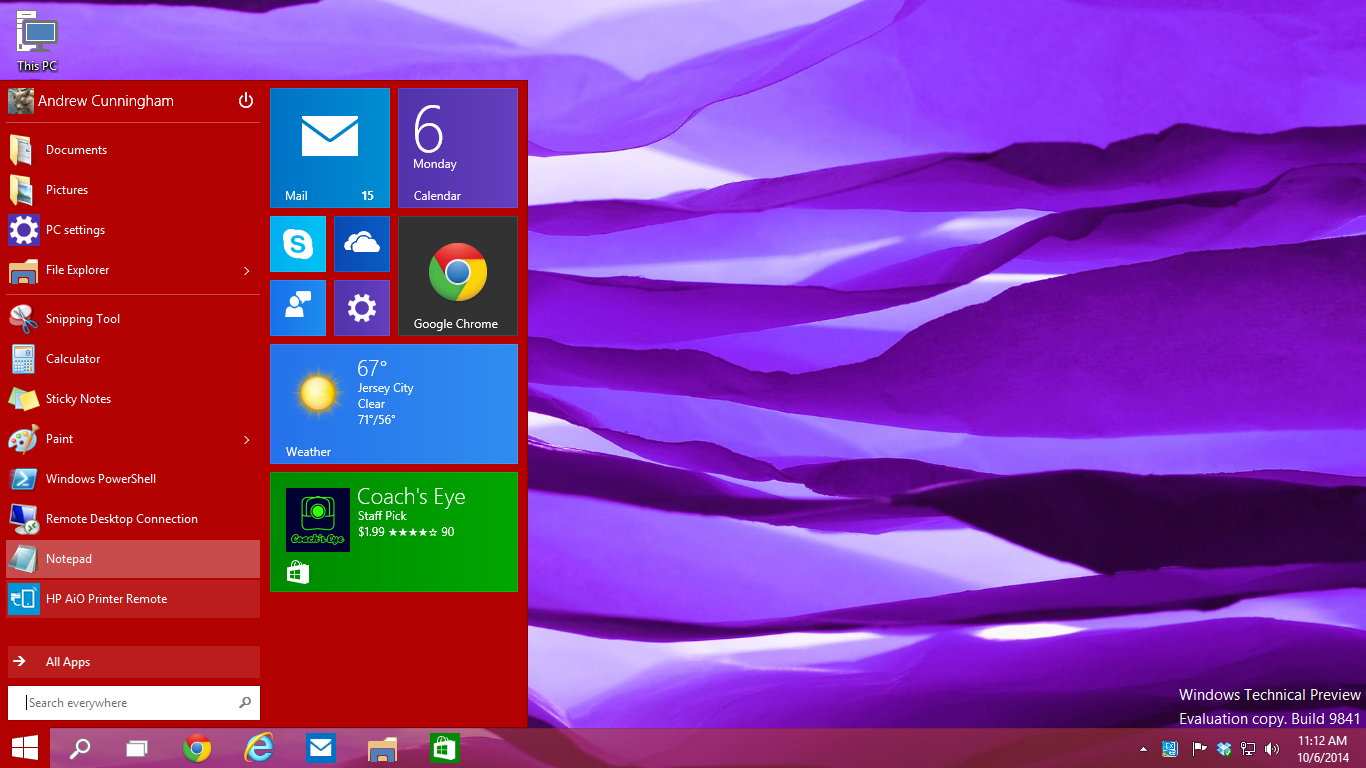









 Paul B. Brown | Video Producer