Brands and deals – Television buying guide part 3

Note: this is the third and final part of my TV buying guide, 2014 edition. In the first part, I talked about high definition options and 3D. In the second part, I discussed the pros and cons of smart TVs.

As I mentioned in last week’s post, if you’re buying a smart TV, make sure the user interface is easy-to-use and all the apps you want are available. You’ll want to try out your options in person, like in a store or at a friend’s house. As you do, I think you’ll find that the brand name makes a big difference.

The importance of the brand

The biggest brand names in the TV market these days are Samsung, LG, and Panasonic. These four brands make up the vast majority of Consumer Reports’ top 2014 TV sets.

Sony and Sharp are also very popular TV brands. Vizio is a newer, American brand that’s become popular by offering TVs with premium features with a lower price tag.

There are a few names, such as RCA, Philips, or Westinghouse, that are recognizable but still definitely budget options in the world of TVs. Other budget options include store brands, such as Best Buy’s Insignia line, and newer Asian brands, like Hisense and Seiki.

So what’s the difference between them?

In general, the picture quality of your TV depends more on the settings you select in the menu than the manufacturer of the TV. In fact, the LCD panels in many off-brand TVs are actually manufactured by big names like Samsung.

You’ll probably find that the menus and settings options are easier to use and understand on the higher-end brands. For example, many of their TVs come with “picture modes,” which can adjust the settings to various presets. I’d recommend looking for a Cinema or Movie mode.

If you’re upgrading from a TV that’s more than 5 or so years old (and especially if it’s the old tube-style CRT TV), you’re likely to see an impressive improvement in picture quality with a new TV from even the cheapest manufacturer.

When it comes to smart TVs, though, the brand name can make a HUGE difference. This is because the quality of your experience depends largely on the software the manufacturer has designed for the TV. The ease of navigation and search, plus the pleasantness of the visual layout, are very different between a top brand and a budget brand. There are certainly exceptions, which is why I recommend trying before you choose.

Looking through Consumer Reports’ 2014 TV ratings, there’s definitely a pattern: Samsung has by far the most recommended models (32), with Panasonic (18) and LG (12) coming in next. Sony (6), Vizio (4), and Sharp (4) are the only others with multiple recommended models. That’s pretty top-heavy, and if you know Consumer Reports, you know they don’t recommend products based on brand name but rather on testing the product itself.

Samsung logo
Samsung gets my recommendation for best TVs.

In my limited experience, Samsung also leads the pack in smart TV features and ease-of-use. (Again, take that with a grain of salt and try them for yourself.)

Samsung is easily my top recommendation for a smart TV.

When to buy?

The most advertised TV sales are almost certainly during the week leading up to the Super Bowl and Black Friday. According to Consumer Reports, the best times to buy a TV include January (pre-Super Bowl) and November (Black Friday), but also March and December.

Black Friday line at Best Buy
Black Friday shoppers wait in line at Best Buy

Why? December coincides with holiday shopping and the related sales. March is actually the time of year when many TV manufacturers release new models. So if last year’s model will suit your needs, you may be able to find the best deal in March (if you get to your choice before it sells out). Plus, you won’t have to wait in a crazy line for hours.

Keep in mind, though, that there are sales all year round, and if your research reveals a particular model that fits your needs and budget, you probably won’t have to wait months to find a deal on it. There are websites that can track the price of a certain product and notify you when it goes on sale.

Extended warranty?

Whether you buy in a physical store or online, you’ll more than likely be offered the chance to purchase an extended warranty or protection plan. I’ve previously discussed why I don’t feel these are worth adding on to your purchases, and my thoughts are no different on TVs. In fact, Consumer Reports’ research shows that most TVs encounter problems within their first year, or not until the end of their lifespan. The manufacturer’s warranty should be enough for you.

Deeper discounts available?

I mentioned earlier the best times of the year to get great TV deals, including March, when last year’s models go on clearance. Even deeper discounts can often be found in open-box items.

If you’re thinking about getting an open-box TV, make sure to check whether it was purchased and returned, or a floor model. If it was purchased and returned, feel free to buy it after checking the store’s return policy. The customer might have brought it home only to find it was too small or the wrong style for his living room. If by chance he wasn’t happy with the quality of the TV, you should have a chance to try it and return it if you’re not happy. With TVs, most manufacturing problems will be noticeable right away.

On the other hand, stay away from floor model TVs. The bulbs in a TV have an expected lifespan, and that floor model was probably running on full brightness for at least 12 hours a day, 7 days a week. Even with LED TVs, whose bulbs should last a long, long time, that’s a lot of time those bulbs have already been burning by the time you bring the TV home.

Final thoughts

  • As I mentioned in part 1 of this buying guide, look for an LED TV that’s 1080p HD if your screen size will be around 50″ or above. 720p is fine if your screen is smaller than that.
  • Make sure it has enough ports for what you’ll connect, especially HDMI ports.
  • In part 2 I explained why I’m skeptical of smart TVs’ longevity, but the newest and best TVs are all smart TVs. If you go with a smart TV, make sure to get a top brand with an interface that’s easy to use.
  • Speaking of brands, Consumer Reports shows Samsung to be the best overall manufacturer, and LG or Panasonic look to be your other top choices.
  • Avoid extended warranties and floor model discounts, but a great deal can be found in a clearance model from last year or a returned open-box TV.

Let me know if this helped. If you have other questions, please ask me below!

-Paul

Go back

Your message has been sent

Warning
Warning
Warning
Warning

Warning.

Smart TVs – Television buying guide part 2

Note: this is the second part of my TV buying guide. The first post discussed TV resolutions and connections.

If you’ve been shopping for TVs lately, you’ve come across the term “smart TV.” So what’s a smart TV? It’s a TV that connects to the Internet and allows you to watch content from online: movies from Netflix, TV shows from Hulu, or (my guilty pleasure) YouTube compilations of cats falling clumsily.

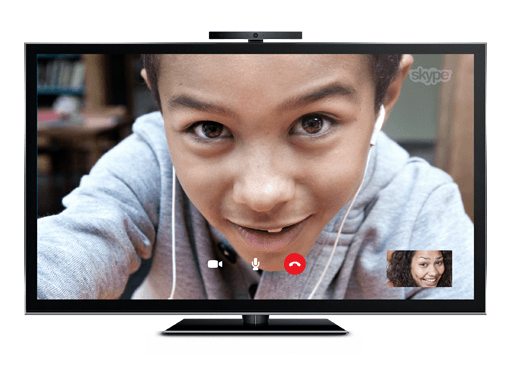
Skype on a smart TV
Your family can literally be larger than life with video calls on a smart TV

The fact that the TV is connected to the Internet also allows for more unusual uses, such as Skyping with an attached webcam or listening to music through your surround sound speakers with an online music service like Pandora.

These activities used to be relegated to your computer. Now you can enjoy them in your living room on the biggest screen in your house. It’s fantastic to have those abilities.

But I’m still not sure my next TV will be a smart TV. And here’s why.

A potential downside: longevity

Ever since televisions were invented, they served as passive screens simply displaying the video signal fed into them. The video signals came from devices such as antennas, then cable and satellite dishes, then VCRs and DVD players.

A smart TV is different; it’s essentially an all-in-one computer, like an iMac. There’s a small, streamlined computer housed behind the screen, connecting to the Internet and serving you content from various online sources. It works well, and frankly I’ve been pretty impressed by how it works on demo units I’ve seen in stores.

But how long will that computer, and the “smart TV” experience it provides, feel quick and modern?

My suspicion is that the TV’s computer “guts” will feel slow and the software will feel outdated long before the TV screen itself seems inadequate. (This is the same reason I’m skeptical of cars with a built-in screen and computer system.)

Now, it could be argued I’ve kept using my current TV longer than the average person…but I doubt it. I won’t embarrass my parents by publishing exactly how old their TVs are, but both are much older than their computer. I suspect the same is true for most people.

If you tend to get a new TV every few years, this may not be much of a problem for you. But for those of you who don’t, there are other options for accessing online content.

Another option: streaming boxes

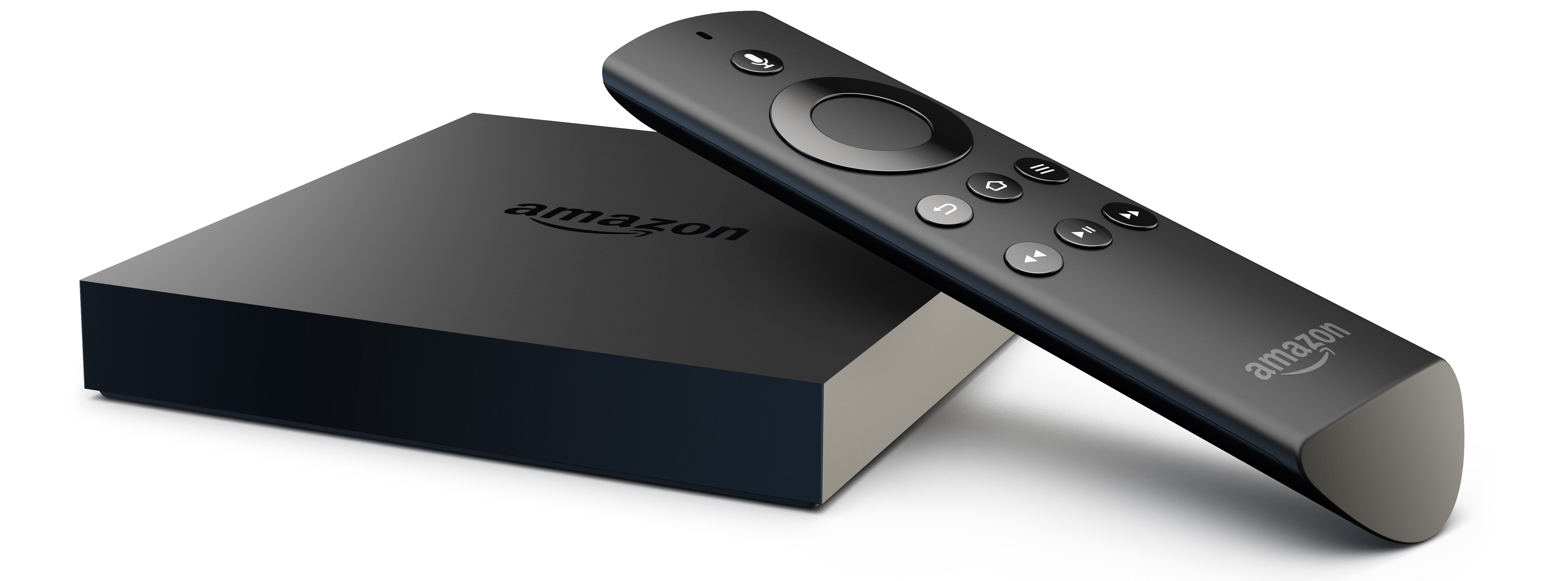
Amazon Fire TV
Amazon’s new Fire TV streaming box

In fact, you may already own a device that can access online content. I’m thinking primarily of streaming boxes, such as a Roku, Apple TV, Fire TV, or Chromecast. Gaming consoles such as a Playstation or Xbox also have some streaming connectivity, and so do many Blu-ray players. And of course, your laptop might also able to connect to your TV when you want to watch something on it.

The benefit of a smart TV over these is simplicity (in theory). Instead of connecting another box and having another remote, it’s built into the TV itself. The ease of use may vary widely, depending on the TV manufacturer and the software it makes (more on that later). But in general, it means one less box to connect, one less cable to plug in, and one less remote to keep track of.

However, streaming media boxes such as a Roku or Apple TV cost $100 or less, and the Google Chromecast costs only about $35. I can live with having to replace one of those with the latest version every few years. I don’t see myself replacing my whole TV that often.

My worry is that when the computer components of your smart TV are out-of-date, you’ll be left with a screen that still works great. You’ll have three options: buy a new smart TV, use your smart TV with its slow or frustrating interface, or buy one of the aforementioned streaming boxes to do what your smart TV no longer can…which is exactly the thing you were avoiding by buying the smart TV in the first place.

That’s why I won’t be paying extra to get a smart TV. A dumb TV will still allow me to plug in my antenna, Blu-ray player (which streams Netflix, YouTube, etc.), and even my computer if I want.

If you don’t use or plan to use streaming video services, then a smart TV would probably be just adding an extra layer of complexity to your living room relaxation.

That being said, you rarely have the choice between a smart TV and a “dumb TV” these days. At the more expensive end of the TV market, almost every single TV is a smart TV. If you’re getting a TV above $1000, it will almost certainly be a smart TV, and even most TVs above $500 are smart TVs now.

Even if you don’t plan to use smart TV features, there’s a good chance you’ll end up with one, and you might be surprised how much you enjoy some of the features on it.

What to look for

So what separates one smart TV from another? The apps that are available and the televisions’ ease of use.

Samsung app store
Samsung’s smart TV app store

Almost every smart TV includes Netflix support, but if you want to use other streaming services or social media, make sure all those apps are either pre-installed or available through the manufacturer’s app store. If you want to use your new big screen for video calls, see if there’s an included camera or if you’ll need to connect a webcam on your own. Most smart TVs connect via Wi-Fi, but make sure yours does, because you probably won’t want to run an ethernet cable to it to provide Internet access.

The other big question: how easy-to-use are the smart services? A smart TV that’s frustrating to use defeats the whole purpose. If you stream content from multiple Internet services, see if the TV will show you results from all the services when you search for ‘Forrest Gump.’ Does the menu feel cluttered, or is it easy to find the app you’re wanting to use?

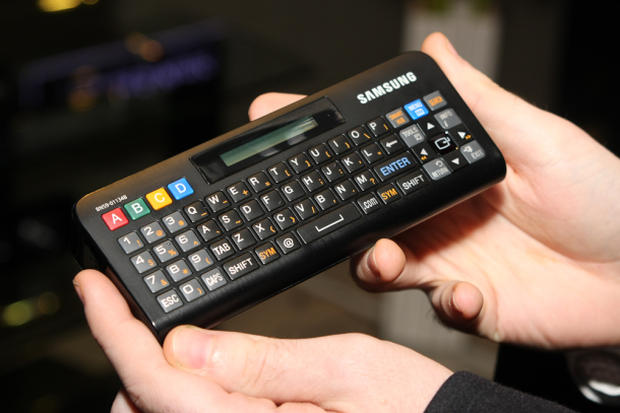
Samsung QWERTY remote
An example of a QWERTY remote

A key factor in ease-of-use is the remote. A full QWERTY keyboard on the remote will help you search much more quickly. Newer smart TVs come with remotes that let you move an on-screen pointer by aiming the remote at the screen (a la the Wii remote). Are there shortcut buttons on the remote for the streaming services you’ll use most often?

Conclusion

LG smart TV interface

Differentiating between smart TVs is difficult to do unless you’re using them in person. If you’re looking at the latest and greatest sets, the manufacturers’ websites may give good demos of their smart TV features. For last year’s models or budget brands, you’ll probably need to try out the smart TV at a friend’s house or in a store.

Think of smart TVs as an all-in-one computer, one with an operating system you’ve never used before. You shouldn’t buy just based off the screen size and quality; you’ll want to see how it actually functions first.

In short, I don’t recommend you pay more for a smart TV, if a dumb TV model fits your budget and suits your needs. But if you do get a smart TV, make sure you’re getting one that’s easy to use and has the apps to meet your viewing habits. That will probably mean looking for a model from a top brand.

Speaking of brand names, next week’s post will cover which brands to look for, and how much brand name matters. Plus, what time of year is best to buy a TV, and more!

-Paul

Got an idea for a future blog topic? Send it to me below. Thanks!

Go back

Your message has been sent

Warning
Warning
Warning
Warning

Warning.

TV resolution – Television buying guide part 1

Family watching TV
A stereotypical family watching TV together…don’t they look like they’re having fun?

I recently heard from a reader in Boston who told me he and his wife are thinking about buying a new TV in the near future. What options are there in the TV market these days, he asked, and what should they look for?

The television market has seen a couple major shifts over the past decade or so, first from “tube” TVs to flat-panel LCD models (and high definition capability). Within the past few years, we’ve seen so-called “smart TVs” appear and become quite popular. It seems we’re starting to see another big shift that seems imminent: the arrival of “Ultra High Definition” TVs.

My wife and I are also thinking about a new TV, so I’ve been researching these options and I’ll break them down for you here.

This week, we’ll cover what to look for in TV hardware.

In part 2, we’ll look specifically at what smart TVs offer, and whether they’re a good choice for you.

In part 3, we’ll take a look at whether brand names are important, and I’ll give advice on how to find the best deals when TV shopping.

Let’s dive in!

A first warning!

TV wall in-store
Don’t compare the pictures among the TVs on the TV wall!

The first thing I want to mention (and I can’t stress this enough) is NEVER EVER UNDER ANY CIRCUMSTANCES choose a TV based on how the picture looks on the display wall at a store. NEVER!!!

Why? The lighting in the store is totally different than the lighting you’ll have in your house when you use it, plus the brightness, contrast, and other settings are cranked all the way up to make the TV wall as eye-catching as possible. You will never adjust the settings like that at home, so it doesn’t at all give you a realistic idea of what the picture will look like in your living room.

On the other hand, comparing options in person can be very helpful in other ways. For example, you get a good idea of how wide the bezel is (the frame around the edge of the screen) or how deep the body of the TV is. Plus, you can get a clearer perspective of how big a 32-inch or 65-inch screen actually is[1].

LCD vs. Plasma

The vast majority of TVs available today are LCD TVs. Plasma TVs are the main alternative, especially in larger screen sizes. Another description you’ll see often is LED TV. Let’s break those down.

An LCD TV weighs much less than a similar size plasma TV, is usually thinner, and typically uses less electricity. LCD screens also have less glare than plasma screens, so I’d recommend plasma screens only for people who will usually be watching in a dark environment. The main advantages of plasma TVs is that they have deeper blacks in the picture (again, great for dark rooms) and they’re usually a bit less expensive.

LED TVs are simply a newer kind of LCD screen, and LED TVs are lighter, thinner, and have deeper blacks than older LCD screens. If you happen to be comparing a TV that says “LED” on the box to one that just says “LCD,” the LED one is better. By now, almost all LCD TVs in stores use LED technology, so these terms are pretty much interchangeable.

For most people, I definitely recommend an LED TV[2].

Only look at a plasma TV if it’s going in a place where you’re always going to watch in the dark, and you don’t mind a heavier and bulkier TV.

3D or not 3D?

3D technology in TVs is fairly new, and it remains to be seen if it’s a lasting trend. My guess is it’s a fad. 3D movies are available, but more expensive, and 3D live television doesn’t seem to be catching on.

That said, I’ve only watched a 3D TV in a store, never someone’s living room, so it may be a much better experience than I know. Many high-end TVs include 3D capability anyway, so if you’re getting it, why not use it?

I advise you not to pay more for a TV simply to get 3D. If you do go with 3D, you’ll also need a 3D Blu-ray player and 3D movies, plus perhaps extra 3D glasses.

HD, but which HD?

Just about every single TV available today is a high definition TV (HDTV). However, there are different “levels” of HD, and they affect how much detail you can perceive in the picture[3].

720p HD is high definition, but it has the fewest pixels of the HD sizes — in other words it shows less detail than the others. Many smaller TVs are 720p HD, but as I’ll explain in a moment, that’s not necessarily a bad thing.

1080p HD is also known as “Full HD,” and it’s the next step up from 720p. Until the past year or so, it was the best resolution you could buy, and it’s still the most common format you’ll see in stores.

TV resolution chart
This chart will help you see whether you’ll notice the difference between HD resolutions, depending on your screen size and distance from the TV. Click to enlarge. (Chart courtesy of Carlton Bale)

Whether you’ll notice a difference between 720p and Full HD depends on the size of the screen and how far away from it you sit. The chart to the right is from a very detailed article by Carlton Bale. From 10 feet away (the distance I’m guessing is in the average living room) your eyes probably can’t see the extra details of Full HD on screens smaller than about 50 inches. If you sit closer than that or watch a bigger screen, you’ll start to notice more detail in Full HD.

The newest level of HDTVs is “Ultra HD” (often also called “4K”). These TVs can show even more detail than Full HD, but again the difference you see depends on your screen size and distance from it. As the chart above shows, at 10 feet away from the TV you’ll need a screen larger than 75 inches to start noticing the difference between 4k and 1080p.

Plus, at this point, it’s still hard to find content to watch in Ultra HD resolution, and Ultra HD TVs are still very expensive. I think Ultra HD is the way of the future, but it’s a future that’s at least a couple years away. Don’t buy a 4K TV yet.

Bottom line: for TVs 50″ or above in a typical living room, make sure you’re getting a 1080p (a.k.a. Full HD) TV. For smaller TVs, 720p should be fine, but 1080p won’t hurt.

The right connections

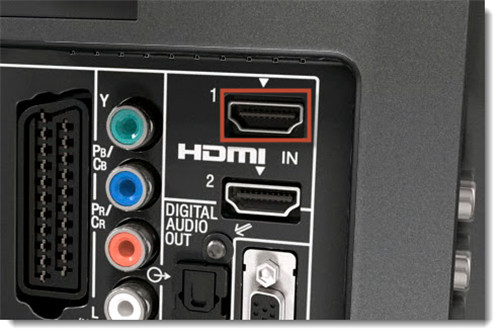
HDMI port on a TV
HDMI port on a TV (in the red box)

The other main thing you’ll want to look for in TV hardware is connections. HDMI is the most common and highest quality connection, so make sure you have enough HDMI ports for all the peripherals you have or might get (such as Blu-ray player or Xbox). If any device can connect to the TV with an HDMI cable, do it. So the more HDMI ports the TV has, the better.

A USB port can be handy for viewing photos on a USB thumb drive. Also, if you have a standard definition device like a DVD player that connects via another connection (such as red, white, and yellow component cables), make sure the TV has those connections as well.

Next week: Smart TVs

The outside of the TV isn’t the only part getting changed lately — the insides of many TVs have also been undergoing a serious overhaul.

I’m referring to “smart TVs,” and next week I’ll explain what they are and whether you should get one. Stay tuned!

-Paul

Let me know below if there’s a topic or question you’d like me to tackle next!

Go back

Your message has been sent

Warning
Warning
Warning
Warning

Warning.

1 – TV screen size is measure diagonally from corner to corner. So if you’re trying to visualize how big a TV will be in your living room, break out the tape measure and hold it diagonally across the rectangle you’re visualizing. Make sure to add an inch or two for the bezel around the screen.

2 – One other option you may see is OLED screens, which are currently only found in a few high-end TVs. These combine the best of LED and plasma TVs, but they’re at least a few years away from being affordable for the average family.

3 – I need to point out that the detail you can see if affected by both the source and the screen you are viewing it on. For example, DVDs are NOT high definition picture quality, so if you watch a DVD on a high definition TV, the TV can’t show an HD picture — it won’t be showing all the detail it’s able to. The same is true with cable or satellite if you don’t have an HD subscription. On the other hand, if your source is HD, such as a Blu-ray movie, you can only see its high definition details if your TV is an HDTV.

Cloud storage humor!

For those of you who have been reading my posts about cloud storage the last couple weeks, you may appreciate this timely FoxTrot cartoon that was published this past Sunday:

FoxTrot cartoon about cloud storage
Cartoon by Bill Amend. Published October 5, 2014.

(If you missed it, you can check out my two-part blog post about cloud storage here: part 1 and part 2.

What topics would you like me to cover? Let me know below!

-Paul

Go back

Your message has been sent

Warning
Warning
Warning
Warning

Warning.

Which cloud storage service is best for you?

Note: this is a follow-up to last week’s explanation of cloud storage.

Cloud storage comparison
The logos of Dropbox, iCloud, Google Drive, and OneDrive (clockwise from top left)

There are lots of companies that offer cloud storage, and several of them are quite well known. This post is going to focus on the services that I (subjectively) view as the major players, and which service is best for you.

I feel certain that there is no one cloud storage service that is best for everyone. Instead, I think that each has certain advantages depending on how you use it and which devices you use.

As I mentioned last week, I actually do not pay for storage from any of the companies that I will describe below. I use the free storage amount from several different companies: Dropbox, Google Drive, and iCloud from Apple.

This isn’t a very practical long-term solution, because I’ve got many more files on my computer and other devices than can fit in the free storage allotments. And the more providers I sign up for, the harder it gets to keep track of what files I’ve stored on which service.

So I recommend using the free storage space each provider offers as more of a trial run. You get to see how the service works without plunking down your money first. Once you decide which one works best for you, then decide how much storage you need to pay for.

I’ve only recently begun to feel that paying for a cloud storage subscription might be worth the money for my family. By using those three services, I’ve started to get an idea of which one I’d prefer to pay for.

So without further ado, here’s a comparison of the four main cloud storage providers[1].

Dropbox

Dropbox logoDropbox is the platform that really first made cloud storage usable for the ordinary folks like us. It’s also unique on this list because the company was created around this cloud storage service; the others on the list are branches of much larger tech companies.

Pricing: 2GB free…1TB $10/month

Pros: Available on almost any device, simple pricing plan, very customizable

Cons: Smallest amount of free space, not automatically integrated with Google, Apple, or Microsoft

Best for: People who own a mixture of devices, such as an iPhone, Windows PC, and Kindle Fire.

Google Drive

Google DriveFormerly known as Google Docs, Google Drive is available with any Google or Gmail account. Included with Android phones, whose software is made by Google.

Pricing: 15GB free…100GB $2/mo…1TB $10/mo (Free space is shared with Gmail and Google+ storage)

Pros: Most free storage, familiar design to users of Gmail’s website/apps

Cons: Stores and shares files, but not many other features

Best for: Android phone users or people who use Google products heavily

OneDrive (Microsoft)

OneDriveFormerly SkyDrive, Microsoft has revamped their cloud storage service and OneDrive is a big part of their focus with the newer Windows operating systems.

Pricing: 15GB free…100GB $2/mo…200GB $4/mo

Pros: Works extremely well with Microsoft Office, generous free storage

Cons: File sharing not as simple as others

Best for: Microsoft Office users or those with newer Windows computers/tablets

iCloud Drive (Apple)

iCloud DriveFormerly called just iCloud, Apple’s revamped storage service was updated this fall. iCloud Drive is notable for features tied in with Apple devices, such as backing up the entire device and locating the device if you lose it.

Pricing: 5GB free…20GB $1/mo…200GB $4/mo…500GB $10/mo…1TB $20/mo

Pros: Coordinates data and settings between multiple Apple devices, new family sharing helpful for family accounts

Cons: Less free storage, no Android app

Best for: Those with multiple Apple devices

Conclusions

As you can see, pricing is very competitive between the providers. I expect storage allowances to continue to rise in the coming years, making it even more feasible to store almost everything on your computer in the cloud.

To me, the biggest difference among the services is the integration with other software/hardware made by the companies.

Dropbox only does cloud storage, and is a good option for those with a variety of device types. Outside of those rare cases, I think it’s at a disadvantage because it’s not tied in with one of the other major companies.

For those who use Google or Apple products heavily, I think Google Drive or iCloud Drive will work really well. I use Apple products heavily and love the features of iCloud, and I’m sure the same is true for Google/Android fans.

OneDrive (the only one of these I haven’t personally used) seems like a great fit for those who use Microsoft Office often, or have a newer Windows PC or tablet. If you use the newer versions of Windows or Microsoft Office, I’d recommend giving OneDrive a try. It’s not as well known, but I see it as a great option for many people.

——————–

Which of these do you use, and what’s been your experience? Do you have a favorite I haven’t mentioned? Join the conversation below! I’d love to hear from you. 

–Paul

Go back

Your message has been sent

Warning
Warning
Warning
Warning

Warning.

1 – Amazon also has a cloud storage service. Although I haven’t included it in this comparison, if you use Amazon frequently or own their devices (such as Kindles), consider checking out what they offer here.

Cloud storage explained

10 years ago, if you mentioned “the cloud” to me I would have looked up at the sky. If that’s your first reaction to the phrase, don’t worry! “The cloud” is one of the most-used and least-explained tech terms right now. Let’s put it in plain English.

What is cloud storage?

Since computers were invented, data has been stored on physical media (punch cards, floppy disks, thumb drives, etc.). When you want to transfer data from one computer to another, you physically carry your storage media from one computer to the other.

For example, I start writing a report on my work computer, save it to a thumb drive, and then plug the thumb drive into my computer at home to finish editing the report. That’s how most of us are used to doing things.

Cloud storage
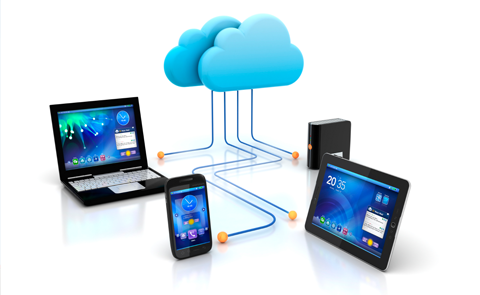
This is what “the cloud” might look like — if it were an actual cloud. (But really, this is a pretty good illustration of how data is stored in a remote location and can be accessed by multiple devices.)

When people refer to “the cloud,” what they generally are talking about is data being stored in a server (i.e. a specialized computer) that’s connected to the Internet. This means any computer connected to the Internet can have access to that data, even at the same time.

So in practice, I would start my report at work, save it to the cloud, then log in and edit it from my home computer. When I’m finished, I can download a copy to store it on my computer if I want. Notice that in this situation I don’t have to physically carry anything home with me. The document is stored on a hard drive that’s connected to the Internet, and the hard drive is owned and maintained by the company providing the service (such as Dropbox).

Benefits of cloud storage

Cloud storage has been exploding in popularity. The services that are most well-known include Google Drive, Dropbox, Microsoft’s OneDrive, and Apple’s iCloud Drive. (I’ll compare these in detail next week to help you figure out which might work best for you.)

Google, in fact, makes a line of inexpensive computers (Chromebooks) with relatively tiny hard drives, specifically because they expect that users will store almost all their data on Google Drive.

As I mentioned, I can download or edit my document in the cloud from any computer with Internet access. I can give other people permission to access it, also from any computer with Internet access.

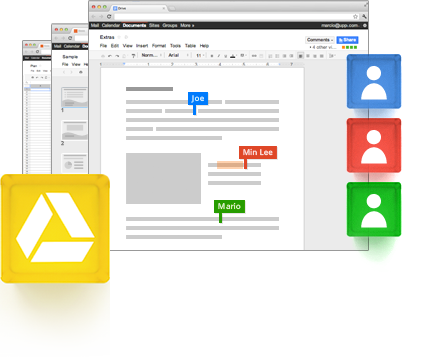
Google Drive collaboration
Joe, Min Lee, and Mario editing a document at the same time, from different locations (in Google Drive)

This allows for another major benefit of cloud storage: multiple people can edit a document at the same time, collaborating in real time and seeing each other’s changes as they happen.

Until now, I’ve been discussing cloud storage in relation to computers. Perhaps you’re thinking, Why shouldn’t I just use a thumb drive? Every computer has a USB port.

That’s true, but more and more people are creating and using data on devices like smartphones (taking photos, for example). Many of these portable devices don’t have USB ports, so cloud storage allows people to access and share data much more easily than they would otherwise.

For example, if I kept all my photos on my phone, it would quickly run out of storage space. But if I upload the photos to a cloud storage service, I can access all of them anytime my phone has Internet access. Plus, I can also view them from any other device I use.

Are you starting to see the benefits?

Disadvantages of cloud storage

Of course, there are downsides to cloud storage compared to saving your stuff on your hard drive. Let’s touch on the main ones.

First, and this is the one that keeps me from using cloud storage more, most companies that offer cloud storage charge a monthly or yearly subscription. The cost depends on how much storage space you choose. Typically a small amount of storage is free, such as 5GB on iCloud Drive. This is enough space for a lot of text documents. But if you add in music or photos, that space will be eaten up quickly. And then you’ll pay for the higher storage amounts. (Again, I’ll give more details next week.)

Thumb drives and external hard drives aren’t free either, and you’ll have to weigh the upfront cost of buying that type of storage compared to the subscription cost of cloud storage. I’ve become very used to having my files stored in a drive I physically own, and it’s hard to get used to the idea of paying regularly for the storage.

Second, data you store in the cloud is physically stored in some remote location, not on your desk. This means you’re trusting that your data will be available when you want and won’t just disappear. Also, it means that someone can potentially hack into your account and steal your files.

For the record, I bet every cloud storage company backs up their customers’ data better than you back up your own computer. As for hackers, it seems that hacking situations are caused more often by people using easy-to-guess passwords or reusing passwords from other accounts, than by companies using poor security on their end.

Either way, I wouldn’t  keep personal/confidential files in cloud storage, and I would make sure that my most important files are also stored on a hard drive I own.

Third, data stored in the cloud is only accessible to you when you have Internet access. Internet access is growing, and some devices like smartphones are connected even when you travel. But keep in mind that what you put in the cloud can only be accessed when your device is Internet-connected.

You should use cloud storage, but which provider?

I think cloud storage will continue to be used even more often in the future. It will be especially helpful for those who own multiple devices and want to share files between them.

I’ll help break down the differences between the major cloud storage providers in next week’s post, so stay tuned! Until then, I hope this overview helped you understand what exactly cloud storage is. If you have any questions about it, please ask them below. I’d love to hear from you!

Go back

Your message has been sent

Warning
Warning
Warning
Warning

Warning.

Should you update your iPhone to iOS 8?

iOS 8
iPhones running iOS 8

Just this week Apple released the latest version of their operating system for iPhones, iPads, and iPod Touches. It’s called iOS 8, and it’s a free upgrade for Apple users. Last year’s iOS 7 included visual changes to almost everything; it took a while to get used to. This year’s update looks very similar to iOS 7 and is more of a refinement, adding various features that most people will find useful.

If you’re an avid iPhone user, you’ve probably already upgraded. If you have an iDevice and aren’t sure if or how to upgrade to the newest operating system, I’ll help you out.

CAN you upgrade?

Apple’s official iOS 8 website says eligible devices are the following: iPhone 4S and later, iPad 2 and later, and iPod Touch 5th gen. and later. The biggest missing name from their last update is the iPhone 4, so if that’s your phone you won’t be able to get the newest update[1].

SHOULD you upgrade?

Every time Apple (or similar companies) update their operating systems, the new versions are typically designed to work best on the newest, most powerful hardware available (in this case, the newly announced iPhone 6). So this means that older phones, computers, etc. will run a little more slowly when upgraded to the latest system[2]. This is probably the main reason iPhone 4 and the original iPad aren’t included in this update.

If you have an iPhone 5, 5C, or 5S, any possible slowdown will be tiny, if not imperceptible. I’d say definitely upgrade. If you have the iPhone 5S, you’ll have the option to use the Touch ID fingerprint sensor to log in to all kinds of apps — one of my favorite new features.

Any of the iPads after iPad 2 (such as Air or Mini) should also handle the upgrade without a problem. Definitely upgrade. If your device is one of these, feel free to skip to the next section.

But the iPhone 4S and iPad 2 will run more slowly on iOS 8, and probably noticeably so. Ars Technica has written a couple of good articles detailing what to expect if you upgrade your iPhone 4S or iPad 2.

I happen to use both these devices. I’ve already upgraded my iPhone 4S, and I think I notice various animations being a bit slower (so I actually turned some of them off to help a bit). However, to me the additional features and functions that were added made the upgrade worth the (at times) slower operation.

Another consideration: this is the smallest screen size Apple still sells, and some new features mean you’ll see even less on the screen than before when the keyboard is up.

I’m doubtful I’ll upgrade our iPad 2 to iOS 8. We most often use it for reading books or checking email. I rarely use it for messaging or other uses where new features seem really promising. I’m happy with the way iOS7 works with the ways we use it, and it seems a safe bet that it will also be noticeably slower with iOS 8. Based the Ars Technica article I mentioned earlier, I don’t recommend iPad 2 owners upgrade.

HOW do you upgrade?

Chris Breen of MacWorld wrote a step-by-step guide I highly recommend. I’ll give you the summary version.

First, back up your device. You can either do it on your computer with iTunes or back up to iCloud through Wi-Fi. The iOS 8 install shouldn’t erase anything, but things go wrong now and then. It’s always a good idea to back up your data.

To download the update and install it, you have two options. Download it wirelessly via the Settings app on your device, or plug the device into your computer with the USB cable and upgrade in iTunes.

The simpler way is probably from the Settings app, but if you have limited space on your device, you’ll want to do the install via iTunes. The installation file that’s temporarily downloaded can be several gigabytes in size.

I recommend starting this before you go to bed, because the installation file can take a long time to download depending on your Internet speed. Once it’s downloaded, it may take up to another hour to actually complete the installation.

Once complete, you’ll have to go answer a couple setup questions. For reasons explained here, if you also use a Mac and store files in iCloud, I’d choose “Not Now” when you’re asked if you want to upgrade to iCloud Drive. Do that once the new Mac operating system comes out in a month or two.

And that’s it! If you’re upgrading to iOS 8, enjoy the new features. Again, you can learn more about what’s new here and here.

Have you updated to iOS 8? What do you like or dislike so far?

I’d love to hear from you! Leave me a question or comment about anything below.

Go back

Your message has been sent

Warning
Warning
Warning
Warning

Warning.

1 – Frankly, iOS 8 would probably run so slowly on the iPhone 4 that you wouldn’t want to upgrade anyway.

2 – For the same reason, certain new features in any new operating system won’t work on older devices, even if they’re fast enough to run it without any problem.

Self-driving cars and why we shouldn’t be afraid of technology

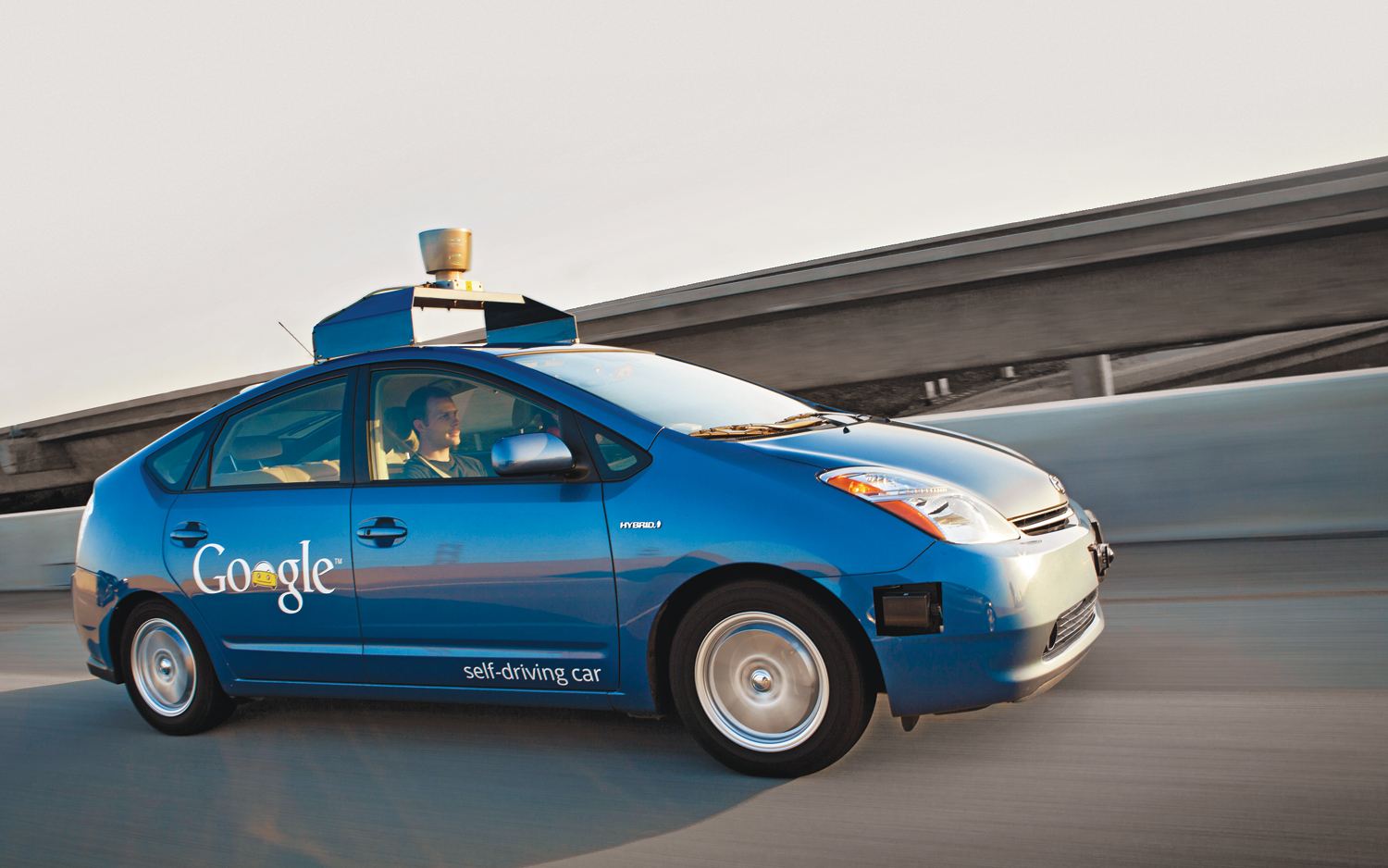
Google self-driving car
One of Google’s self-driving cars in action (Photo courtesy of motortrend.com)

Google is working on creating self-driving cars. They’ve already been testing these cars on roads in California. Think about that for a moment.

I think it’s a safe bet that within 10 years (probably less) we will start seeing self-driving cars on the road. You’ll look over at the car next to you, and the person in the “driver’s seat” will be fast asleep. How does that make you feel?

If it makes you nervous, you’re not alone. I’m no historian, but I think back to the books I read in high school English classes and I can remember several that painted worlds where technology had led to a terrible future (1984, Fahrenheit 451, and Brave New World come to mind). This fear of technology isn’t new.

Every technology can be abused, but each can be helpful in certain ways as well. I don’t think that should scare us. After all, isn’t that true of everything in this world around us, technology-related or not?

On an individual level, the reasons we fear technology are many. I’ve tried to boil this down to several primary reasons, but I’m sure there are more I haven’t thought of. I’ll try to unpack each of them, and then tell you why we needn’t fear technology for that reason.

Technology changes too quickly! 

For some people, this is an annoyance[1], but for others it’s really scary because we feel out of control. If I buy this, will it be out of date in two years? Why do I even need this thing? What are my kids doing on their phones these days?

It can be tough to keep up with the crazy pace of changing technology. The good news: most of the time we don’t have to. Do I really need a new TV with a bunch of features, or will a simpler one do the job? Do I need to upgrade at all? And if I buy a well-made gadget and take care of it well, then I probably won’t need to replace it as often as the advertisements tell me I should.

I don’t know how to use new technology! 

We’re all gifted in different areas, and for many people learning new technology is not where they’re gifted. Troubleshooting the gadgets you do own can also be really intimidating.

When it’s time to venture into unknown territory with some technology you’ve never used before, get someone to help you understand it. Look for a product that’s simple and durable. Sometimes that’s the newest model, but often it’s not. And don’t be afraid to ask for help when you’re learning how to use it. We’ve all run into problems we don’t know how to fix, so there’s no shame in asking for help.

I don’t want to become dependent on technology! 

Technology promises to make life easier, but what if it works too well? If Google went down, how would we learn anything? If my computer crashed, would I lose all the photos I’ve ever taken? 

The reality is we depend on technology every day. Refrigerator, car, medicine…they make our lives easier and we so often take that for granted. We place a lot of trust in things we have no control over every day, whether we realize it or not. I think we can choose to enjoy and be thankful for these blessings and still be mindful of the fact that we may not always have them.

Technology is make me (or my kids) dumber! 

Harry S Truman
The Google search took 0.25 seconds (Photo courtesy of whitehouse.gov)

Technology makes some things so much easier than they used to be. Parents often hand their young children their iPhone as a pacifier. Kids don’t memorize all the presidents, because they can just go to Google and see that the 33rd president was Harry S. Truman. (His middle name was actually the letter “S” by the way.) Children don’t even learn cursive in school anymore!

Things are certainly very different for this generation than previous ones. But hasn’t that always been the case? At some point in time, kids no longer had to go chop firewood because the family home was heated with oil. Did that make that generation lazier than their parents’ generation, who chopped wood as kids? No, and in fact it probably gave the children a bit more time to study or go to baseball practice or whatever else they were involved in.

I freely admit that many kids miss out on life experiences because they spend so much time staring at a screen. But that’s not the fault of technology; allowing that is a choice their parents make. I sometimes fall into the same problem those kids do. But it’s not my phone’s fault; it’s mine, because I choose how I interact with the technology around me.

Technology in the hands of the government/terrorists/hackers/corporations/public/robots will destroy society and the world as we know it! 

This is the fear in our hearts that is touched by so many dystopian novels, most recently and notably The Hunger Games. We fear that those with power will abuse technology for their own purposes. The fear is even greater when it’s a technology we’ve heard of but don’t understand.

To a certain degree this has been happening for centuries and I’d argue even millennia, whether the technology be related to farming, communications, weapons, or computing. And I have no doubt it will continue to happen; we can expect no less from imperfect, fallen people. But we need not fear it!

In Matthew chapter 6, Jesus says “Therefore I tell you, do not worry about your life, what you will eat or drink; or about your body, what you will wear. Is not life more than food, and the body more than clothes? Look at the birds of the air; they do not sow or reap or store away in barns, and yet your heavenly Father feeds them. Are you not much more valuable than they? Can any one of you by worrying add a single hour to your life?”

Worrying won’t help us.

In day-to-day life, let’s focus on using technology in ways that makes our lives simpler and more enjoyable. To the degree we can, let’s look for ways technology helps instead of hurts, and make sure those in power don’t abuse it. But instead of worrying about what we can’t control, let’s trust the One who does control everything and has promised to make all things new.

A vision of busy streets full of cars driven by computers can be scary. I can immediately think of many problems that might arise. But with human drivers, car crashes are already one the leading causes of death in the United States. Maybe self-driving cars will get us around more safely. And I also think of people who can’t physically drive a car (elderly, disabled, etc.) who would be able to maintain more independence with a car that can take them to the grocery store and back.

Like every technology, self-driving cars will be used in bad ways by some, but I’m equally sure they will also bring big and small benefits to many people. Let’s be thankful for the cars we have now, and if we ride in driverless cars one day, we can be thankful for that, too.

Did I miss anything? I’d love for you to be part of the conversation by commenting below and sending me a message.

Go back

Your message has been sent

Warning
Warning
Warning
Warning

Warning.

1 – For example, I owned every Star Wars movie on VHS…and then last one was released only on DVD. Annoying!

Can a Tablet Replace Your Computer?

This blog’s been on hiatus for a few weeks. While I was away from the blog, my wife started another semester of grad school. I’d been getting used to using our computer while she was on break, but now she takes our laptop to campus with her every day.

That leaves me with our iPad as my primary “computer.” I feel very blessed to have a second option to use when our laptop isn’t available. I know many people don’t have access to one computer, much less two.

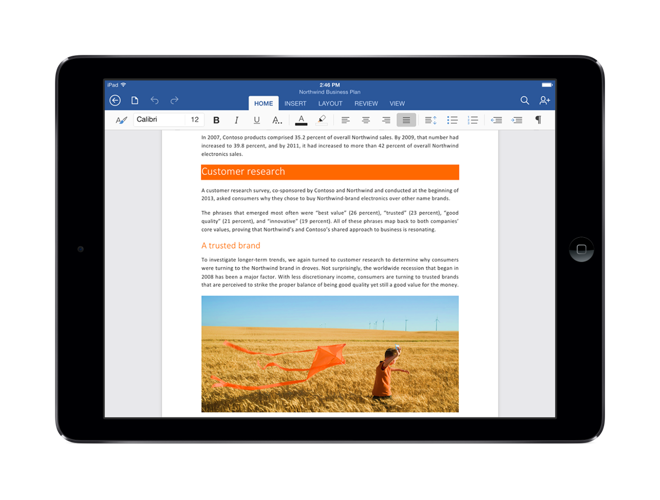
Microsoft Office on an iPad
Microsoft Office on an iPad (Photo courtesy of appleinsider.com)

But it reminded me of a question that I’d been thinking about earlier this summer: could I use a tablet as my primary computer? I’ve grown up using computers, first Windows, then Mac, and only within the last couple years have I been using a touchscreen interface on a tablet or smartphone.

Tim Cook, the CEO of Apple, recently said he does 80% of his work on his iPad. A tablet is considerably cheaper than a laptop with similar power. But to have only an iPad in the house, no laptop, wouldn’t I need to be able to do 100% of my work on the iPad? 80% wouldn’t cut it.

Now, I’d be shocked if the CEO of Apple doesn’t own a laptop (along with every other device the company makes). But he hints at a trend that’s been happening for decades: computing devices have become more powerful while also becoming smaller.

Tasks that used to require a desktop computer can now be done on a tablet, such as writing a report or recording a song. But not every task is doable on a tablet, and some that are doable just aren’t as efficient.

For example, I’m a video editor by trade. While I can do a certain level of editing on my iPad through apps like iMovie, it’s still not comparable to editing on a full-fledged computer. The iPad doesn’t have the storage space for all the video files I use, and the touch interface makes precise edits more difficult than with a mouse.

That’s why, for me, a tablet won’t be able to replace my computer…not yet at least.

So what do you use your computer to do? Watching videos, reading books, writing papers, and sending emails are all tasks that can be done just as well on a tablet as on a computer.

If you use a computer and only do those types of activities, you probably could go with a tablet as your primary computer.

You may find that particular workflows that are familiar on a laptop are not possible or not as easy on a tablet. But I think tablets have caught up to computers on most basic tasks.

One last thought: if a tablet is going to be your primary computer, don’t make a hurried choice. Make sure you try different ones and find the right size, operating system, and power to meet your needs.

Do you use an iPad or another tablet? What activities do you find more comfortable on a tablet than a computer? What about vice versa? I’d love to hear from you below!

Go back

Your message has been sent

Warning
Warning
Warning
Warning

Warning.

Do you need that much smartphone data?

Smartphone in use
How much data does your smartphone actually need?

If you have a smartphone, you probably know that your data plan is a big chunk of your monthly bill. But when was the last time you checked how much data you actually use? Are you paying for more data than you need?

What is data usage?

Data usage on a mobile device (most often a smartphone or tablet) is simply all information that is sent from or received by the device. (The exception is phone calls and text messages, which are counted separately from data.)

This includes text (emails, websites, etc.), audio (downloading songs, listening to online radio stations, etc.), video (watching Netflix, downloading a movie, etc.), and other uses (such as GPS navigation or downloading and using certain apps).

Here’s a good way to check what activities use data: put your phone in airplane mode. That way it can’t access any data at all. Certain functions will still work, like viewing photos you’ve taken on your phone. If a certain app or activity won’t work on airplane mode, then it needs access to data to work.

How much data do I use?

Now that you have an idea of what activities use data on your phone, you’ll want to find out how much data you’ve actually used in the past. Your monthly bill may show that, or you may have to log in to your phone carrier’s website.

Remember that many phone plans these days have begun counting shared data among all the devices on the plan. So if you have family members with smartphones, their data will also be counted toward the monthly limit.[1]

If you’re wanting to instead get an idea of what your data plan could be, or you want to know what activities use more data, check out one of these data calculators from the four major carriers. Pay attention to whether you are inputting monthly or daily usage for each site.

NOTE: data usage is the same regardless of which carrier you use,[2] so you don’t have to just use the calculator from your carrier. Feel free to try multiple ones; one might be more helpful than the others.

How can I limit my data usage?

If you’re interested in using less mobile data, I’ve got a couple of tips for you.

Remember that different activities use very different amounts of data (as shown by the data calculators above). Downloading mainly text, such as emails, uses a tiny amount of data. You could check email all day long and not come close to your limit.

Sending/receiving photos (such as uploading a photo to Facebook or sending as an attachment) uses more data. Streaming[3] audio uses still more, and streaming video uses the most data of all. This doesn’t mean you can’t enjoy those activities, but it helps to know the next tip.

Use Wi-Fi when possible. Data that your phone uses when connected to a Wi-Fi network (such as in your home) does NOT count against your data limit. So if you’re at home and your phone is connected to your home Wi-Fi network, stream all the music you want and download app updates at the same time; none of it will count against your total.

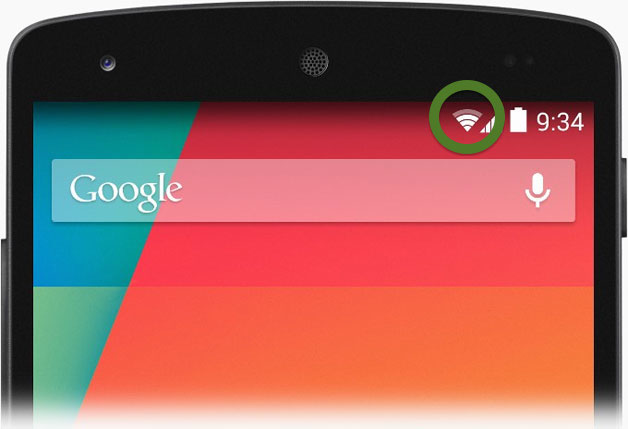
You will want to go into your phone’s settings and make sure that your phone is set to automatically connect to Wi-Fi networks it has previously used.[4] Also, check the status bar at the top of the screen to make sure that you see the Wi-Fi symbol before you start data-heavy activities. Below you can see it on Android and iPhone, marked with a green circle.

Android Wi-Fi symbol
Android phone with Wi-Fi connected (Photo courtesy of androidiani.com)
iPhone Wi-Fi symbols
iOS 6 (left) and iOS 7 (right) with Wi-Fi connected (Photo courtesy of extreme tech.com)

Restrict apps’ access to cellular data. When you’re not connected to a Wi-Fi network, your data usage is considered cellular data, and counts toward your limit. You can restrict your phone from using certain cellular data.

Apple has made this very easy starting with iOS 7. You can tell your iPhone or just particular apps to only use data when connected to Wi-Fi. Apple has a customer support page explaining this.

As far as I’m aware, Android only allows you to limit data used in the background (explained here). This prevents an app to use mobile data unless you actually open it. The newest Android version also has nice visual charts of data usage.

Taking action

Now that you know data isn’t counted against you when you’re connected to Wi-Fi, are there changes you would make when filling out the data calculators above? If you save your data-intensive activities for when you’re connected to Wi-Fi, you may be able to use far less cellular data than you first thought. Maybe you can even downgrade to a less expensive data plan!

————————————-

Do you enjoy reading this blog? If so, I’d love to hear from you! (If you’ve read this far but don’t enjoy it, I’d be glad to hear your thoughts, too.)

What topics do you want to learn about?

Go back

Your message has been sent

Warning
Warning
Warning
Warning

Warning.

1 – Your total may be counted in gigabytes (GB), and lowest data tier from most providers is about 1GB. If your total shows up in megabytes (MB), remember that 1,024 MB equals 1 GB.
2 – T-Mobile recently announced that their customers can stream music through certain apps without affecting their data usage. That’s the only situation I see where data usage would be counted differently among the carriers.
3 – Streaming means watching or listening to something in real time, such as music on Pandora or video on Netflix or YouTube. The opposite would be downloading the audio or video file to your device, and then watching it. Both options use data, but more and more often people are consuming music, movies, etc. on-the-go by streaming them rather than downloading them.
4 – Keep in mind that you shouldn’t do any sensitive activity (such as online banking or sending confidential information) unless you are on a Wi-Fi network with a secure log in and that you trust. Not McDonald’s free Wi-Fi!